Chapter 4. Advanced Setup
4-12
4
Advanced Setup
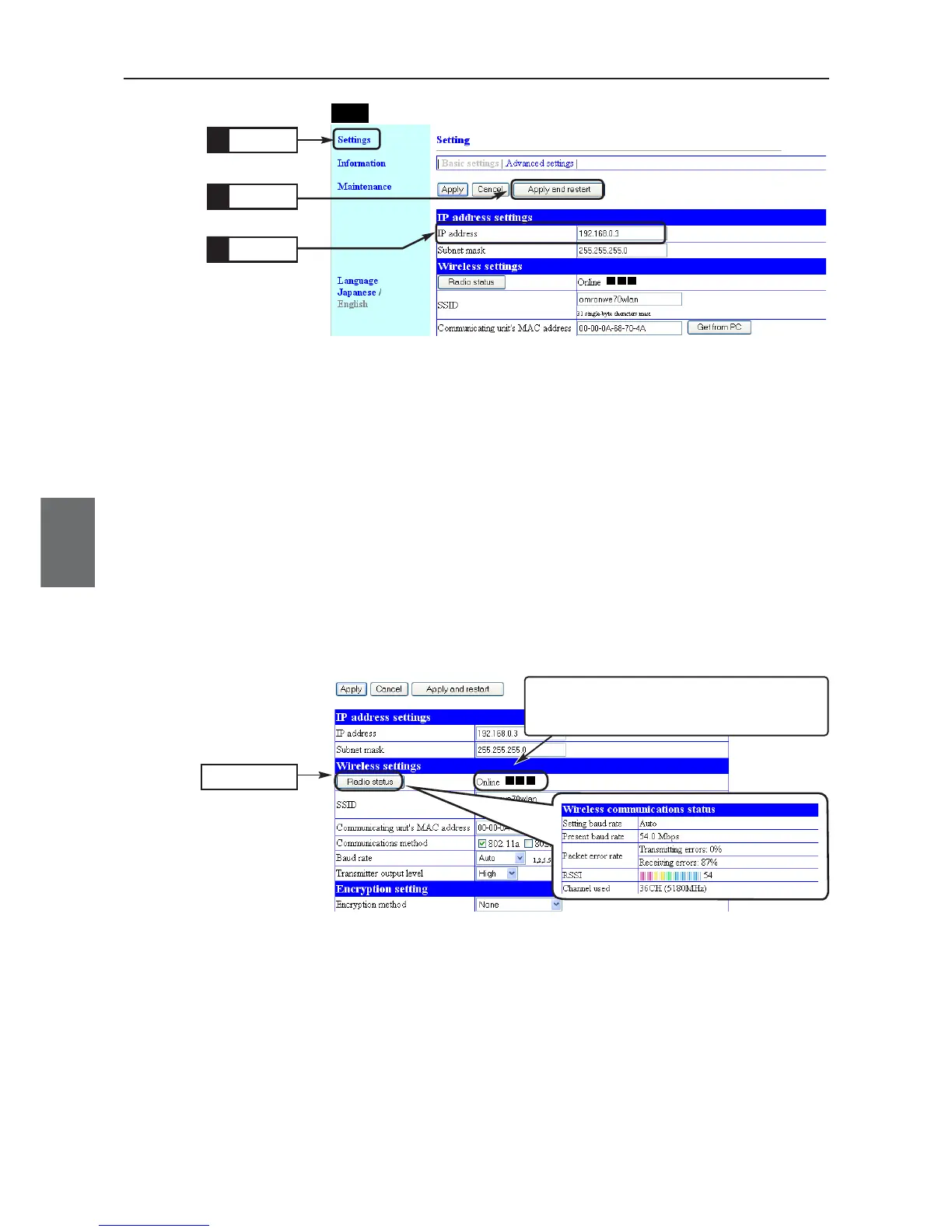
<Radio Status> Button......... Radio wave intensity that an access point can receive is displayed in the
right of this button. If the client has different SSID and/or encryption setup
from the access point, "Communication Unavailable" is displayed.
Radio wave intensity is displayed in 4 levels as shown below.
Levels may differ depending on a communication type.
• Level: □□□
■
□□
■■
□
■■■
0-8 9-14 15-20 21 or higher (in case of 802.11a)
0-13 14-19 20-25 26 or higher (in case of 802.11b/g)
Clicking <Radio status> allows monitoring of statuses of radio communi-
cation such as channels and communication speed in the [Wireless com-
munications status].
Click
If the client has different SSID and/or encryp-
tion setup from the access point, "Communi-
cation Unavailable" is displayed.
Step 3. Checking Communication
Verify that PC connected to a client (slave) can connect to an access point.
● To monitor radio status
(1) Select "settings" menu, "Basic settings".
• "Basic settings" screen is displayed.
• The screen displays "Online ■■■".
* "Communication Unavailable" may be displayed until the WWW browser screen is updat-
ed in a case such as after setup change.
(2) To monitor detailed status, click <Radio status>.
• An independent screen displays Wireless communications status infor-
mation.
* Information on the independent screen is updated every 0.5 seconds, while continuous
monitoring increases network load. Close the screen after verification.
Click
1.
Enter
2.
Click
3.
CL-1



 To Next Page