110
Polyend Play+ Manual Rev 2
NOTES
Sequencing Patterns
6
6.5 Pick & Place to Create A Pattern.
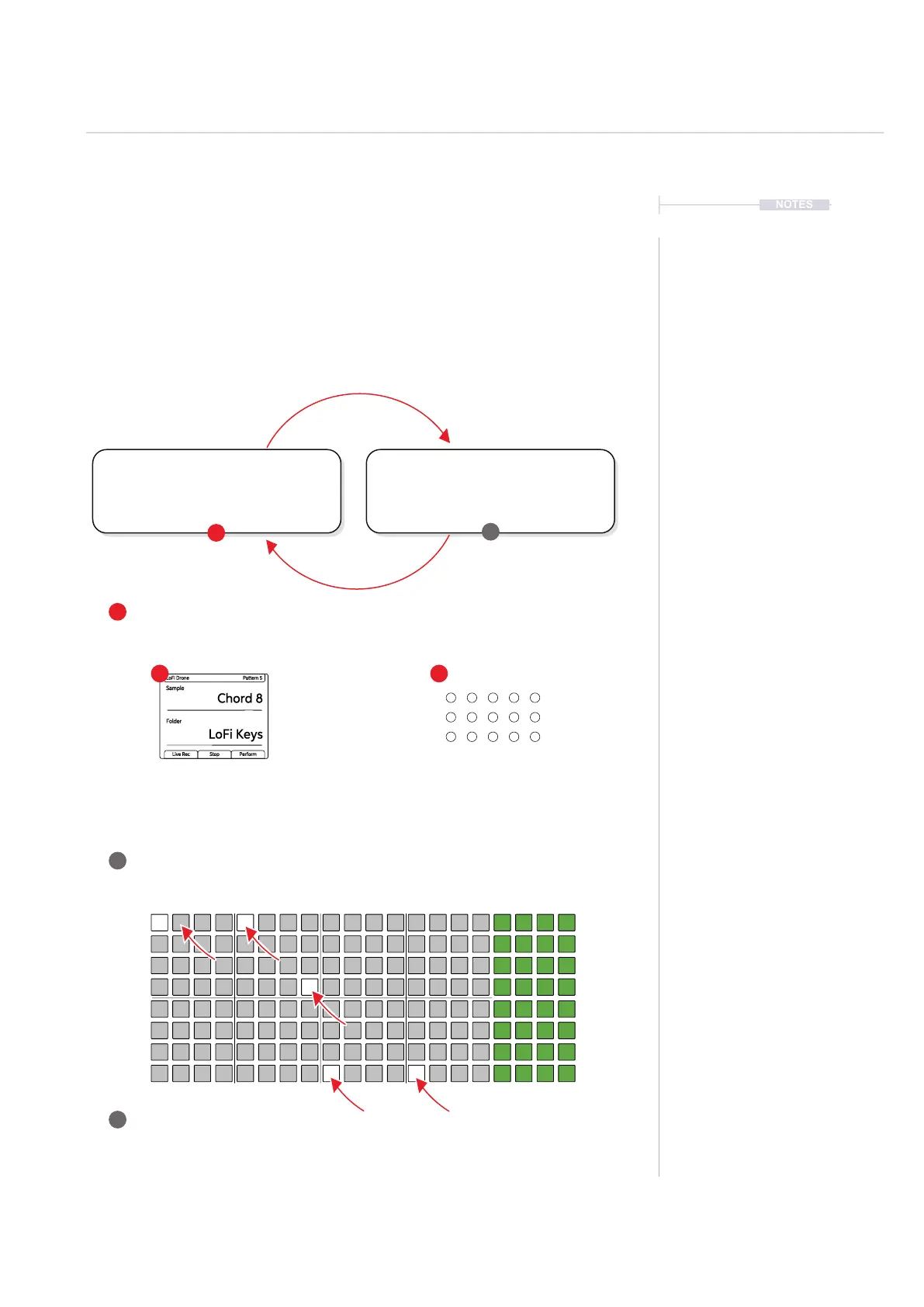
The rst step in sequencing a pattern in Play+ is to pick a sample or synth
and place it on the sequencer grid. This will populate steps in order to build
a melody or a beat. General selection of a sample or synth and
adjustments of its base parameters creates a work step. Subsequent
placement into steps on the grid will populate each step selected with the
same work step settings. This is performed in sequencer mode. All 3
Synths as well as samples can be combined together into a pattern.
Sample
Chord 8
LoFi Keys
LoFi Drone Pattern 5
Folder
Live Rec Stop Perform
2 3
4
5
1
Pick.
Select a sample from the folder or a synth
within synth mode by turning (Sample).
Adjust parameters to create a work step.
Select Sample / Synth
Tap and Turn (Sample) to select. Double
tap to select and turn to change the
sample folder or the synth patch.
Adjust Parameters
Adjust the sample or synth related
parameters in order to create a general
work step ready for placement.
Select Pattern
Press [Patterns] and select from the pattern grid a pattern to work on. Pattern 1 top
left. Press [Patterns] to switch back to sequencer mode to create the pattern steps.
Ensure Sequencer Mode
Ensure sequencing mode is visible. Press [Patterns] or [Perform] to switch back from
pattern and perform mode views. Pattern mode is used only to manage all patterns.
Sequence Steps
Tap on each desired grid steps to place the work step and create note steps. Empty
steps are unlit and note steps are lit white for samples or colored respective to each
synth. The sample or synth and settings are identical on each step placed.
Place.
Place the work step onto the sequencer
grid. Rows represent tracks and a sample
or synth can be placed on any track



 To Next Page