167
Polyend Play+ Manual Rev 2
Perform Mode
8
NOTES
▌ USING PUNCH-IN EFFECTS IN PERFORM MODE
1. Press [Perform] Screen Button to select Perform Mode. The screen tag
will be lit Yellow.
2. Select the Tracks to effect, Press [Select] Pad on the value button
column to select each track to apply punch in effects. If no tracks are
selected, a prompt will be displayed when selecting a perform pad.
3. Press [Play] or [Shift] + [Play] to play the selected pattern or chain of
patterns respectively.
4. Tap [Pad] from the pad grid to latch the effect selection;
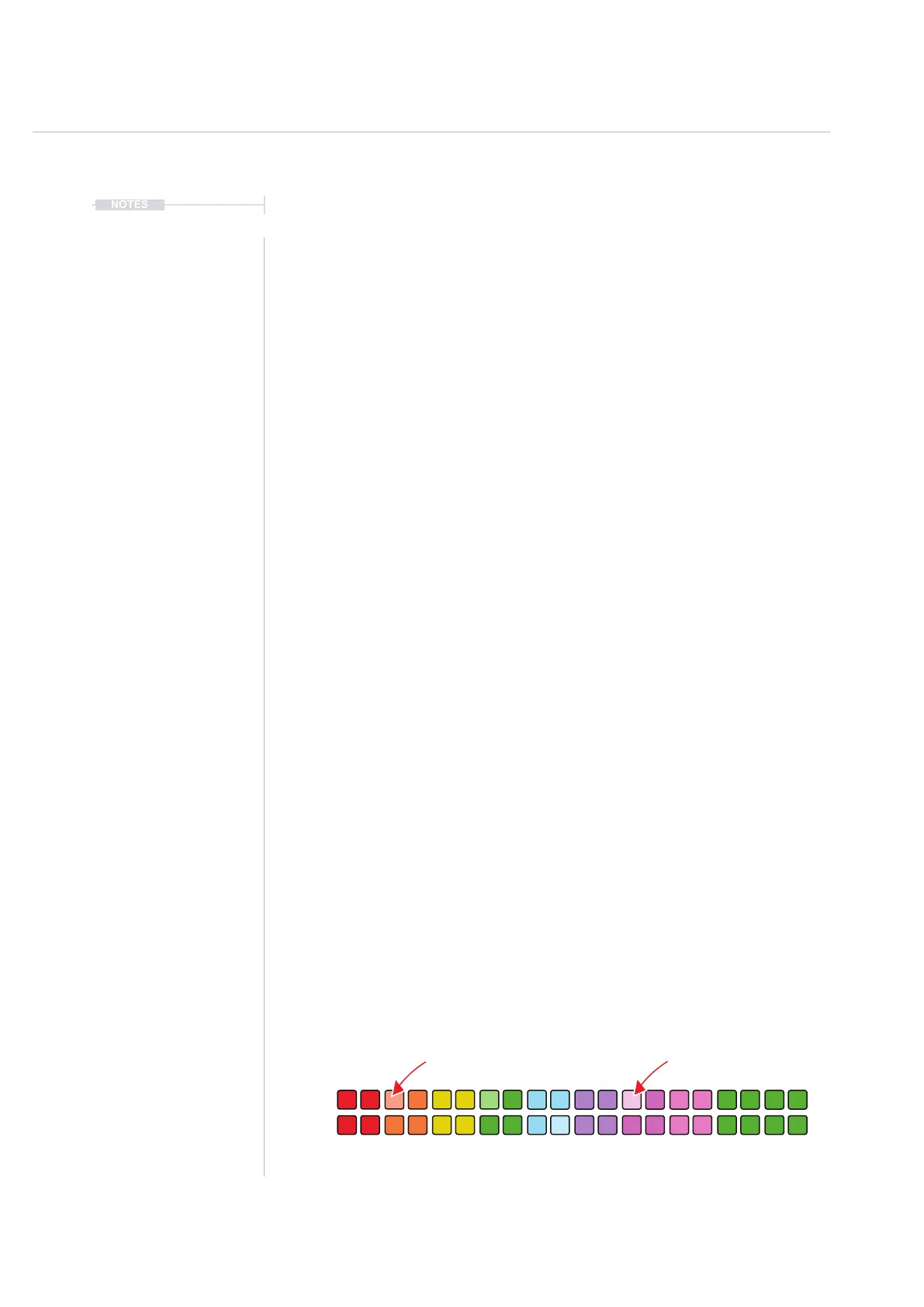
• The 8x16 pads will illuminate in color. Each color represents a
punch-in effect category each consisting of two columns, 16 pads of
effect variations.
• Tapping a pad will trigger and latch an effect. Holding a pad will
temporarily trigger the effect. Selected effects are lit brighter than
other pads.
• Only one punch-in effect per category can be applied and latched at
one time. Selecting another pad will deselect the existing effect and
latch the new one.
• The last selected effect will be displayed in the screen.
• Some parameter knobs can be adjusted to add more variation.
• All effect categories other than loop require a track to be selected.
• If no track is selected then changes will not be audible. The
exception is the Loop effects which remain audible.
5. Tap [Pad] again to deselect and unlatch a punch-in effect.
6. Press and Hold [Pad] to temporarily select a punch-in effect. The effect
will be released when the Pad is released.
Mute Solo Variation Select
Function Buttons
Tap [Pad] to Latch Hold [Pad] to Temporarily Trigger



 To Next Page