192
Polyend Play+ Manual Rev 2
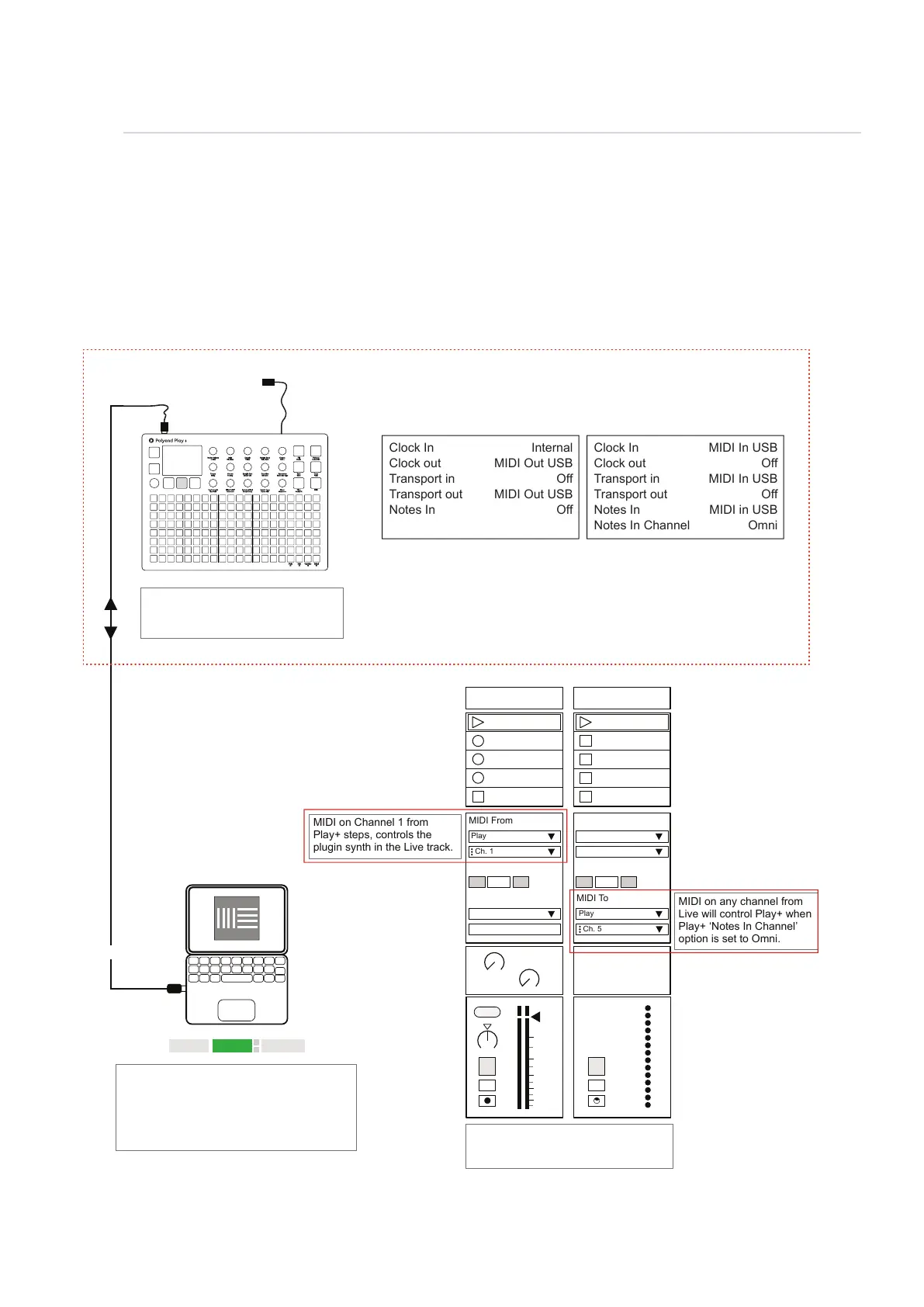
The ability to connect to a PC or Mac via a MIDI connection is possible, which can allow software
synths and plug-ins to be controlled by Play+. Play+ will need a hub or will need to be powered by
the PC / Mac as the USB connection is also the source of power for Play+.
Link EXT TAP
102.00
1 Plugin A 2 MIDI
MIDI From MIDI From
Play
Master Play
Ch. 1
In In
2
1
s
s
Auto Auto
Monitor Monitor
Audio To MIDI To
A
Sends
B
1.53
0
12
24
36
48
60
Play+: Menu > MIDI
Control DAW from Play+ Control Play+ from DAW
USB MIDI
While in this example Play+ will predominately control the DAW, Notes can be
received and recorded from the DAW into Play+ tracks. When recording into
Play+ ensure alignment of the track length and ‘select’ the tracks to record into.
Clock In
Clock out
Transport in
Transport out
Notes In
Clock In
Clock out
Transport in
Transport out
Notes In
Notes In Channel
Internal
MIDI Out USB
Off
MIDI Out USB
Off
MIDI In USB
Off
MIDI In USB
Off
MIDI in USB
Omni
Transport control e.g. Play, Stop can be
set by DAW or Play. It is advised to
dened which device controls the clock.
MIDI settings in the Live preferences page will
need to be set ‘On’ for MIDI Ports, Input &
Output. When controlling to/from Play+.
The ‘Ext’ function, in Live should be on to use
external sync settings and for tempo to be
synchronised from Play+.
MIDI on Channel 1 from
Play+ steps, controls the
plugin synth in the Live track.
MIDI on any channel from
Live will control Play+ when
Play+ ‘Notes In Channel’
option is set to Omni.
Ensure receiving track is armed for
recording to preview the audio also to
recording incoming MIDI notes.
Example Conguration 2: Play in / out with Ableton Live.
USB
MIDI OUT
Ch. 5
Off
Off
MIDI
10



 To Next Page