199
Polyend Play+ Manual Rev 2
NOTES
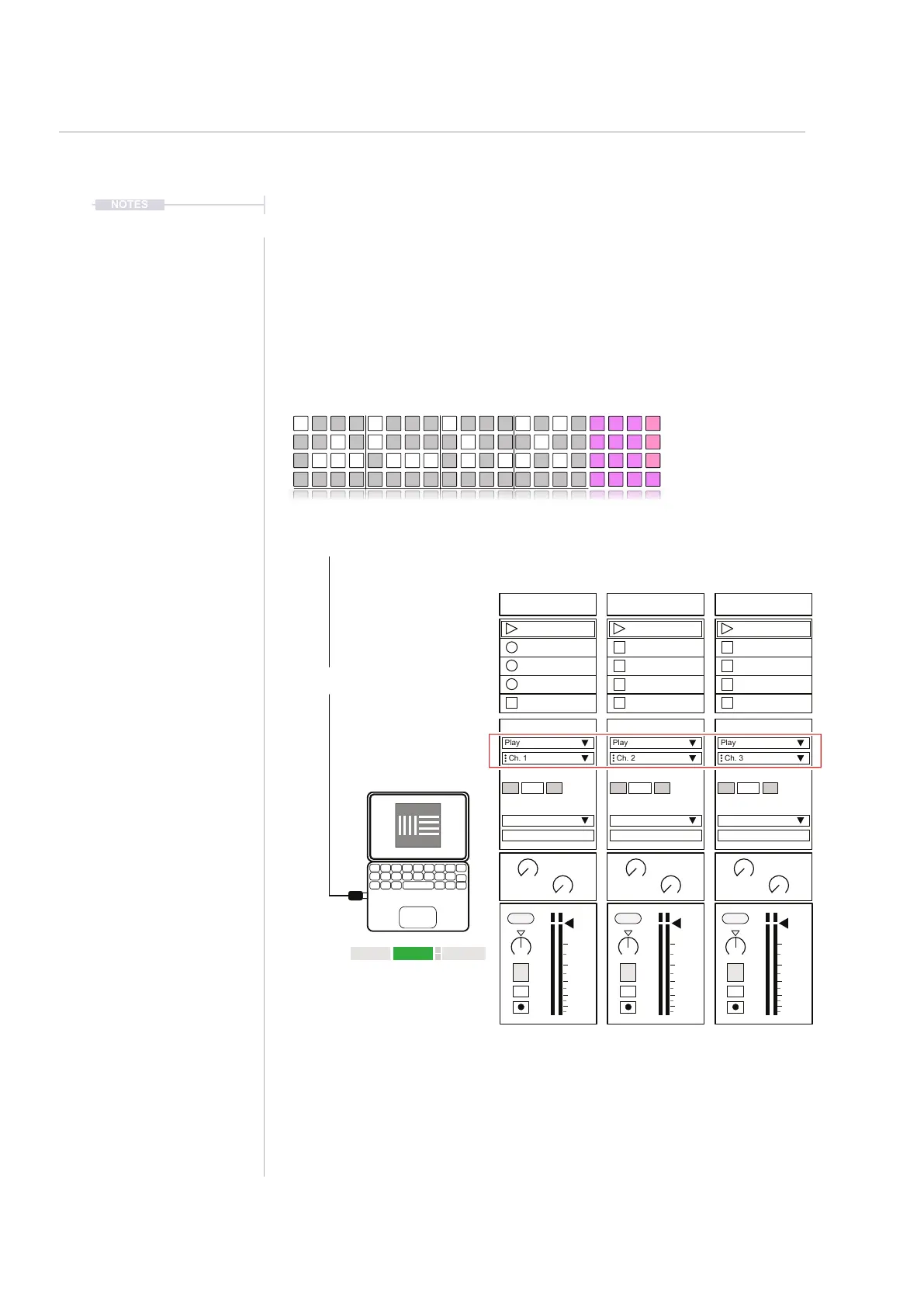
MIDI Fill application example.
Each instrument in a beat ll is congured to individual channels, each of
which is connected to an appropriate instrument in Ableton Live. The ll
generated in the MIDI tracks for the kick, snare and HiHat will then be
communicated to play the external MIDI instruments individually.
MIDI
10
Track 1 - Kick
Beat Fills Applied
In the Settings > ‘Fill Cong’ Options the Kick is set to USB
Channel 1, Snare to USB Channel 2 and HiHat to USB Channel 3
Track 2 - Snare
Track 3 - HiHat
Fill
Delete
Reverb Send
Delay Send
Note
Microtune
Master Volume
Limiter
Save
Reset
Overdrive
Bit Depth
Volume
Panning
Tempo
Swing
View
Master FX
Repeat Type
Repeat Grid
Filter Cutoff
Resonance
Track Length
Play Mode
Patterns
Audio/MIDI
Chance
Action
Sample
Folder
Copy
Paste
Randomize
Randomize Type
Sample Start
Sample End
ShiftMove
Micromove
Sample Attack
Sample Decay
Link EXT TAP
102.00
1 DS Kick 2 DS Snare 2 DS HiHat
MIDI From MIDI From MIDI From
Play Play Play
Master Master Master
Ch. 1 Ch. 2 Ch. 3
In In In
1 1 1
s s s
Auto Auto Auto
Monitor Monitor Monitor
Audio To Audio To Audio To
A A A
Sends Sends Sends
B B B
1.53 1.53 1.53
0 0 0
12 12 12
24 24 24
36 36 36
48 48 48
60 60 60
MIDI settings in the Live preferences page will need to be set ‘On’ for MIDI Ports, Input &
Output. When controlling to/from Play+. The ‘Ext’ function, in Live should be on to use
external sync settings and for tempo to be synchronised from Play+.
The conguration could equally use external hardware instruments as opposed to the
DAW example shown.
USB
Off
Off



 To Next Page