5-50
PFC-6006 • 5403559 • REV D • 11/17
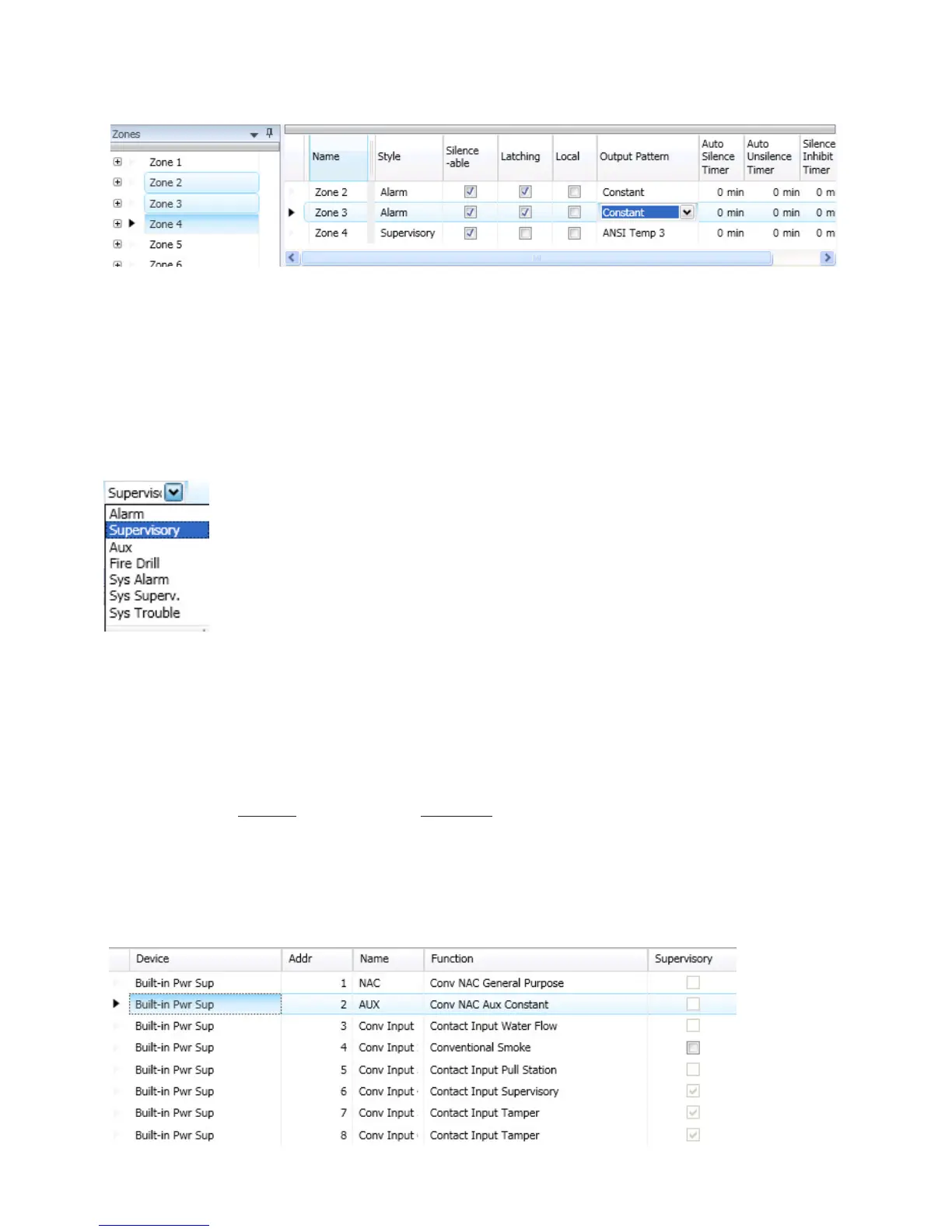
6. Go to the “Zone Conguration” window, to view all available zones.
Figure 56. Example of Conguring Multiple Zones
Conguring Zones
The next step is to customize a zone’s attributes, which includes changing the name, selecting type of zone, and other
characteristics (i.e., constant, double time output pattern, latching or non-latching, silenceable, auto-silence timer, etc.).
To congure a zone:
1. Double-click in the Zone’s “Name” eld to modify default name.
Note: Up to 16 alphanumeric characters may be entered. For example: “Sprinkler Flow” or “Valve Tamper.”
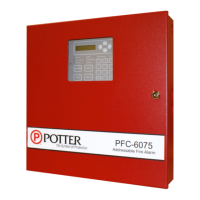
2. Click in “Style” eld. Click the drop-down arrow to display zone styles.
3. Choose the applicable zone style (refer to the Zone Styles Table in this section for descriptions of zone styles).
4. Continue editing zone’s elds. Refer to the Zone Attributes Table for eld descriptions.
Conguring Points
This section addresses how to dene or congure points through the Points function. Each device may have a unique function
in relation to the zone as well as the entire system. The user determines the Point's role, specic behavior characteristics, and
customizes its name, if desired.
Notes:
• The list of available functions is associated to the device type.
• Points may be congured from either the Zones or Points functions; however, for purposes of this manual,
points are congured in the Points function.
• Points can be congured individually, or by groups or ranges of points.
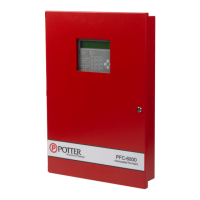
An example of the Points window is shown below.
Figure 57. Example of Points Window


 To Next Page