5-53
PFC-6006 • 5403559 • REV D • 11/17
To congure a single point:
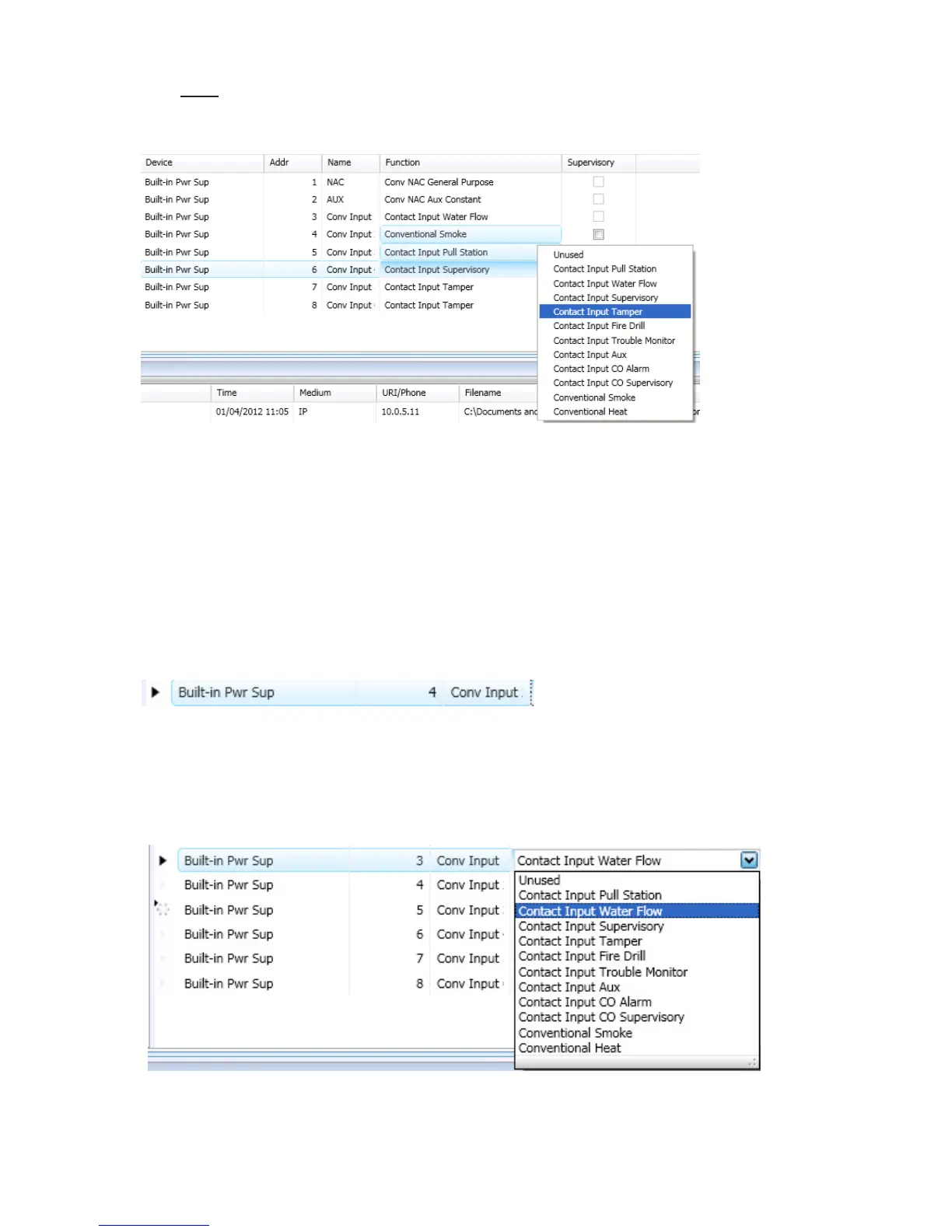
1. Click on the Points function to display the "Points Conguration" window.
Figure 58. Example of a Conguration Window Showing Conventional Input Functions
Notes:
•y Points are listed by device addresses automatically. You may sort points by clicking on the column or eld name,
i.e., "Name", "Function", or "Supervisory".
Example: Click on the “Function” eld to sort points alphabetically by device function.
•y The list of available functions varies according to type of device(s) selected.
•y If you click the "Supervisory" eld selection box, this designates that the contact will be a supervisory input versus
an alarm input.
2. Click anywhere are the point you wish to congure.
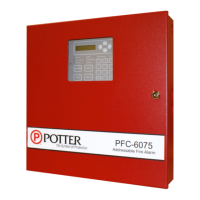
TIP: The selected point is highlighted in blue and also designated with an arrow symbol at the beginning of the point's
line, as shown below.
3. Double-click in “Name” eld to enter a descriptive name, if wanted.
•y Enter up to 16 alphanumeric characters.
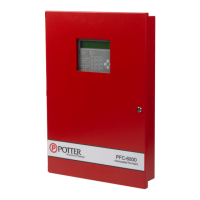
4. Click on drop-down arrow at the end of the “Function” eld to display list of options.
Figure 59. Example of Conguring a "Single" Point
5. Continue conguring other points, as needed.


 To Next Page