5-55
PFC-6006 • 5403559 • REV D • 11/17
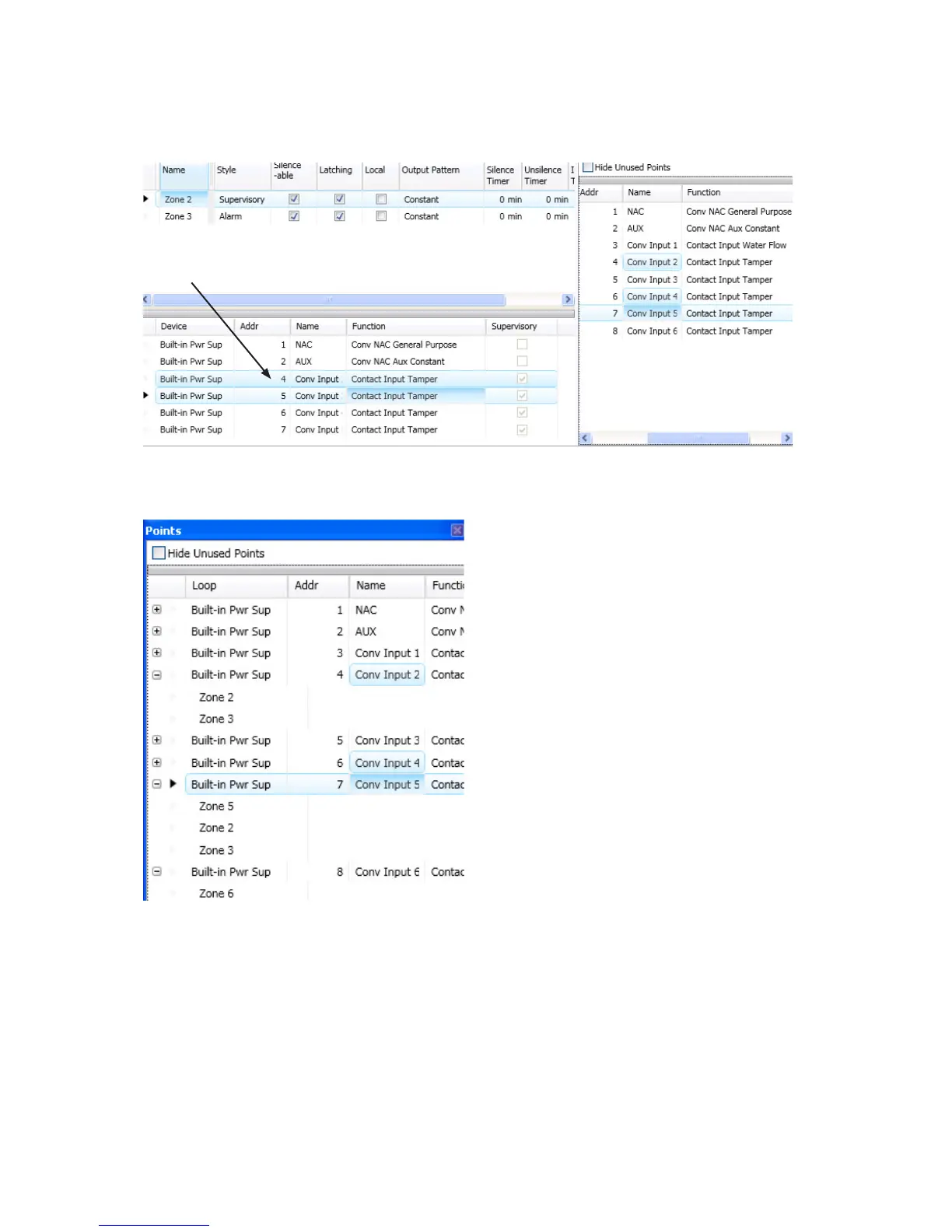
3. Drag and drop selected points from the Points' window to the “Device” window. The selected points display in the
“Device” window, as shown below.
Figure 62. Example of Conguring Multiple Points into Multiple Zones
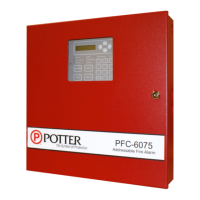
4. Click “+” in Points window to display point assignment by Zone(s).
Figure 63. Example of Expanding Point’s Zone Assignment(s)
Note: Click “–” to collapse point assignments.
Points 4, 6 & 7
areconguredinto
Zones 2 and 3.


 To Next Page