Application Examples
R&S
®
GP-E/GP-S
174User Manual v16.2.1 ─ 01
2. Copy the client certificate created under "Creating VPN Certificates for Android Cli-
ents" on page 171 into the internal storage of the device.
3. Go to "Settings > Security > Install from Storage".
4. Select the client certificate.
5. Enter a "Certificate Name" and select "VPN and apps" .
6. Click "OK" .
7. If required, enter your PIN or unlock pattern. A message stating, «Certificate is
installed» appears briefly at the bottom of the screen.
The certificate is now installed and appears in the list of trusted credentials.
8. Optional: To increase security, you can also install the CA and/or the host certifi-
cate.
9. Go to "Settings > Wireless & Networks > More > VPN".
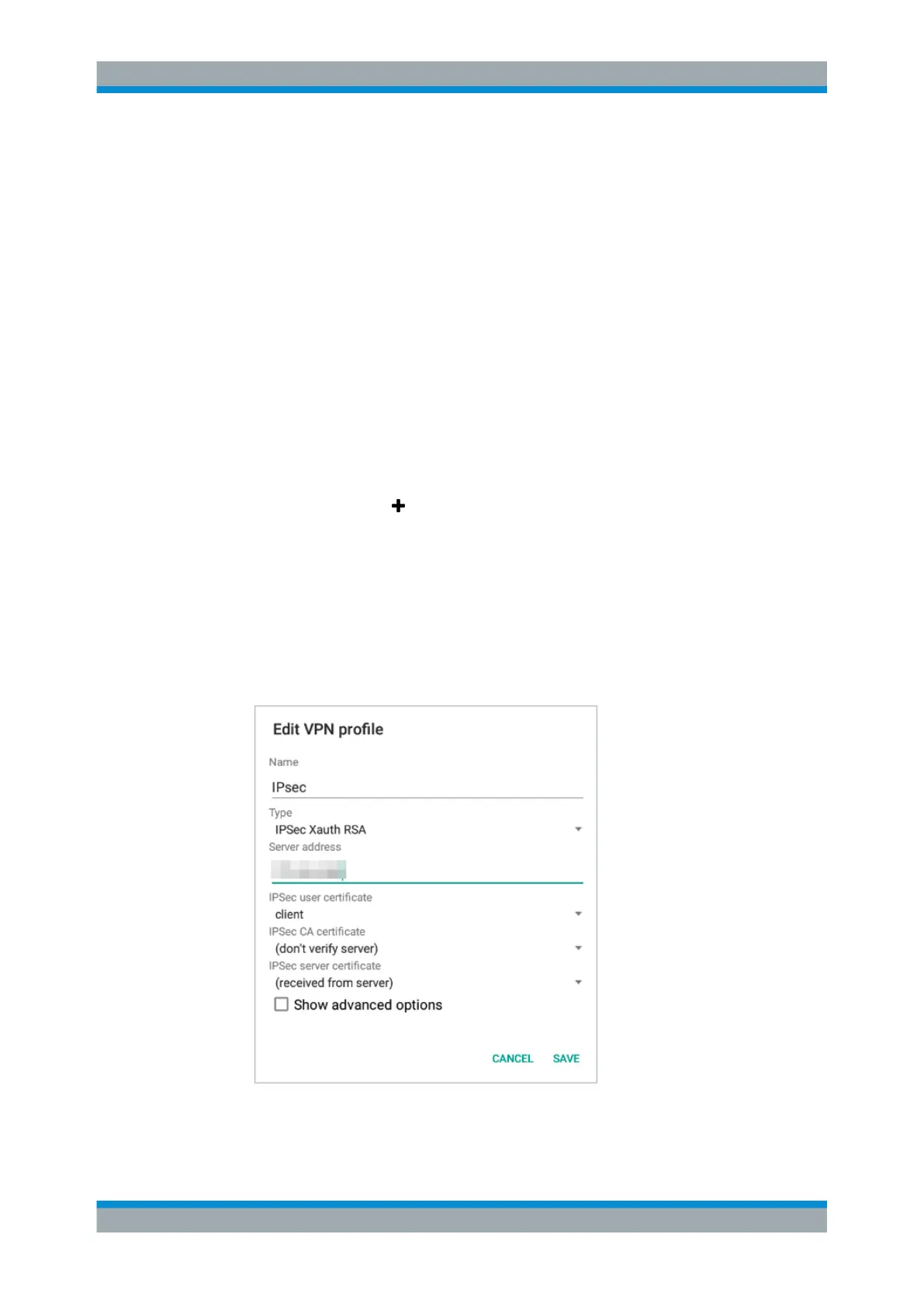
10.
Tap the plus button
to create a new connection, and enter the following informa-
tion (see Figure 4-39):
a) Enter a "Name" for the new VPN connection.
b) Under "Type" , select IPSec XAuth RSA.
c) Enter the gateprotect Firewall WAN IP address or a fully qualified domain name
under "Server address" .
d) Under "IPsec user certificate" , select the previously installed client certificate.
e) Optional: To increase security, select the previously installed CA and/or the
host certificate.
Figure 4-39: Sample Android VPN setup for certificates.
VPN Setup Examples



 To Next Page