User Interface
R&S
®
GP-E/GP-S
49User Manual v16.2.1 ─ 01
Local Users
gateprotect Firewall offers local user administration for smaller companies without cen-
tral administration. Use the "Local Users" settings to define and manage users by
specifying the user names and passwords that are authorized to connect to gateprotect
Firewall for VPN access.
Navigate to "Firewall > User Authentication > Local Users" to display the list of local
users that are currently defined on the system in the item list bar.
In the expanded view, the columns of the table display the "Name" of the local user
and a "Description" if one was entered. The buttons in the last column allow you to
view and adjust the settings for an existing local user, create a new user based on a
copy of an existing local user, or delete a user from the system.
For further information, see Chapter 3.2, "Icons and Buttons", on page 21.
There are several ways to create a new local user. Either click
in the toolbar at the
top of the desktop or navigate to "Firewall > User Authentication > Local Users" and
click the plus button in the item list header.
To edit, copy or delete an existing local VPN user, navigate to either "Firewall > User
Authentication > Local Users" or use the circular menu around the desktop object.
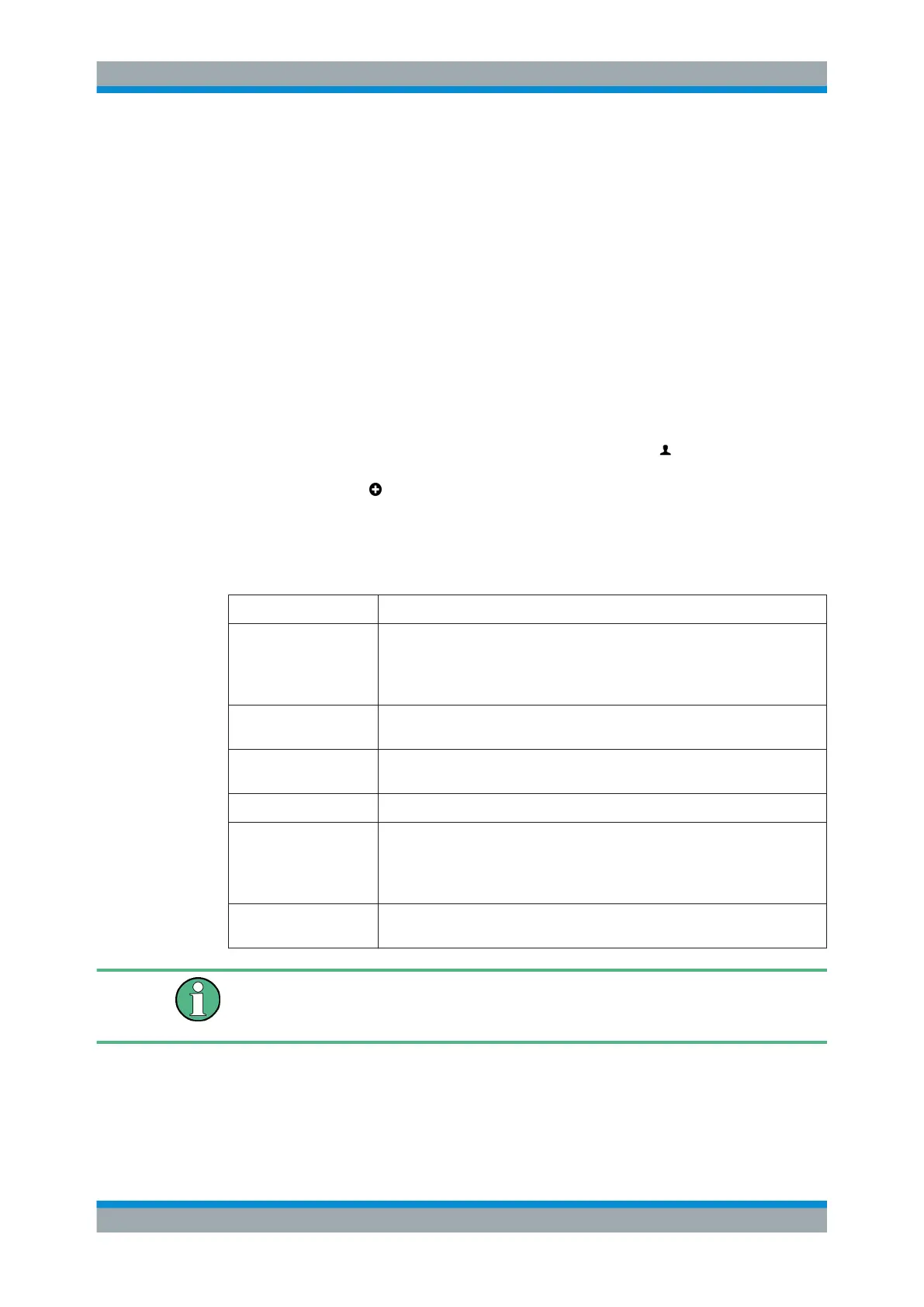
The "Local User" settings allow you to configure the following elements:
Field Description
"User Name" Enter a unique name for the local user which will be the logon name.
Important: The user's logon name has to exactly match the "User Name"
(case-sensitive). Otherwise, the name in the user-specific firewall rules will not
correspond to the user logging on to the client and the rules will not match.
"Description" Optional: The information given here is for internal use for the administrator
only.
"Password" Enter a password for the user and confirm it. It must consist of at least eight
characters.
"Show Password" Optional: Select the checkbox to verify the password.
"Activate User" This checkbox is pre-selected by default. You can deactivate a user to deny
access but keep the credentials on the system for future use by clearing this
checkbox.
Note: Only active users are allowed to access the VPN.
"Show on Desktop" This checkbox is pre-selected by default. Clear the checkbox if you do not want
the user to be displayed in the network overview on the desktop.
Only users for whom the "Activate User" and "Show on Desktop" checkboxes are
selected will be displayed on the desktop and are, therefore, available for connections
and firewall rules.
Menu Reference



 To Next Page