User Interface
R&S
®
GP-E/GP-S
50User Manual v16.2.1 ─ 01
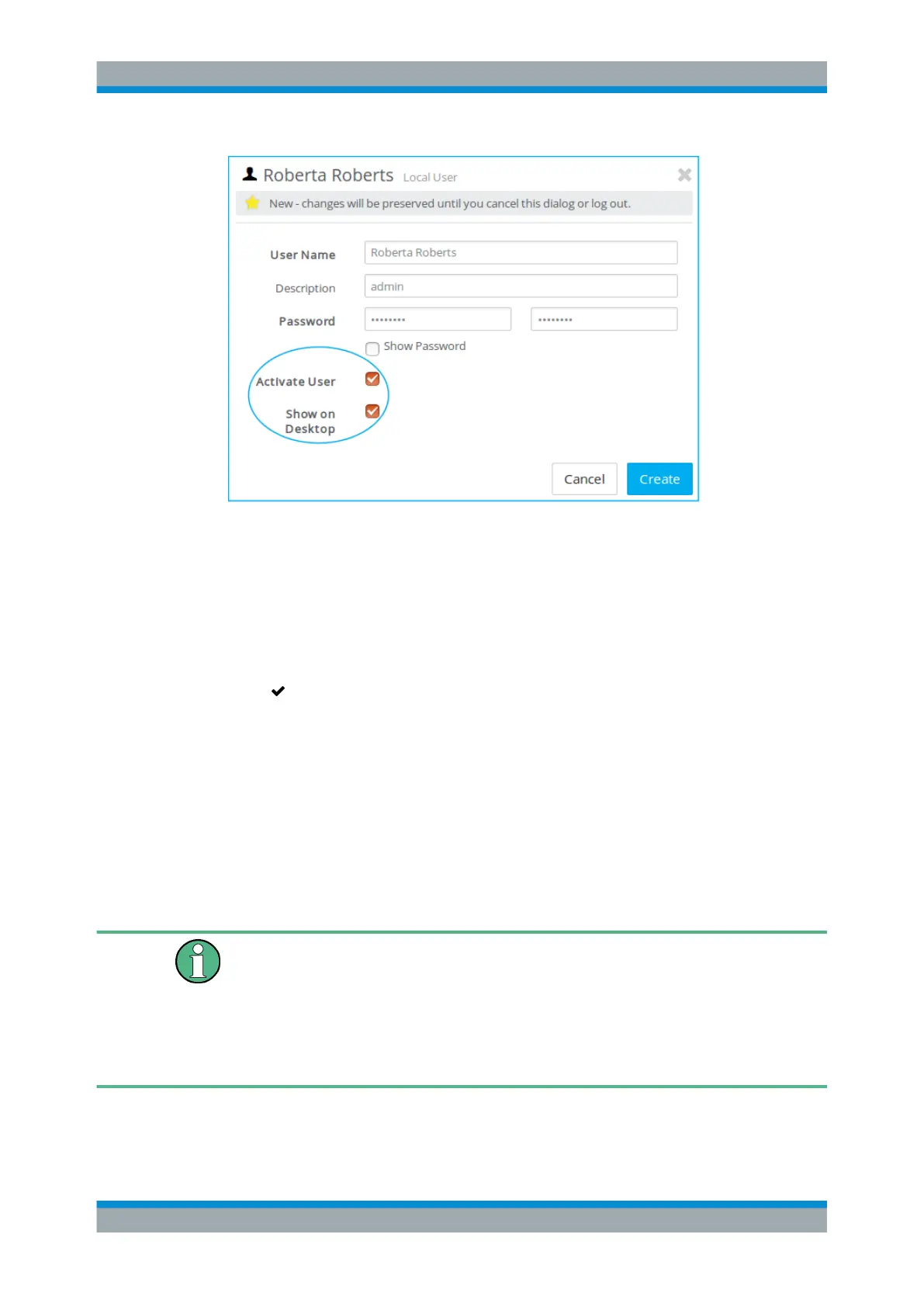
Figure 3-10: Sample Local User settings.
The buttons at the bottom right of the editor panel depend on whether you add a new
VPN user or edit an existing user. For a newly configured local user, click "Create" to
add the new user to the list of available local VPN users or "Cancel" to reject the crea-
tion. To edit an existing VPN user, click "Save" to store the reconfigured user or
"Reset" to discard your changes. You can click "Close" to shut the editor panel as long
as no changes have been made on it.
Click " Activate" in the toolbar at the top of the desktop to apply your configuration
changes.
LDAP Users
It is possible to connect gateprotect Firewall to an external directory server via the
Lightweight Directory Access Protocol (LDAP) to manage users that appear in the web
interface. You can use these users in firewall rules.
LDAP can be used by medium to large companies to access directory services and to
manage user data.
Connect to a directory server as described under "Directory Service" on page 51.
If you are using the Microsoft Active Directory as the directory service, the "User Login
Attribute" in the directory service settings has to be userPrincipalName as Ker-
beros/GSSAPI only uses this attribute. The user's login name has to exactly match the
userPrincipalName (the name is case-sensitive). If you select another "User Login
Attribute" , the name of the imported user will not match the name used for logging on
to a Windows client. Therefore, the name in the user-specific firewall rules will not cor-
respond to the user logging on and the rules will not match.
Navigate to "Firewall > User Authentication > LDAP Users" to display the list of users
that are currently defined on the directory server in the item list bar.
Menu Reference



 To Next Page