Chapter 8 Running and Saving Reports
6 Follow the instructions on the screen. You can review the report on the
clerk screen and then print it. Use the arrow keys to move through the
report.
T he E lectronic Journal record prints and the E lectronic Journal memory
is not reset.
Print or Save an End-of-Day Electronic Journal Report
You can print or save the E lectronic Journal Z report at the end of the day.
D oing so clears the memory.
To print or save in the Z Mode
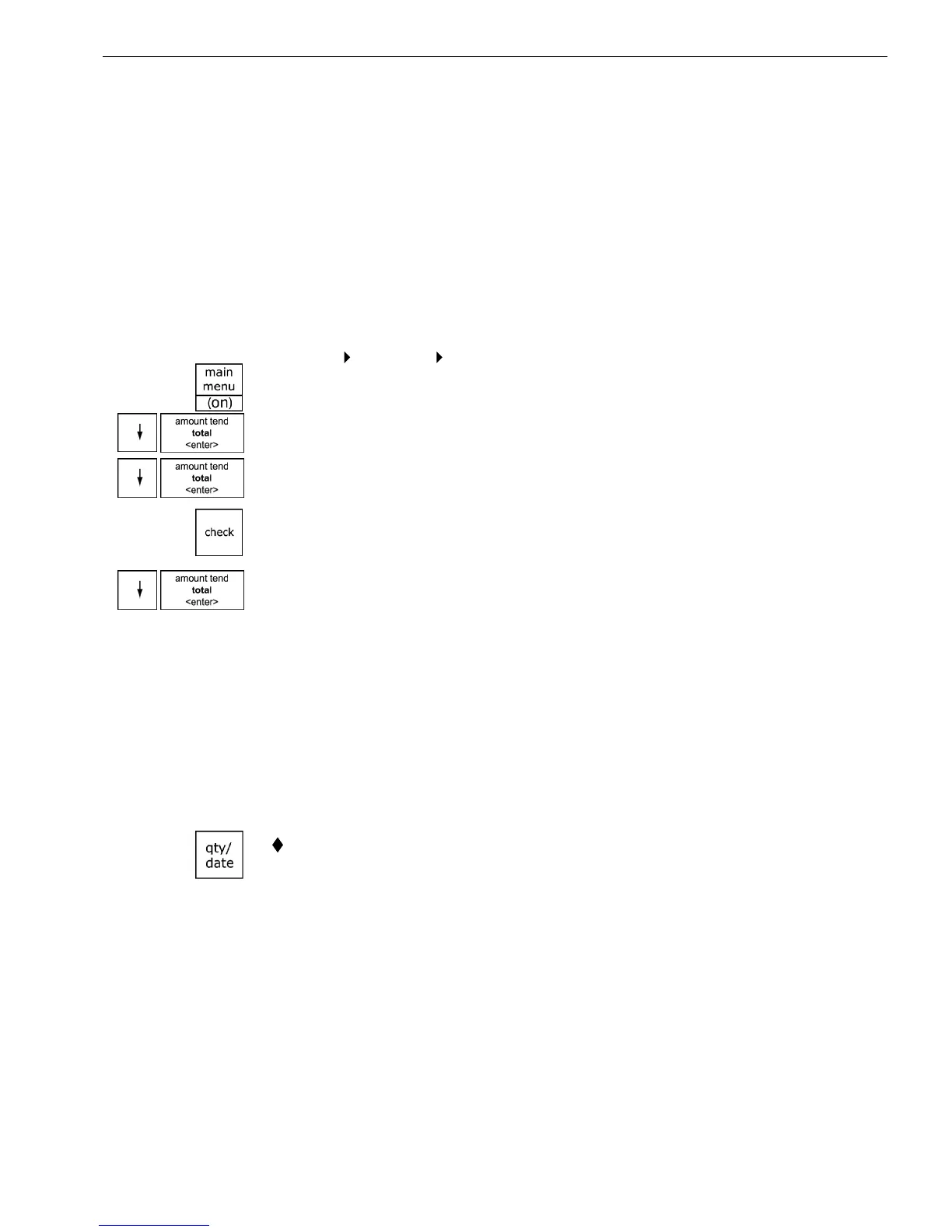
Reports Z Report Electr. Journal
1 Press the Main menu (on) key.
2 Press the Arrow Down key to select R eports. Press the Amount Tend
Total <Enter> key.
3 Press the Arrow Down key to select Z R eport. Press the Amount Tend
Total <Enter> key.
4 I f you are prompted for a M anager Passcode, type the passcode number
and then press the Check key. I f you did not program a M anager
Passcode, go to the next step.
5 Press the Arrow Down key to select E lectr. Journal. Press the Amount
Tend Total <Enter> key.
6 Follow the instructions on the screen. O nce you print or save the
E lectronic Journal record, the E lectronic Journal memory is cleared.
Check the Electronic Journal Memory
You can check the current status of the E lectronic Journal memory for the
number of lines used in memory and how many lines remain free. T his
lets you know if you should print the E lectronic Journal soon.
To check the Electronic Journal memory
I n Sales R egistration mode after or between transactions, press the
QTY/DATE key.
T he memory status with the number of lines that the memory can still
accept appear on the operator display.
I f you do not see the number of lines that the memory can still accept,
the E lectronic Journal is turned off. G o to the System O ptions and turn it
on.
09 1000ML User's GuideahplA



 To Next Page