EasyManua.ls Logo

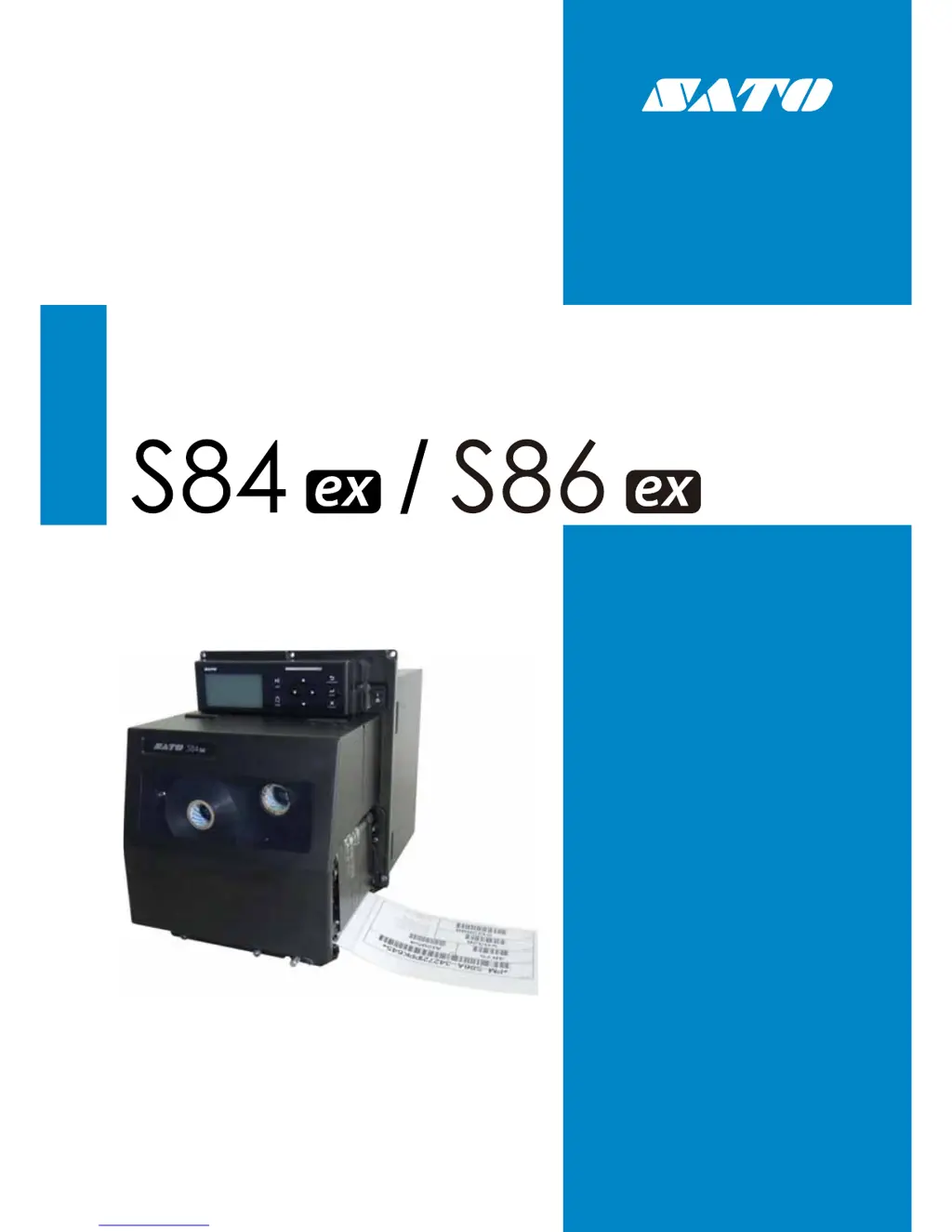
SATO S84 - User Manual

SATO S84
298 pages
Print Icon
To Next Page IconTo Next Page
Loading...
Operator Manual
For printer model:

Table of Contents

Questions and Answers

  • C
    Caitlin CooperSep 9, 2025
    What does 'BCC check error' mean on my SATO Label Maker?
    • J
      Jane NavarroSep 9, 2025
      If your SATO Label Maker displays a 'BCC check error', it means that the BCC code of the data to be sent (one item) is incorrect. Check the data to be sent and the communication settings.
  • M
    Marie GeorgeSep 7, 2025
    What to do if my SATO Label Maker displays 'Overheat error'?
    • T
      tommypotterSep 7, 2025
      If your SATO Label Maker shows 'Overheat error', it means that the temperature of the printer has exceeded its tolerance value. Stop the operation of the printer to let the temperature decrease.
  • C
    Christian ConradAug 22, 2025
    What does 'Command error' mean on my SATO Label Maker?
    • J
      Jacob JohnsonAug 22, 2025
      If your SATO Label Maker is displaying a 'Command error', this indicates an incorrect command or parameter in the print data. To resolve this, check the print data.
  • D
    Denise Clarke DDSSep 5, 2025
    What to do if my SATO Label Maker displays a 'Cover open error'?
    • P
      perry19Sep 5, 2025
      If your SATO Label Maker displays a 'Cover open error', it means that the cover is opened. Close the cover. Alternatively, the sensor for sensing the open/close status of the cover is defective, in which case you should replace the sensor.
  • M
    Michelle BarkerSep 4, 2025
    What to do if my SATO S84 Label Maker displays a 'Wireless LAN error'?
    • J
      Jasmine CurrySep 4, 2025
      If your SATO Label Maker displays a 'Wireless LAN error', it could be because no wireless LAN unit is connected while the printer is in wireless LAN download mode. Ensure that the wireless LAN unit is connected correctly. If it still fails, the printer failed to connect to the wireless LAN unit, try changing the wireless LAN unit.
  • S
    Sean AguirreSep 2, 2025
    What does 'Download data error' mean on my SATO S84 Label Maker?
    • E
      emilyriveraSep 3, 2025
      If your SATO Label Maker displays a 'Download data error', it indicates that the downloaded data is incorrect. Check the downloaded data. Also, the download area may not be sufficient; in this case, check the downloaded data size.
  • S
    sarah69Sep 1, 2025
    What to do if my SATO S84 Label Maker displays a 'Sensor error'?
    • A
      Andrew CooperSep 1, 2025
      If your SATO Label Maker displays a 'Sensor error', it could be due to: * The media sensor level is incorrect. Adjust the media sensor level. * The sensor type is incorrect. Use the correct sensor type. * Meandering media. Clean and adjust the media path.
  • S
    sarahcohenAug 31, 2025
    What to do if my SATO S84 Label Maker is showing a 'Print head error'?
    • H
      harringtonamandaAug 31, 2025
      If your SATO Label Maker displays a 'Print head error', it could be because the print elements are worn out. Change print head check conditions to only check for missing elements in barcodes and try to adjust missing elements to white bars. Alternatively, the print head might be damaged, requiring a replacement.
  • J
    Jason ZamoraAug 29, 2025
    What to do if my SATO S84 Label Maker displays 'Memory write error Printer memory: USB memory:'?
    • J
      John HowardAug 30, 2025
      If your SATO Label Maker shows 'Memory write error Printer memory: USB memory:', it could be due to: * The USB memory is disconnected while writing. Connect the USB memory. * The copy area in the memory is not sufficient. Make sure that the memory has sufficient copy area. * Writing to the memory fails. Replace the memory. * The USB memory is not formatted. Format the USB memory in the memory mode.
  • I
    ithomasAug 28, 2025
    What to do if my SATO S84 Label Maker displays 'SD card write error'?
    • C
      Crystal PriceAug 29, 2025
      If your SATO Label Maker displays 'SD card write error', it could be due to several reasons: * The SD card is not connected. Connect the SD card. * The SD card is not connected correctly. Connect the SD card correctly. * The SD card is disconnected while writing. Connect the SD card. * SD card read/write fails. Replace the SD card. * The SD card is not formatted. Format the SD card in the memory mode. * The SD card is write-protected. Release the write-protect of the SD card.

Summary

Before You Start

Features of the Product

Highlights the key features and capabilities of the printer.

Safety Precautions

Provides essential guidelines for safe and proper printer operation.

Precautions for Installation and Handling

Details environmental and placement precautions for safe operation.

Parts Identification

Printer Orientation

Explains the two types of printer orientations and media feed directions.

Printer Components Overview

Identifies key printer parts through front, rear, and internal views.

Operator Panel and Indicators

Details the operator panel, its buttons, and the LED indicator status.

Installing the Printer

Installation Precautions

Provides essential guidelines for safe and proper printer installation.

Installation Space Requirements

Details required space and dimensions for printer installation from various views.

Mounting the Printer

Guides on mounting the printer onto a support structure or applicator.

Connecting Interface Cables

Explains how to connect various interface cables to the printer.

Connecting the Power Cord

Provides instructions for safely connecting the power cord.

Printer Power On;Off Procedures

Explains the procedure to turn the printer on and off.

Optional Memory Storage Installation

Guides on installing SD cards or USB memory.

Loading the Ribbon and Media

Loading the Ribbon

Provides step-by-step instructions for loading the ribbon into the printer.

Media Handling and Sensor Adjustment

Describes usable media and adjusting the media sensor position.

Media Loading Procedures

Provides instructions for loading media into the printer.

Operation and Configuration

Printer Display and Operation Modes

Explains the printer's display modes, icons, and operating states.

Key Operating Modes Overview

Lists and provides access to various operating modes of the printer.

Adjustment and Setting Modes

Covers modes for adjusting print position, darkness, and general settings.

Interface and Memory Configuration

Configures printer interfaces and manages memory settings.

Service and Advanced Configuration

Accesses sensor level adjustments and advanced hardware features.

Specialized Modes

Includes Hex Dump, Information, Test Print, and Default Setting modes.

Data Transfer Modes

Covers Download and Upload modes for printer data management.

Wireless LAN and Site Survey Modes

Details wireless LAN certificate download and site survey operations.

Cleaning and Printer Adjustments

Printer Maintenance Procedures

General guidance on maintaining the print head and platen roller.

Base Reference Point Adjustments

Explains how to set the reference point for print and stop positions.

Print Quality Adjustments

Covers adjustments for print darkness and print speed.

Media Sensor Adjustments

Covers media sensor condition checks and level adjustments.

Head Pressure and Position Adjustments

Guides on balancing head pressure and aligning head position.

Troubleshooting

Handling Error Messages

Lists common error messages, causes, and countermeasures.

Responding to Warning Messages

Lists warning messages and their resolutions.

General Troubleshooting Table

Provides a table of common issues and their solutions.

Interface Connectivity Troubleshooting

Provides troubleshooting steps for various printer interfaces.

Appendix

Default Initial Values

Lists default printer settings for various modes and configurations.

Media Sensor and Stop Positions

Illustrates the physical locations of media sensors and stop positions.

Printer Compatibility Information

Explains printer compatibility with older models and head widths.

Consumable Parts Replacement

Describes procedures for replacing worn printer parts like print head and rollers.

Media Motion and Error Detection

Describes how media moves and how paper/ribbon errors are detected.

Printer Specifications Overview

Lists the technical specifications of the printer, including hardware, interfaces, and functions.

Interface Specifications

Provides detailed technical specifications for each supported printer interface.

SATO S84 Specifications

General IconGeneral
Print MethodThermal Transfer
Max. Print Width4.09 inches
Media Typetags
Media Thickness0.002 to 0.008 inches
InterfacesUSB, Serial, Parallel, Ethernet

Related product manuals