Configuring FTS
To configure the FTS settings press the “FTS” soft-key.
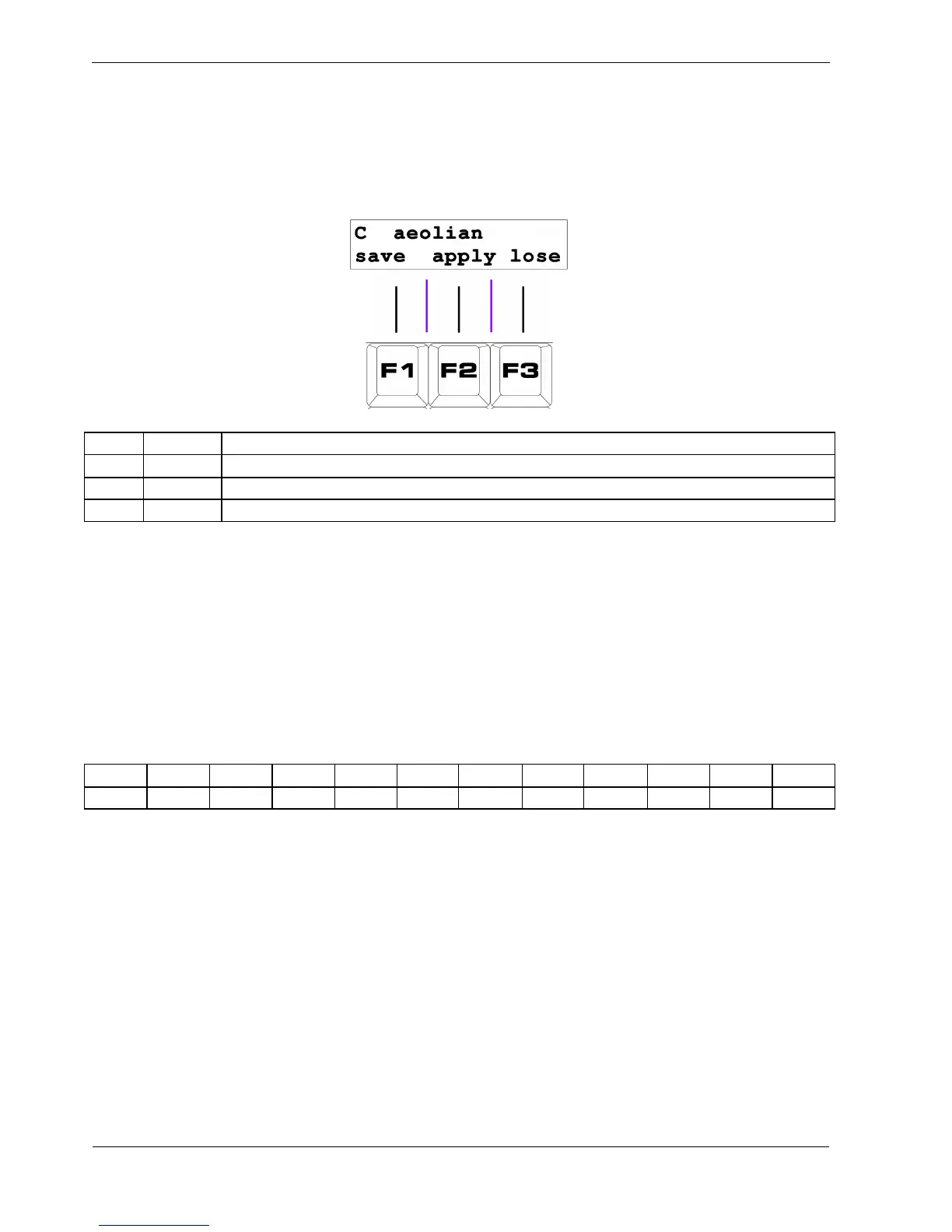
This will enter the FTS config page, which looks something like this:
Key Label Function
F1 save Store the new FTS settings and return to play mode
F2 apply Temporarily apply the new settin gs, but remain on this page
F3 lose Restore the previous settings and return to play mode
The top line of the display shows the current FTS root note and scale.
The step LEDs will also show the current root note - the LED above the step key for the root note will
be amber.
Selecting the FTS Root Note
The step key numbers correspond to the root notes as follows:
1 2 3 4 5 6 7 8 9 10 11 12
C C# D D# E F F# G G# A A# B
To change the root note, press the step key for the new root.
Applying FTS Changes
Changes to the FTS root or scale selection do not take effect immediately - you must first press the
“apply” soft-key, F2.
To indicate that a new selection is pending an asterisk, “*”, will appear in front of “apply” in the
display.
Note that “apply” does not save the settings – it just activates your new selection.



 To Next Page