Back To The Playlist…
Now let’s use edit view to look at the rest of the settings on a playlist step.
We’ll use playlist step 2, so if you have selected another step while playing with edit view , you’ll need
to switch back to step 2 now.
*TIP There’s an alternative method for selecting a playlist step in edit view – if you move the DATA
knob in playlist edit, P3 will switch to edit view for the step at the current knob position, or scroll to
other steps if already in edit view . The 8 steps are spread evenly around the DATA knob.
Step Repeats
Any step in a playlist can be made to repeat the pattern it plays up to 8 times, using the repeats value.
With P3 still running, your playlist should be playing pattern 1 then pattern 2 in turn, once through
each pattern.
The UPPER knobs above each PLAYLIST STEP key are used to adjust the repeats value on each step.
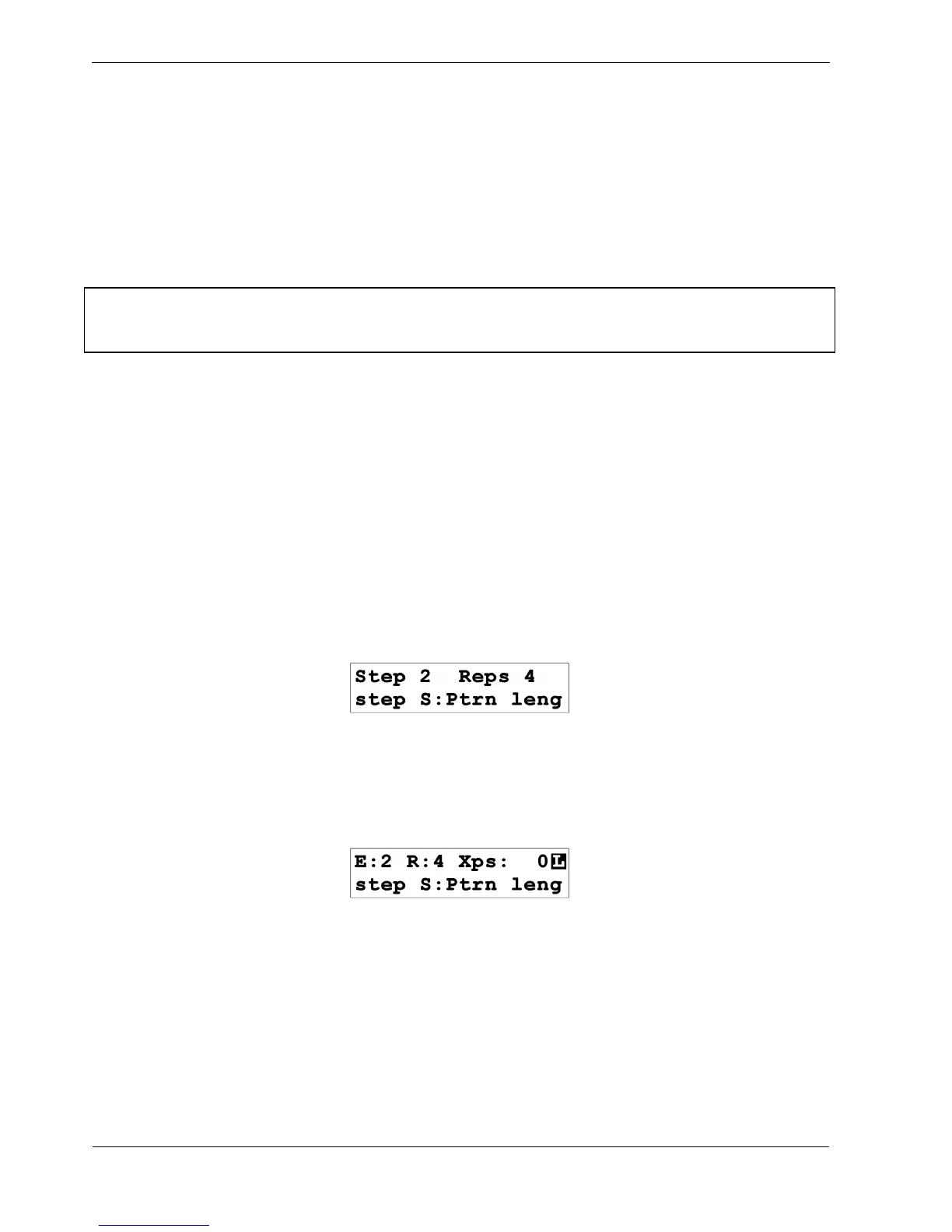
Turn the repeats knob above PLAYLIST STEP 2 now, until the top line of the display looks like this:
You have set the repeats value on playlist step 2 to a value of 4.
The display will return to normal after a second.
Then you’ll see the change of value confirmed on the Edit view display for step 2:
Listen to your patterns playing and watch the flashing green LED for the current playlist step.
You should see that pattern 2, on playlist step 2, repeats 4 times.
Note that although you are in edit view , you can adjust the repeats value on any playlist step with the
UPPER knob above that step.
Try this out by using the knob above PLAYLIST STEP 1 to set repeats to 3, and then use the knob
above PLAYLIST STEP 2 to set repeats back to 1.
You should hear pattern 1 play 3 times then pattern 2 plays once, before the playlist repeats itself.



 To Next Page