SGM Technology for lighting GB
Pilot 3000 Us
er’s Manual 1.00
- 79 -
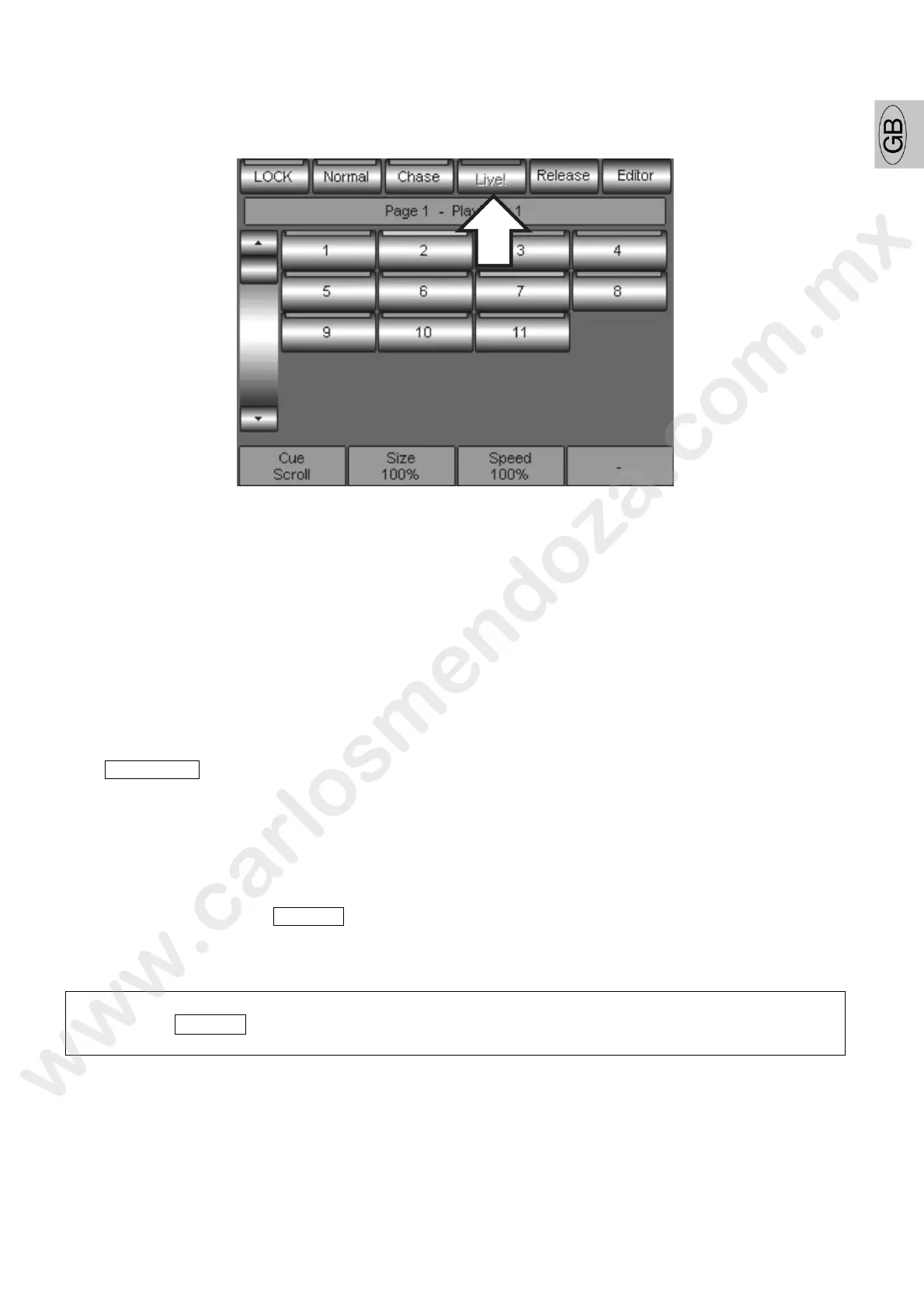
THE LIVE! MODE
By pressing the Live! Key you can convert the Cue-lists visualization into ve! mode.
This mode allows the direct access to the Cue-List Cues, each one can e nabled by the relevant direct
Playback keys.
In the case shown in the picture, it is possible to see the eleven Cues activation keys of the first page Cue-
List one.
The Live! Mode is very useful when you need an immediate a cess to each Cue of a Cue-List desired. This
wouldn’t be possible in the “Normal” mode, where the Cues can be enabled only in a sequential way
following the order in which they were stored.
RELEASING THE REGISTERS
Th
e PLAYBACKS keys allow the Cue-List activation and the consequent Cue-lists execution.
The Cues Playback enables the a tive Register status indicated by the switching on of the Playbacks keys
Green LED.
When it is necessary to disable the PLAY status of a Register, that is to switch on its Playback activity, you
have to use the “Releas command.
The Release action of Register allows the Cues switching off of the active Register.
To release a Regist
Press the edito k ypad RELEASE key
Press the Playbacks corresponding to the Register you are going to switch off. It is possible to switch
off all he ctive Cue-lists by pressing twice the RELEASE key.
ATTENTION!!
The double RELEASE command allows the switching off of all the active Cues and therefore the
live Black-out!
In the practise all the projectors controlled by the Cue of a Register which will be disabled, go to a “Stand-by”
status. If same projectors are controlled by more Registers, the eventual release of one of them allows other
active Playbacks to take over the control of the projectors. The S
tand by status can be defined at will by the
user in the SETUP menu-> Fixture Configuration.


 To Next Page