SGM Technology for lighting GB
Pilot 3000 Us
er’s Manual 1.00
- 109 -
PAN AND TILT EFFECTS
A particular attention should be given to all the effects to apply to the Pan and Tilt Attributes.
In fact, there is a series of Shapes dedicated to the Pan and Tilt effects creation, available only for these
Attributes.
The Pan and Tilt Shapes are expressly created to make easier the combined use of the two Attributes, so
that you can quickly and easily create movement effects such as: circle, eight, square etc.
Creating such type of effects by combining simple wave shapes wouldn’t have surely been so rapid and
comfortable.
The main difference between the two normal wave Shapes, applicable to each Attribute, and Pan and Tilt
Shapes, is that for Pan and Tilt, the path resulting form the combination of movement of both these
Attributes will match the effect’s shape.
Further more, it is important to remember that there is also the possibility to apply the common wave
shapes (LINEAR e SQUARE) to the single Pan or Tilt Attributes, as described in the previous parag aphs.
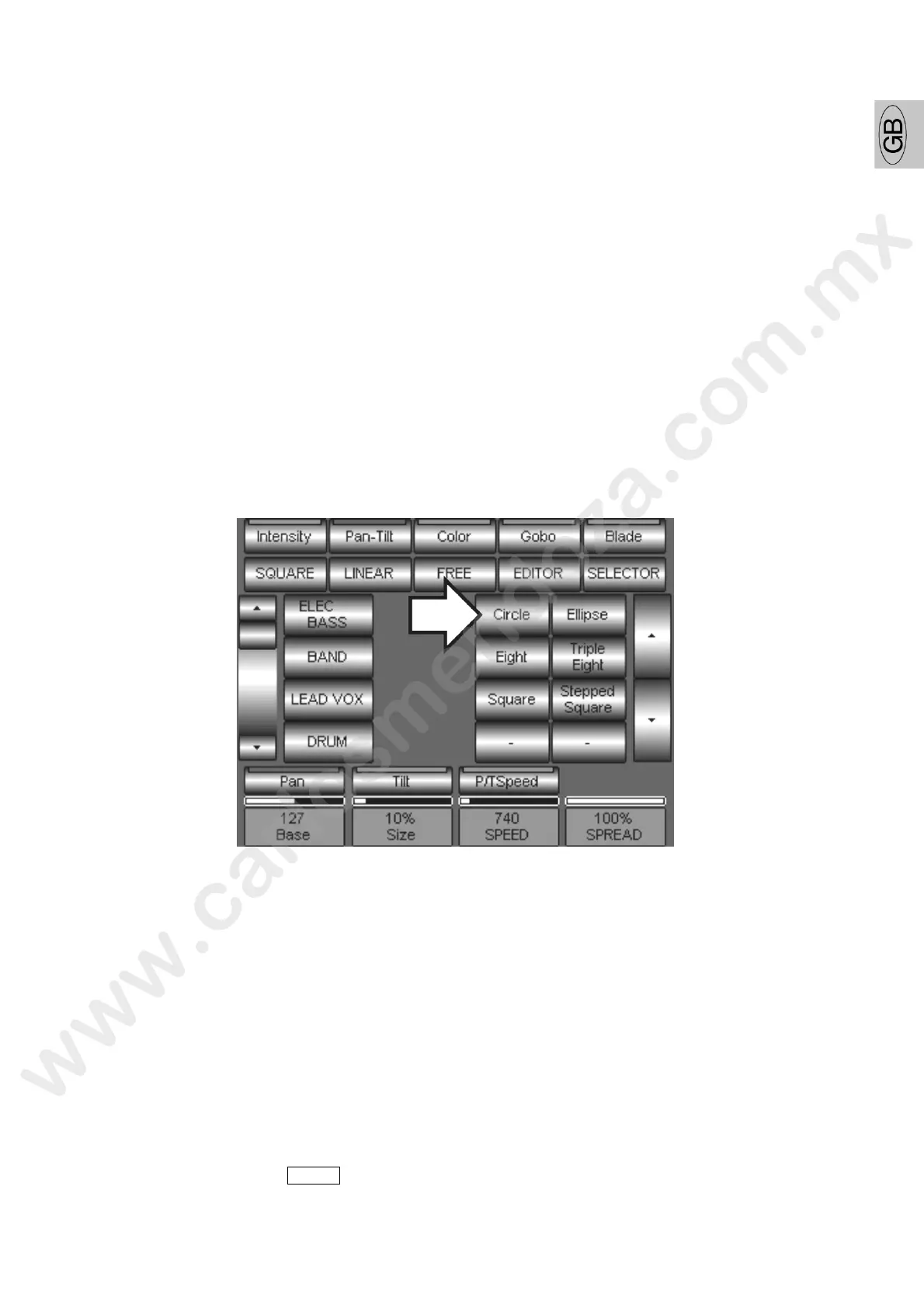
From the Shape Engine panel press the Pan-Tilt Palette key to visualize the relevant At ibu es.
Activate the Pan Attribute
Press the Circle key to assign the “Circle” shape to Pan and Tilt. In this way you contemporaneously
apply two oscillators, both to Pan and Tilt. They are synchronized and make possible the projectors
beams circle movement.
Please notice that w e effect’s oscillation Parameters are no longer represented by the two limits “A”
and “B” but by a Bas ” value (to which you can assign a Palette) and an oscillation percentage around the
Base itself.
By pressi g t e Pan and Tilt keys alternately, it is possible to have access to each effect parameters in
order to eventually modify the base point and the effect section.
Us the SPEED value to set the effect speed desired.
The SPEED value is unique for both Pan and tilt Attributes.
Choose the phase displacement type to apply a specific sequential order to the effect itself. (Left Run
or Right Run Etc.).
To close the Shape engine section and save the effects set just created in a Cue:
Press the EDITOR key to go back to the Editor visualization
Save the Cue by pressing STORE and then Cue from the panel appearing.


 To Next Page