SGM Technology for lighting GB
Pilot 3000 Us
er’s Manual 1.00
- 91 -
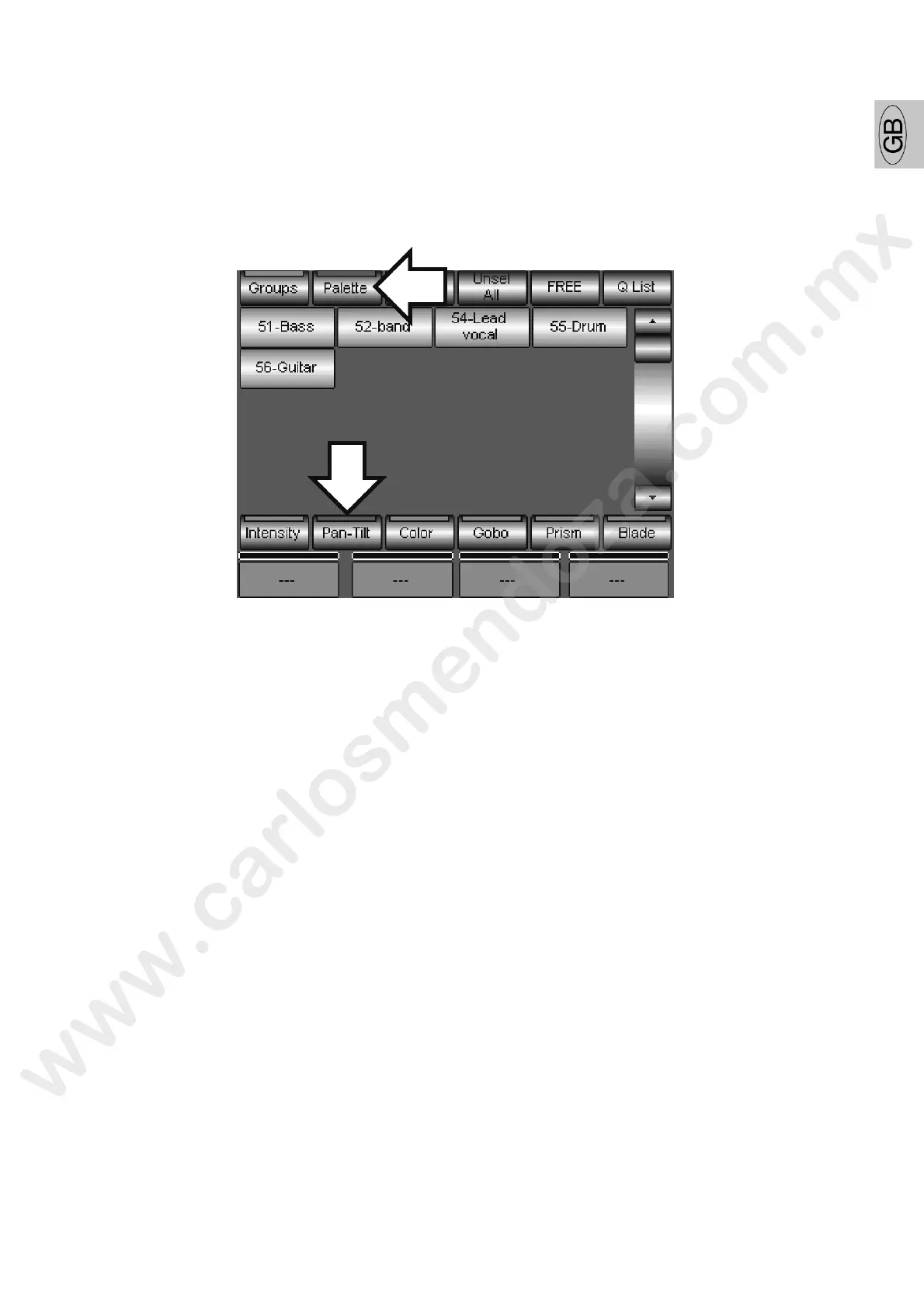
Chose the Pan-Tilt key from the pop-up window “Choose Object”, as showed into the picture
Digit the new Palette name by using the alphanumeric keyboard appearing on the touch screen
Push Enter to confirm the name and save the new Palette
At the end of the Palette storing procedure, the Editor window of the Pilot 3000 will automatically show the
available touch keys for the last Palette type stored.
Push the touch key Groups (or Fixture) to take the con rol of the Fixture’s Attributes and create new Pan
Tilt Palettes.
CREATING COLOR PALETTE
Un
like the Pan Tilt Palette, the Color Palette is already created into the internal library. These Palettes are
available for all those fixtures having a et f dichroic colors fitted onto their color wheels.
The way to create Color Palettes is th same described for the Pan Tilt Palettes:
Select the Fixtures which will b involved into the color Palette
Push the LOCATE key
Choose the required c lor by either the color Attribute or the CMY Attributes
Push the STORE ke
Push the Color ke from the pop-up window “Choose Object”
Digit the new Palette name by using the alphanumeric keyboard appearing on the touch screen
Push Enter o confirm the name and save the new Palette
CREATING OTHER PALETTES
The way to create other kind of Palettes (Intensity; color; PanTilt; Gobo; Prism; Blade) is the same
described for the color Palette by acting on the STORE command to choose the group of Attributes to be
stored as a Palette and then confirm the choice by assigning a name to the new Palette.


 To Next Page