Connecting by Web Browser
After initial setup, you can manage your OMNINAS through the interface menus. Connecting to
the management menus is done by using either the Finder utility or direct access through a web
browser. The two methods are dened in the following:
Connect by using the Finder utility — available for Windows and Mac OS X users
Connect through a web browser — available for Windows, Mac OS X, and Linux users
Connect Using Finder
The Finder utility is available only for Windows or Mac OS X operating systems.
1. Connect the OMNINAS as described in Connect to a Switch or Router.
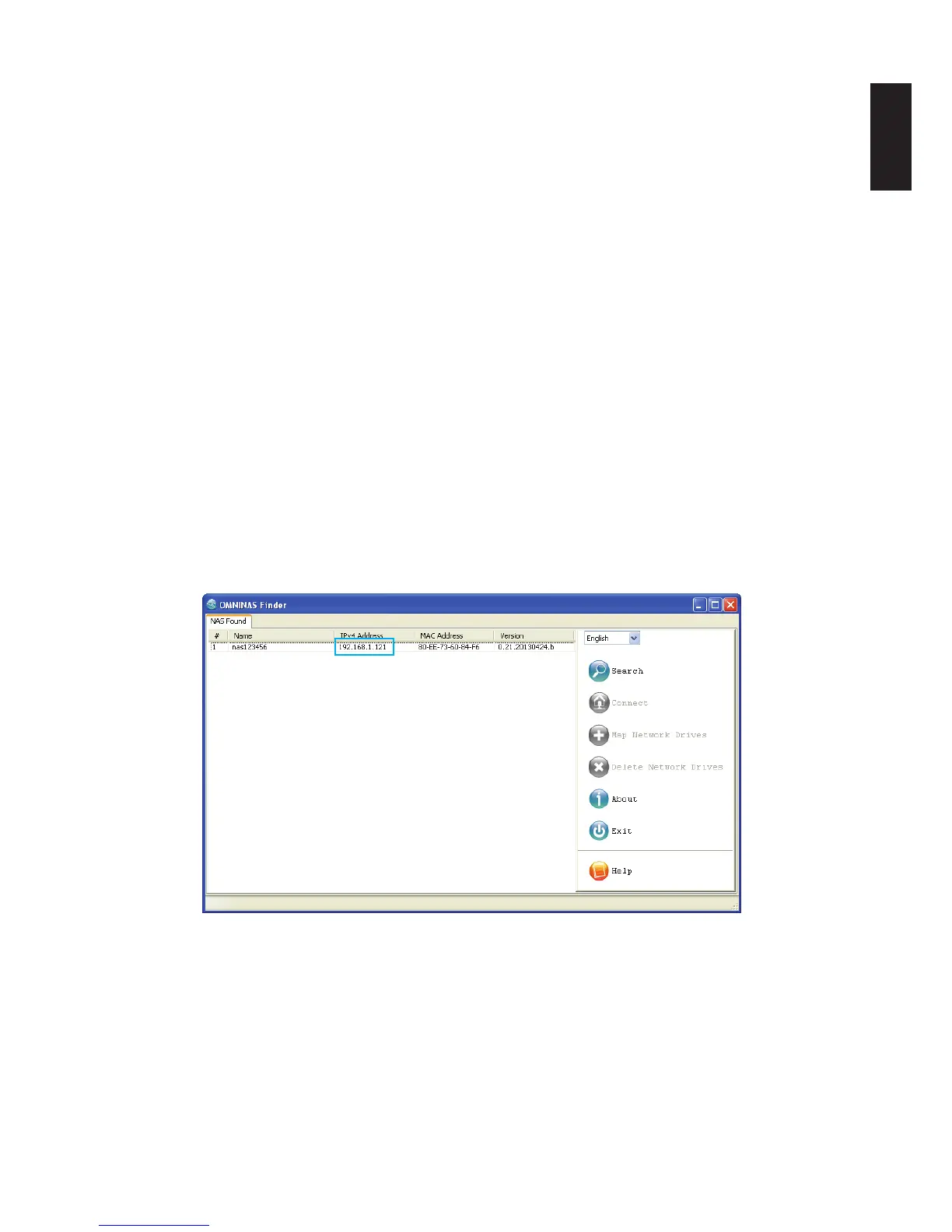
2. Run and use the Finder utility to obtain the OMNINAS IP address. See the following gure.
Note:
Unless your computer system’s language setting is detected, the default language setting
is English.
All OMNINAS devices available within your subnet group are displayed in the NAS Found
tab.
If only one device is detected by Finder, the device’s web interface automatically display.
If devices are not automatically found, click Search to manually perform this function.
Obtaining an IP Address


 To Next Page