Deleting Network Drives
The delete function allows you to remove already mapped network drives. Close all folders asso-
ciated with the drives to make sure the delete function successfully removes the shortcut refer-
ence.
Note:
After a drive is mapped, a software application on your computer can read and write les
from the shared storage area by accessing that drive, just as if the mapped drive represent-
ed a local physical hard disk drive. In the following example, the mapped drive is labeled
“F”. It is accessible for the computer as follows:
Example: F:\directory folder\
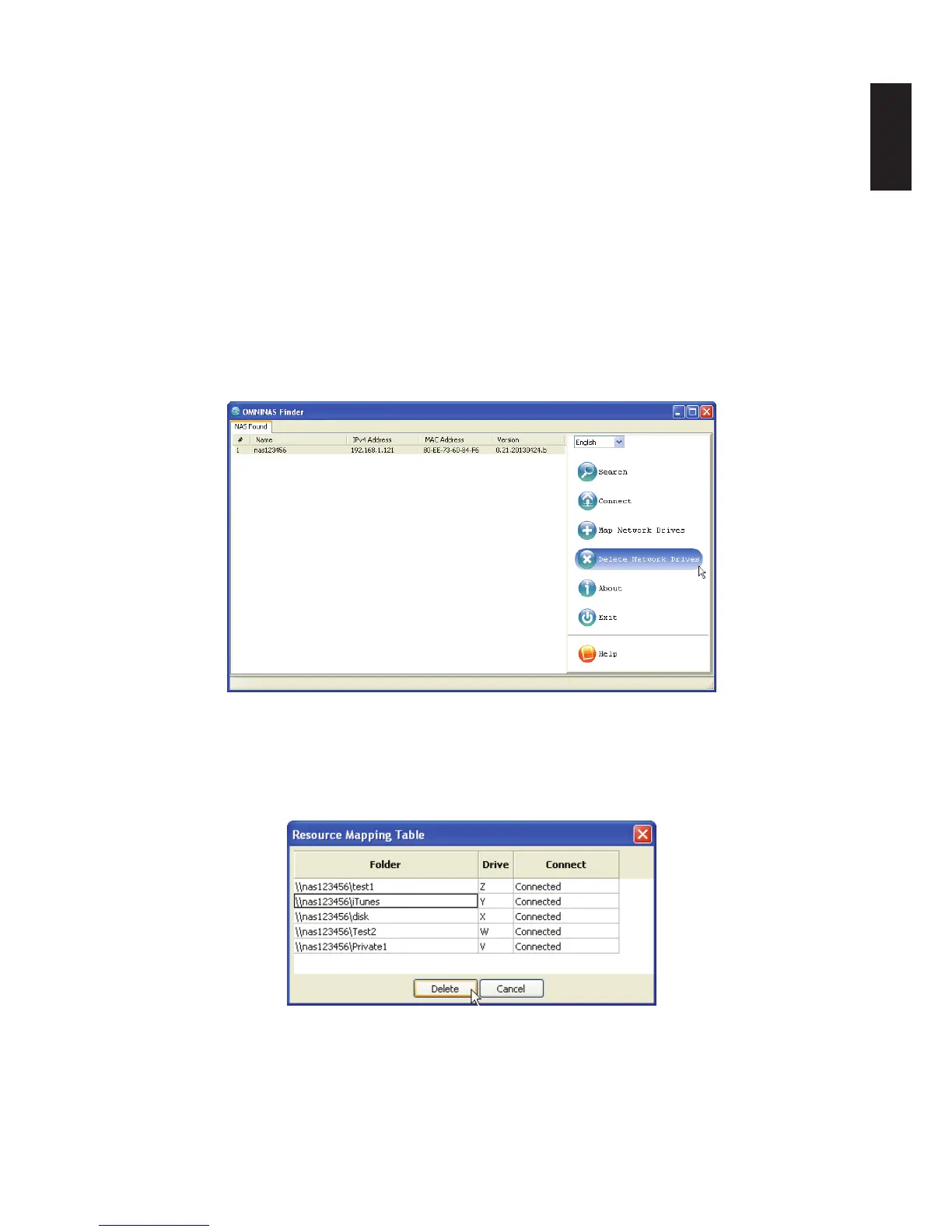
1. In the OMNINAS Finder window, select a NAS Device.
2. Click Delete Network Drives.
Delete Network Drives
The Resource Mapping table displays. The table lists available OMNINAS folders, drive let-
ters, and connection type.
3. Select a folder to unmap, and click Delete.
Mapping an Individual Folder
The mapped drive is removed from the network.
Note:
An open mapped folder prevents the deletion of a mapped drive. Close your Explorer and
iTunes windows for deletion of mapped drives to function.


 To Next Page