EasyManua.ls Logo

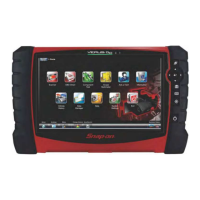
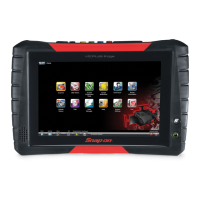
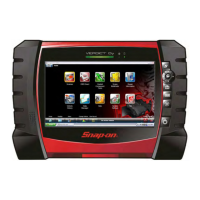
Snap-On VERUS - User Manual

Snap-On VERUS
188 pages
Print Icon
To Next Page IconTo Next Page
Loading...
User Manual
EAZ0061B58A Rev. E

Table of Contents

Questions and Answers

  • B
    Beth MooreAug 14, 2025
    What to do if Snap-On VERUS is paired, but not communicating?
    • E
      Emma WilsonAug 14, 2025
      If your Snap-On Medical Equipment Scan Module is paired but not communicating, it might be because you've moved out of range. Try moving the Diagnostic Tool closer to the Scan Module to reestablish communications. Alternatively, you can perform the “Recovery Procedure”.
  • A
    Andrew MorganAug 17, 2025
    How to fix slow Snap-On VERUS Medical Equipment Scan Module response with “Error 101”?
    • A
      Alexander SmithAug 17, 2025
      If you are experiencing a slow Scan Module response accompanied by “Error 101” message on your Snap-On Medical Equipment, verify the Hardware Status. If the icon is Red, pair the Scan Module to the Diagnostic Tool.
  • J
    Jason HicksAug 20, 2025
    How to fix slow Snap-On VERUS Medical Equipment Scan Module response with “Error 404”?
    • G
      Gabrielle RiosAug 20, 2025
      If you are experiencing a slow Scan Module response accompanied by “Error 404” message on your Snap-On Medical Equipment, verify the Hardware Status. If the icon is Red, pair the Scan Module to the Diagnostic Tool.
  • B
    Bradley HaydenAug 25, 2025
    What to do if Snap-On Medical Equipment shows “Error Occurred” when using Scan Module?
    • D
      David MillerAug 25, 2025
      If you receive an “Error Occurred” message when trying to use the Scan Module of your Snap-On Medical Equipment, verify the Hardware Status. If the icon is Red, pair the Scan Module to the Diagnostic Tool.
  • K
    Kimberly JohnsonAug 27, 2025
    What to do if Snap-On VERUS shows “Error Occurred” after idle time?
    • I
      ijonesAug 27, 2025
      If your Snap-On Medical Equipment shows an “Error Occurred” message after sitting idle for 20 or more minutes, verify the Hardware Status. If the icon is Red, pair the Scan Module to the Diagnostic Tool.
  • M
    Michael CooperAug 31, 2025
    How to restore connectivity between Snap-On VERUS Diagnostic Tool and Scan Module?
    • R
      Ronald HallAug 31, 2025
      If there is no connectivity between the Diagnostic Tool and Scan Module of your Snap-On Medical Equipment, perform the “Recovery Procedure”.
  • P
    Pamela DavisSep 3, 2025
    How to restore connectivity in Snap-On VERUS Medical Equipment ShopStream Diagnostic Suite?
    • J
      Jake OsborneSep 3, 2025
      To restore connectivity on your Snap-On Medical Equipment, perform the ShopStream Diagnostic Suite Restart Procedure.
  • A
    angela85Sep 6, 2025
    What to do if Snap-On VERUS Medical Equipment connectivity remains unavailable after recovery?
    • J
      James AguirreSep 6, 2025
      If connectivity remains unavailable on your Snap-On Medical Equipment following recovery, use one of the alternate procedures to restart the system.
  • J
    Jessica DurhamSep 9, 2025
    Why Snap-On VERUS Medical Equipment scanner functionality isn't restored after USB connection?
    • T
      Taylor ThomasSep 9, 2025
      If the scanner functionality of your Snap-On Medical Equipment is not restored immediately once the USB connection is complete, suspect a hardware failure and complete your testing with the USB connection intact.

Summary

Basic Operation and Navigation

Powering On;Off and Shutdown

Details procedures for powering the tool on, off, and emergency shutdown.

Basic Navigation and Interface

Covers navigating the ShopStream Diagnostic Suite interface and Home screen.

Scanner Operations

Vehicle Identification and Connection

Guides on identifying vehicles and connecting the diagnostic tool.

Scan Module Connection and System Selection

Describes Scan Module connection and vehicle system selection.

Functional Tests and Troubleshooter

Guides on performing functional tests and using the Troubleshooter.

Scan Module Operation

Scan Module Troubleshooting

Provides troubleshooting for communication issues, signal loss, and hardware status.

Updating Scan Module Firmware

Guides on updating the Scan Module's internal programming via wireless or USB.

OBD Direct Operations

OBD Health Check and Diagnostics

Guides on performing health checks, clearing codes, and checking readiness monitors.

Guided Component Test Operations

Vehicle Identification and Favorites List

Guides on identifying test vehicles and creating a favorites list.

Performing Guided Component Tests

Guides through performing tests, connecting meter leads, and using hyperlinks.

Scope Multimeter Operations

Trigger Controls and View Settings

Guides on adjusting trigger controls and view settings for display.

Information Module

Diagnostic Trouble Codes (DTC)

Provides information on retrieving, diagnosing, and repairing DTCs.

Engine Management Component Testing

Provides procedures for testing engine management system components.

Engine Management Pin Data

Provides ECM connector diagrams, pin assignments, and test conditions.

Component Locations

Provides graphics and text for locating vehicle components.

Wiring Diagrams

Provides system wiring diagrams for the test vehicle.

Vehicle History Operations

Data Manager Operations

Scanner DataViewer Operation

Guides on reviewing saved scanner data files using the DataViewer.

Scope Viewer and Image Viewer

Guides on printing and playback of scope traces and viewing image files.

System Settings Operations

Data Backup and Restore

Provides options for backing up and restoring saved data.

SureTrack

Using SureTrack for Repair Information

Guides on accessing repair information via DTCs, graphs, and Real Fixes.

ShopStream Update Tool (SST)

Manual Software Download

Guides on manually checking for and downloading software updates.

Installing Software Updates and Upgrades

Explains the process of installing software updates and upgrades.

Maintenance

Battery Pack Service and Safety

Covers safety guidelines, replacement, and disposal of the battery pack.

System Restore and Scan Module Maintenance

Guides on system restore, battery calibration, and Scan Module care.

Snap-On VERUS Specifications

General IconGeneral
ManufacturerSnap-On
ModelVERUS
FunctionDiagnostics, Programming, and Analysis
DisplayTouchscreen LCD
ConnectivityUSB, Wi-Fi
Software UpdatesYes, via Wi-Fi
Power SourceAC Adapter
CompatibilityVarious vehicle makes and models (check specifications for details)

Videos

How to Update Scan Module Firmware for ZEUS & VERUS

Related product manuals