MV-32/64 Multiviewer www.snellgroup.com Connection to Other Equipment
Issue 1 Rev 11 Page 97 © 2014 Snell Limited
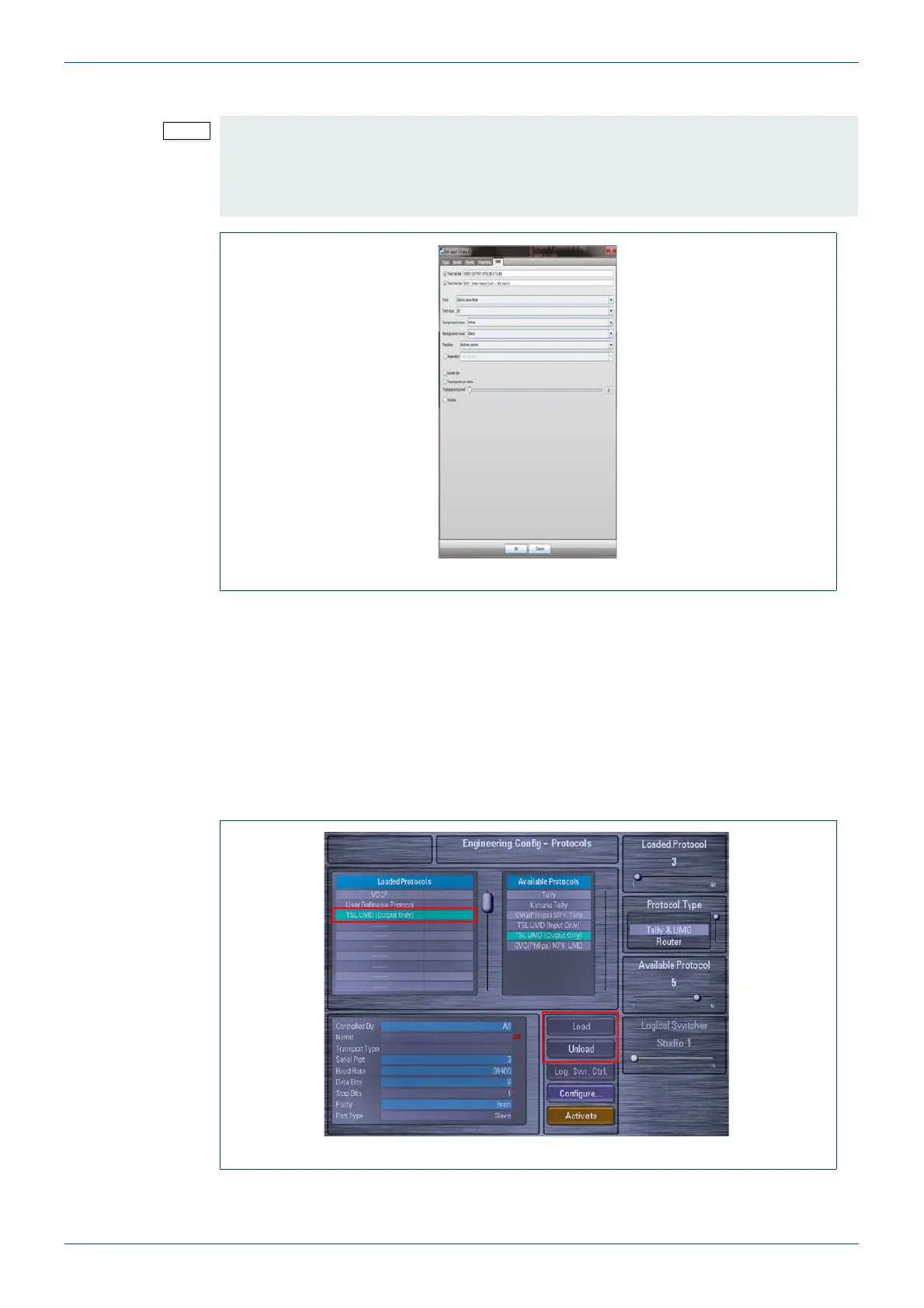
12. The Font, Font Size, UMD Position, etc. is set from the UMD tab.
13. Click on the OK button to save the changes.
14. The Sources on the multiviewer are UMD addresses 0,1,2,3, etc.
Source 1 = UMD Address 0
Source 2 = UMD Address 1
Source 3 = UMD Address 2
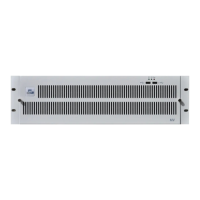
15. Finally, return to the Engineering Config - Protocols menu on the Kahuna 360.
16. Select the “TSL_UMD (Output Only)” entry in the Loaded Protocols list and touch
the {Unload} button followed by the {Load} button.
17. You should now have a multiviewer layout on the monitor with UMD and Red/Green
Box Tallies.
If you want the UMD to be under the screen then, you need to un-tick the Inside Tile Box.
You will then need to set the desired font size and return to the screen layout to make the
screen vertical size larger so the Picture is 16:9 and then the UMD will be under the picture
(If this is not done the picture will be squashed vertically).
Set the video aspect to None in the tile set-up.
Fig 84. Edit Object - UMD Tab.
Fig 85. Engineering Configuration - Protocols Menu


 To Next Page