EasyManua.ls Logo

Speco N8NXP - User Manual

Speco N8NXP
146 pages
Print Icon
To Next Page IconTo Next Page
Loading...
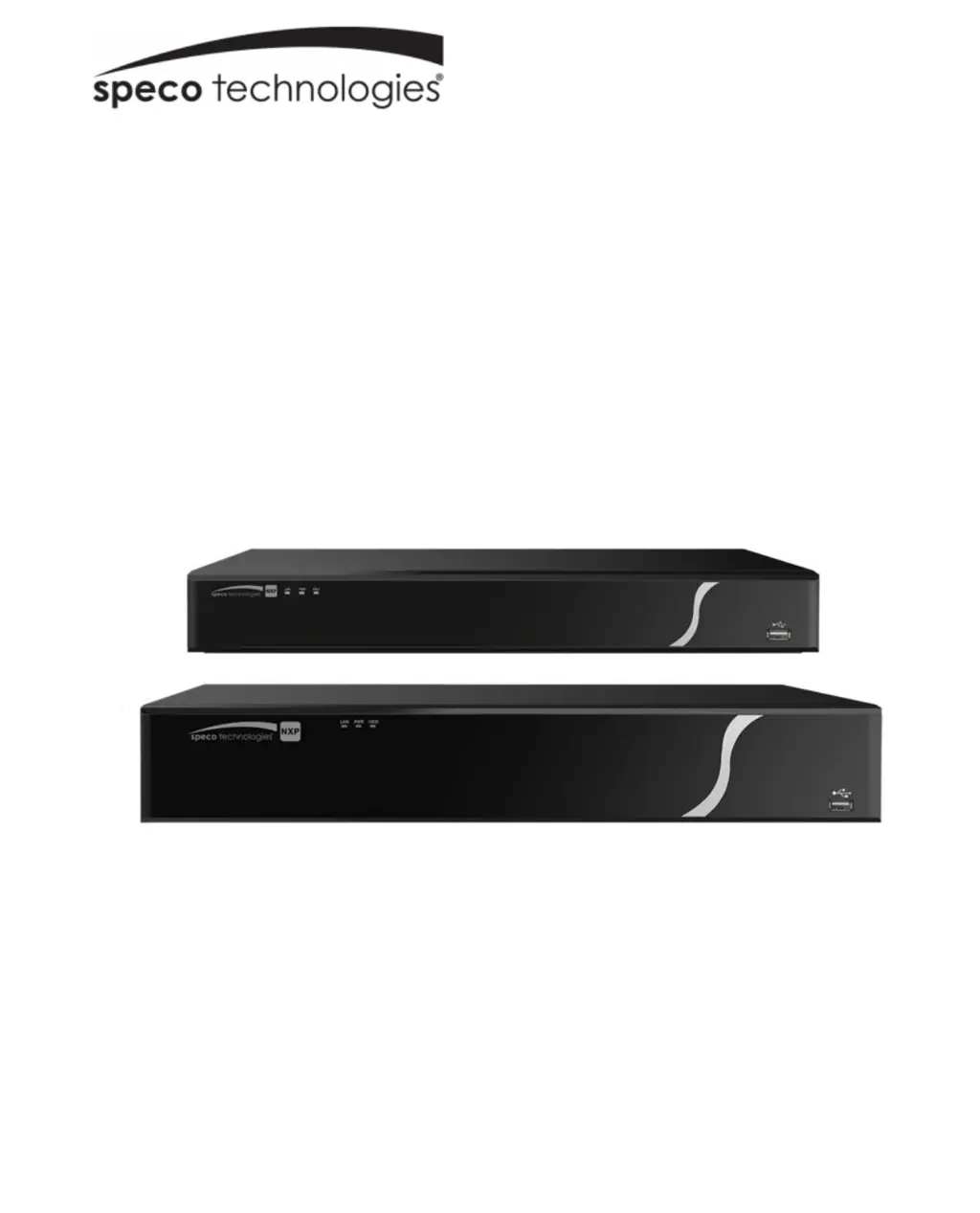
NXP NVR
User Manual
V1.0

Table of Contents

Other manuals for Speco N8NXP

Questions and Answers

  • T
    Taylor GutierrezAug 19, 2025
    Why does my Speco Network Hardware NVR automatically shut down?
    • J
      Jason RamirezAug 19, 2025
      Your Speco Network Hardware NVR might automatically shut down due to several reasons. The input voltage may be unstable or too low, so check the power supply. A hard drive malfunction could also be the cause; listen to check if the HDD is spinning. In addition, hardware malfunction can cause the unit to shut down. In this case, contact technical support.
  • S
    Sherry FullerAug 21, 2025
    What to do if I forgot my Speco Network Hardware password?
    • D
      Dawn NolanAug 21, 2025
      To reset your Speco Network Hardware password, answer the security questions on the login prompt. If you've also forgotten the answers to your security questions, contact technical support.
  • X
    xjosephAug 23, 2025
    How to fix no video output on Speco N8NXP?
    • G
      Gregory KlineAug 25, 2025
      If you have no video output on your Speco Network Hardware, first check the HDMI/VGA connection to the monitor and make sure the input on the monitor is set correctly. Also, check to see if the brightness is set too low. If these steps don't resolve the issue, check to see if front panel indicators are lit, as the NVR hardware may have malfunctioned.
  • J
    John JimenezAug 26, 2025
    Why is my Speco N8NXP network connection not stable?
    • L
      laura68Aug 26, 2025
      An unstable network connection on your Speco Network Hardware could be due to an IP address conflict. Check if other devices are using the same IP address on the local network. Also, check that all necessary ports have been forwarded and verify the network settings on your PC.
  • D
    Daniel BeltranAug 28, 2025
    How to fix Speco N8NXP NVR not booting up properly?
    • T
      Tracy EllisAug 28, 2025
      If your Speco Network Hardware NVR isn't booting up properly, start by checking the power supply. If the power supply is working, check to see if front panel indicators are lit which may indicate a damaged main board. If the issue persists, it could be due to a firmware upgrade that didn't finish properly, in which case you should contact technical support.
  • K
    Kimberly WoodAug 30, 2025
    What to do if there is no video on Speco N8NXP channels?
    • S
      Scott RyanAug 30, 2025
      If there is no video on channels of your Speco Network Hardware, ensure that the IP address, port number, and account credentials (username/password) for the IP camera are correct. Additionally, verify that the IP camera is online. Check Setup->Camera to make sure all camera settings are correct. Contact technical support for further assistance.
  • C
    Christy AdamsSep 1, 2025
    What to do if my Speco Network Hardware system can not detect HDD?
    • K
      Karen RiceSep 1, 2025
      If your Speco Network Hardware system can't detect the HDD, the HDD might be malfunctioning, in this case, contact technical support. Also, check if the HDD ribbon cable is damaged or loose. If the problem persists, the main board SATA port might be broken, in this case, contact technical support.
  • J
    Joel MurphySep 3, 2025
    How to fix file backup errors on Speco N8NXP?
    • E
      Emily SmallSep 3, 2025
      If you're experiencing file backup errors on your Speco Network Hardware, it could be due to several reasons: 1. The system may be using too much CPU resource. Please stop recording first, and then begin the backup. 2. The USB backup device may be incompatible or damaged. Try a different device.
  • J
    Jessica KimSep 5, 2025
    Why is there no video when connected remotely to Speco N8NXP?
    • A
      Alexandra WilliamsSep 5, 2025
      If you're experiencing no video when connected remotely to your Speco Network Hardware, it could be due to poor network bandwidth. Check network settings. It's also possible that the remote bandwidth has reached its maximum; check for all users who are connected. Finally, the remote user may not have viewing authorization; the administrator must provide this authority to the user in Setup.
  • S
    Stephanie ChandlerSep 7, 2025
    How to fix video stuttering when viewing in split screen on Speco Network Hardware?
    • V
      Valerie DelacruzSep 7, 2025
      If the video stutters when viewing in split screen on your Speco Network Hardware, the network bandwidth may not be sufficient. Split screen viewing requires a bandwidth of 100Mbps or higher.

Summary

Important Safeguards and Warnings

Electrical Safety Guidelines

Guidelines for safe electrical installation and operation to prevent shock.

NXP NVR Features and Specifications

NXP NVR Technical Specifications

Detailed technical data including connections, resolution, storage, and power.

Camera Management (Local)

PTZ Control and Configuration

Operating and configuring PTZ camera functions like presets and tours.

Recording and Scheduling

Alarm and Notification System

Event Detection Configuration

Setting up motion, tampering, and video loss detection for security events.

Network Configuration

IP, Connection, and Remote Access Setup

Configuring network settings like TCP/IP, PPPoE, DDNS, and UPnP for connectivity.

HDD Management

System Setup and Maintenance

System Upgrade and Default Settings

Updating firmware, restoring factory defaults, and system maintenance.

Web Operation

Web Browser Access and Login

Connecting to the NVR via a web browser and logging into the interface.

Web-Based Camera and Network Configuration

Configuring cameras, streams, and network settings remotely via the web interface.

Troubleshooting Guide

NVR Operational Issues

Resolving problems related to booting, running, HDD detection, and video output.

Connectivity and Data Issues

Troubleshooting network stability, file backup errors, and remote viewing problems.

Speco N8NXP Specifications

General IconGeneral
Operating SystemEmbedded LINUX
HDD Bays1
TypeNetwork Video Recorder
Channels8
IP Camera Input8
InterfaceHDMI, VGA
Resolution (VGA)1920x1080
Decoding Capacity8-ch @ 1080p
Multi-screen DisplayYes
OSDYes
EthernetRJ-45 port (10/100Mbps)
Network Interface1x RJ-45 10/100/1000 Mbps
ProtocolsHTTP, TCP/IP, IPv4, UPNP, RTSP, UDP, SMTP, NTP, DHCP, DNS, DDNS
Smart PhoneiOS, Android
Internal HDD1 SATA Port
USB2 USB 2.0
Power Supply12V DC
Operating Temperature-10°C to +55°C (14°F to 131°F)
CompressionH.265, H.264
ResolutionUp to 8MP (3840x2160)

Related product manuals