92
2019 Stenograph, L.L.C. All Rights Reserved.
92
Luminex Users Guide
Chapter 3 Writing on the Luminex
Suffix Handling
The Suffix Handling feature attaches properly defined suffixes to the previous word. This provides for
easier readback on the Luminex screen when using suffixes.
If you have exported your Case CATalyst Spell Check Wordlist and Prefixsuffixrules.ini file, the suffix
handling feature attaches the suffix to the previous word and spell checks it against the wordlist and
prefixsuffixrules file. You need Case CATalyst v8.05 or higher to export the wordlist and
prefixsuffixrules file. To export the Case CATalyst Spell Check Wordlist and the Prefixsuffixrules.ini
files, you must have installed the Luminex USB driver on your computer.
To export the files:
1. Ensure your Luminex and computer are turned On and fully booted.
2. Start Case CATalyst.
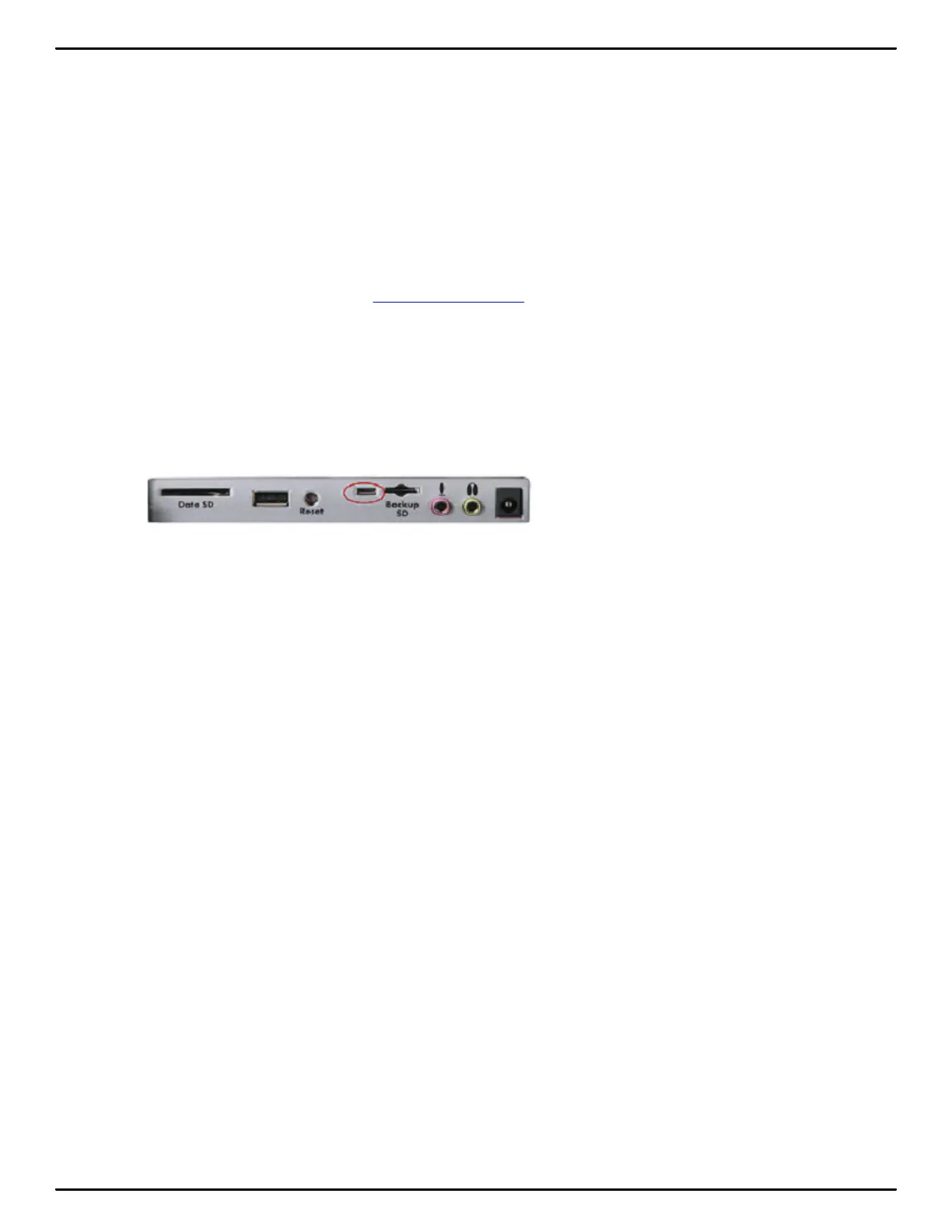
3. Connect your Luminex to your computer via micro USB cable. Each end of the USB cable has a
different connection plug. Connect the appropriate end of the USB cable to the USB B (client) port
on back of the Luminex and the other end to the USB port on the computer.
Luminex Back Port Panel
4. In Case CATalyst, select Export.
5. From the Export dialog box, select the Stenograph Writer tab. If using Case CATalyst 16.03 or
lower, select élan/Fusion/Diamante tab. In Case CATalyst V10.04 or earlier, select the élan/Fusion
tab.
6. Check the box, Export Spell Check Wordlist.
If applicable, check the box Export Prefixsuffixrules.ini File. When the Export to Prefixsuffixrules.ini
File option is grayed out, there is no Prefixsuffixrules.ini file in your System Files Case indicating
you do not use it. A Prefixsuffixrules.ini file is not necessary to use the Suffix Handling feature.
Case CATalyst remembers the status of these check boxes. Select any dictionaries to export. The
Personal Dictionary is automatically selected.
7. Select Export. The Luminex beeps and briefly displays a progress bar.
8. When the Luminex finishes loading the selected files, it reboots, displaying the Opening menu.
Depending on your Case CATalyst settings, the message, Export Complete displays.
9. Remove the USB cable.



 To Next Page