87
2019 Stenograph, L.L.C. All Rights Reserved.
87
Luminex Users Guide
Chapter 3 Writing on the Luminex
Scroll - Using Touch Screen
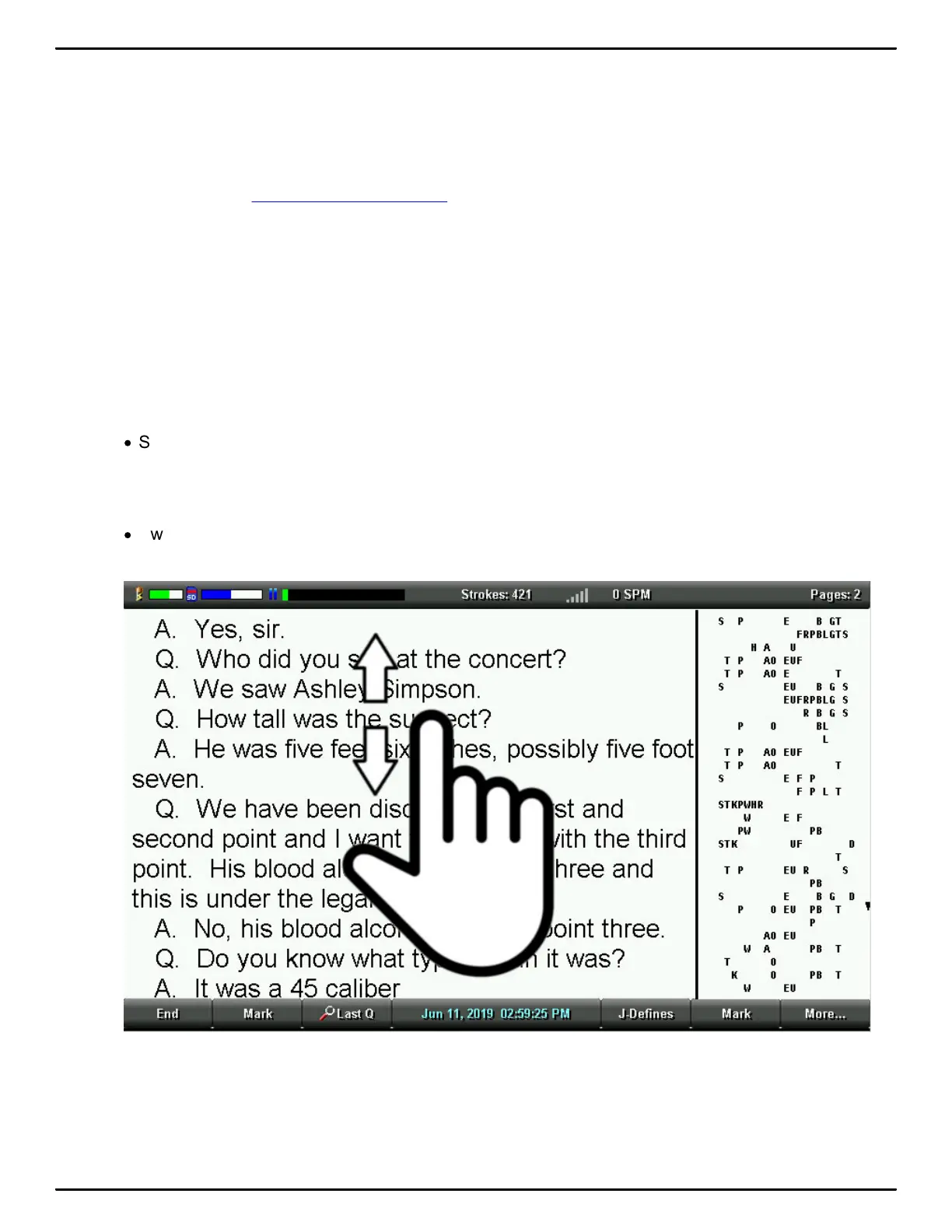
Use swiping gestures on the touch screen to scroll text, steno, and vertical notes up and down. This is
useful for viewing and readback of testimony. If you'd like to scroll and play audio from a specific text
location, use the menu options for scrolling.
Scrolling Text
Swipe up in the text area on the writing screen to scroll the text downward. Swipe down in the text
area on the writing screen to scroll the text upward. Depending on your selected view, the vertical
notes area of the writing screen may also scroll to keep the steno notes and the associated text
translation together on the display. Use a single touch point. For example, use your index finger. The
speed of the swipe and if your finger (touch point) stays in contact with the screen will determine the
speed and amount of scrolling that occurs.
To achieve smaller amounts of scrolling do the following:
·
Swipe up or down slowly while keeping your finger (touch point) in contact with the screen for the
entire swipe gesture.
To achieve larger amounts of scrolling do the following:
·
Swipe up or down quickly and let your finger (touch point) lift up from the screen at the end of the
swipe gesture.
Scrolling Vertical Notes



 To Next Page