23
2019 Stenograph, L.L.C. All Rights Reserved.
23
Luminex Users Guide
Chapter 2 Hardware
Status LCD
Located between the touch sensors is a small rectangular LCD screen. The Status LCD displays
icons that indicate specific operations of the Luminex. When battery power is low enough to turn off
the tilting screen, the Status LCD continues to show information, indicating the writing machine is still
working.
The Status LCD provides the following information:
·
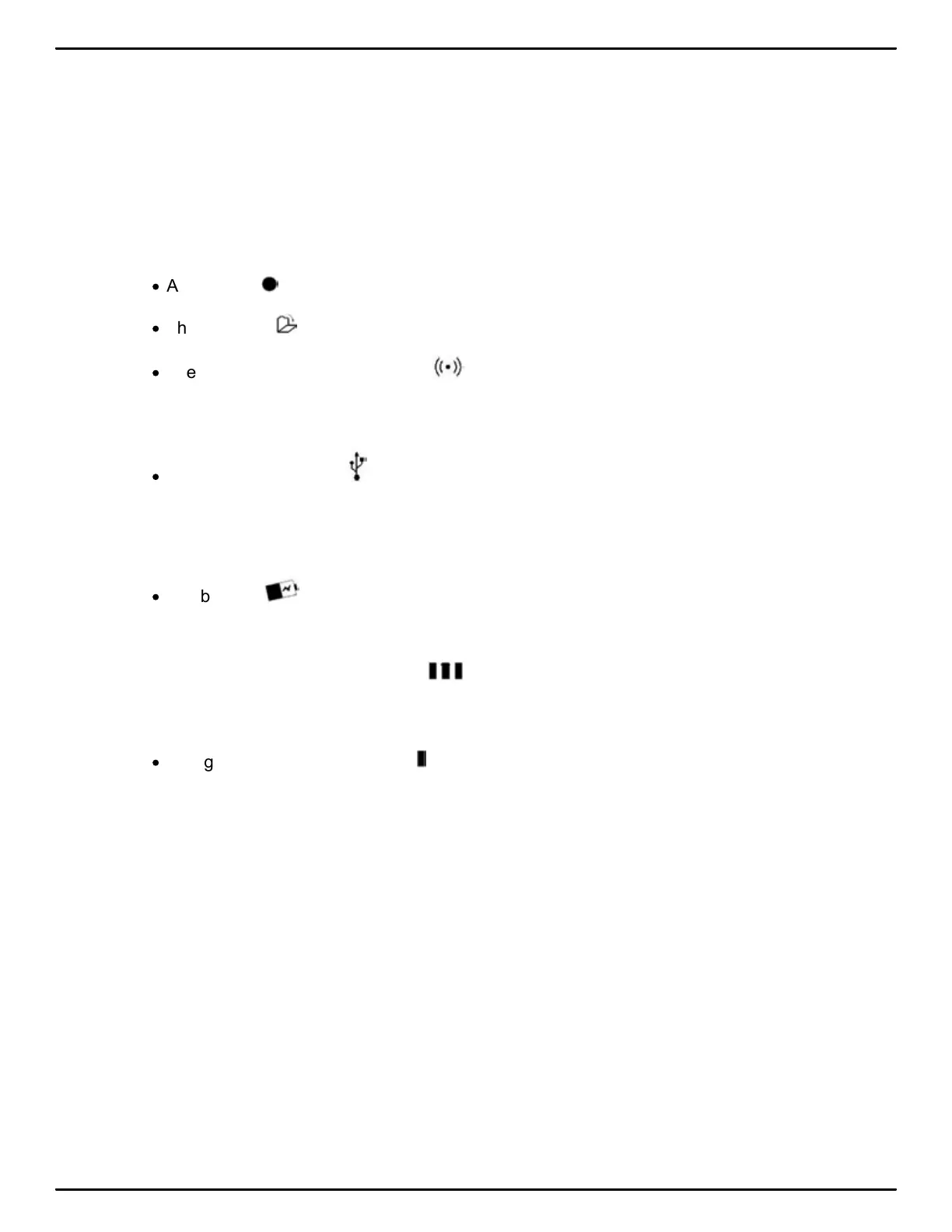
A black dot ( ) displays in the lower right corner of the screen indicating the Luminex is On.
·
The file open ( ) icon displays when you begin writing on the Luminex, indicating a file is open.
·
The wireless communication icon ( ) displays when the Luminex is connected to a CAT
system using wireless connection. The icon only displays when there is an active realtime
connection. When you end realtime, the icon does not display.
·
The realtime indicator ( ) displays when the Luminex is connected to a CAT system with a
USB connection or virtual serial port connection using the micro USB cable for writing. The icon
only displays when there is an active realtime connection. When you end realtime or disconnect
the cable, the icon does not display.
·
The battery ( ) icon displays when battery voltage is low and blinks when battery voltage is
extremely low.
A row of rectangular black blocks ( ) display in running sequence from left to right when the
main battery is charging. When the Luminex is finished charging, the bars move from each side
to the middle of the screen in a “clapping” motion.
·
A single black rectangular block ( ) displays when you press a key. There is a corresponding
block for each letter on the keyboard. Which block displays depends on the key stroked. A block
displays for each key in the following order:
# S T K P W H R A O * E U F R P B L G T S D Z
Stroking the number bar along with a key displays the # sign on the left-most side of the Status
LCD and the single black rectangular block for the key pressed.



 To Next Page