8
2019 Stenograph, L.L.C. All Rights Reserved.
8
Luminex Users Guide
Chapter 2 Hardware
View Battery Voltage Level
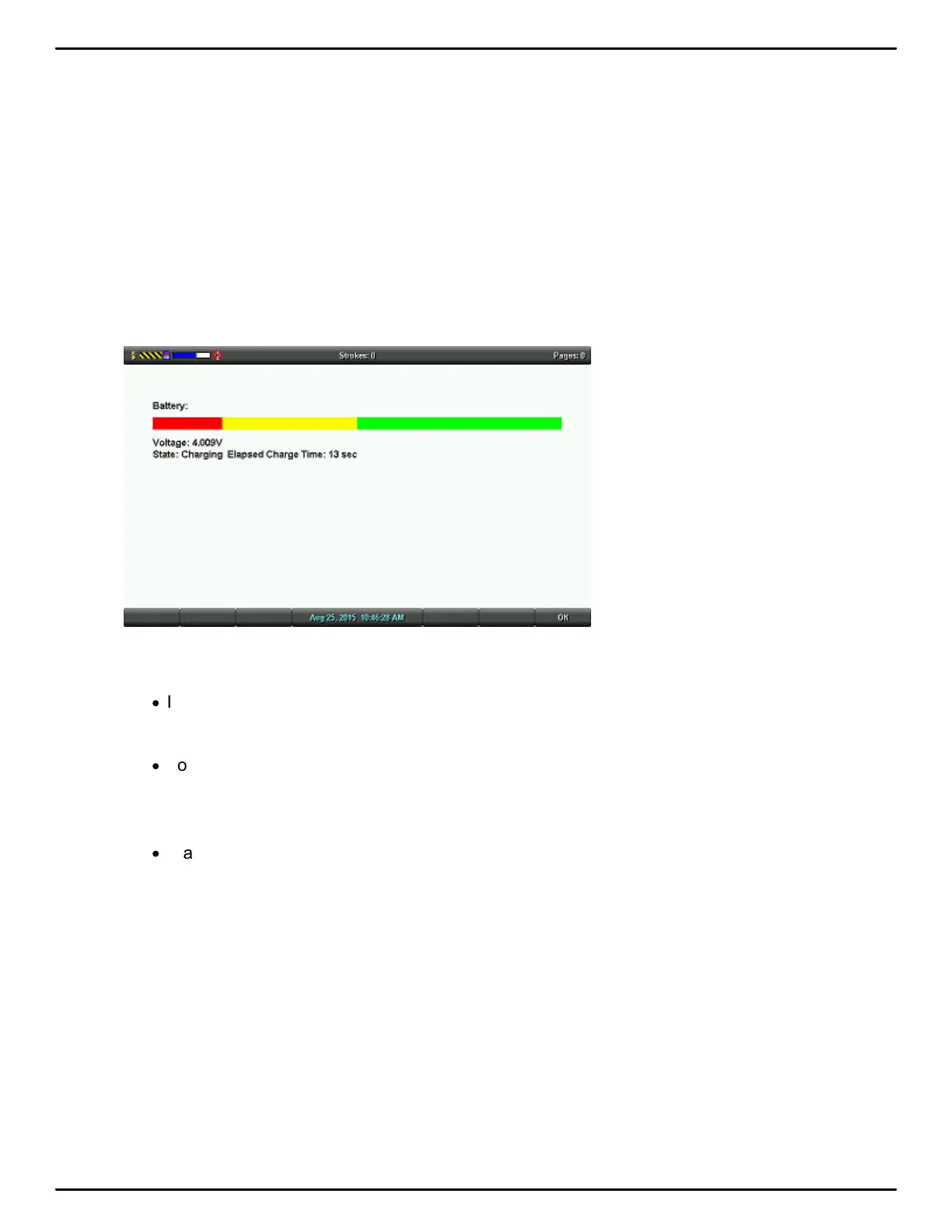
The Battery diagnostic screen displays the voltage level and charging status.
To view battery voltage and charging status:
1. Make sure the charger/adapter is not plugged into the Luminex. If you just disconnected the
charger/adapter from the Luminex, turn the Luminex On and wait 10 – 15 minutes to get an
accurate battery voltage reading.
2. From the Opening menu, touch More.
3. Touch Diag and then touch Battery. The battery status screen displays.
Luminex Battery Status Screen
4. Review the following battery information:
·
Indicator bar - provides an approximate indication of the battery voltage level. Green indicates the
battery is fully charged; yellow indicates it is charged and red indicates it is low.
·
Voltage - the actual voltage amount. A main battery reading of 4.07 volts or higher indicates
normal operating voltage. 3.6 volts or below indicates the battery is very low and the titling
screen will turn off and Failsafe mode will occur if battery is not charged.
·
State - displays whether the battery is charging or not charging.
5. When finished, touch OK, Quit. To display the Opening menu, touch More.
Low Battery Warnings
As the main battery becomes progressively low, the battery indicator on the writer's title bar will
change from green to yellow to red indicating a drop in battery voltage. The Luminex displays warnings
messages on the tilting screen and will beep to indicate the battery voltage is getting low. Once the
Luminex switches to FailSafe mode, the battery icon on the Status LCD blinks. When the main battery
becomes low while the Luminex is connected to a computer with the micro USB cable during
realtime, low battery messages continue to display until the battery is depleted but the writer will not



 To Next Page