59
2019 Stenograph, L.L.C. All Rights Reserved.
59
Luminex Users Guide
Chapter 3 Writing on the Luminex
·
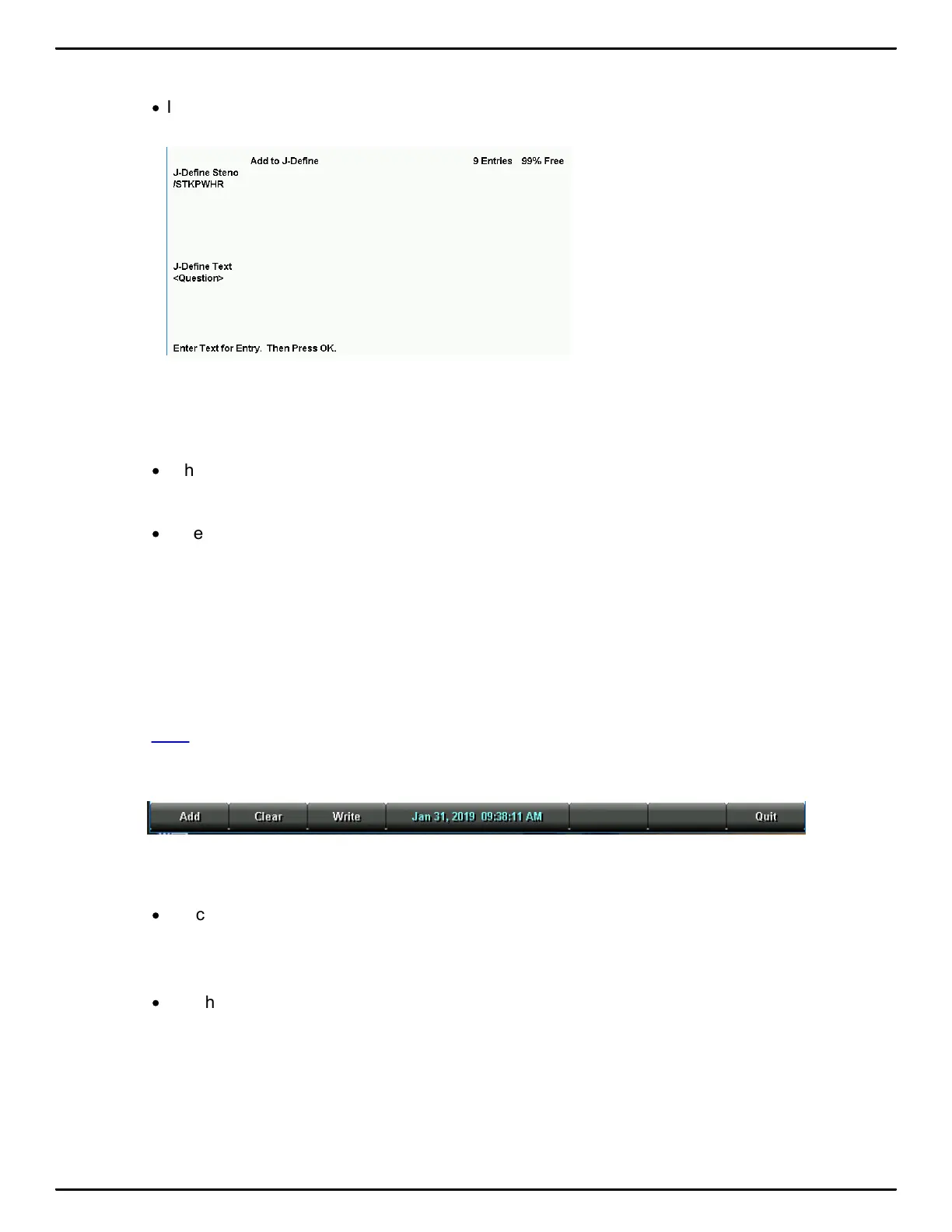
If you make a mistake, write an * (asterisk) to delete the previous character or press Clear to
delete the entire entry.
5. When finished, touch OK to complete the definition.
6. Repeat the previous steps to create additional J-Defines. When finished creating J-Defines, do
one of the following:
·
When creating J-Defines before beginning a job, touch Quit twice to return to the Opening
menu.
·
When creating J-Defines while writing, touch Quit. Continue writing.
Write All J-Defines to Data SD Card
You can copy all the entries in the J-Defines dictionary in the Luminex memory to a dictionary file.
When copying all the entries, the Luminex names the file, jdefines.sgdct, and saves it to the Data SD
card for use in Case CATalyst. You can then use Windows' My Computer feature to copy the file from
the Data SD card to your Case CATalyst user name. Copying all J-defines to the Data SD Card does
not clear (delete) them from the Luminex's memory.
To copy the J-Defines to the Data SD card:
1. From the Opening Menu, touch Dict, J-Defines.
2. From the J-Define menu, touch Write. The following message displays prompting you to confirm
the copy: Ready to Write All J-Defines to Data SD card. Are You Sure?
·
Touch Yes to write all J-defines in memory to the Data SD card to a file named jdefines.sgdct.
The following message displays:
Writing J-Defines to Data SD Card.
·
Touch No to cancel the J-defines being written to the Data SD card.
3. To display the Opening Menu, touch Quit twice.



 To Next Page