31
2019 Stenograph, L.L.C. All Rights Reserved.
31
Luminex Users Guide
Chapter 3 Writing on the Luminex
Writing Menu
First Writing menu
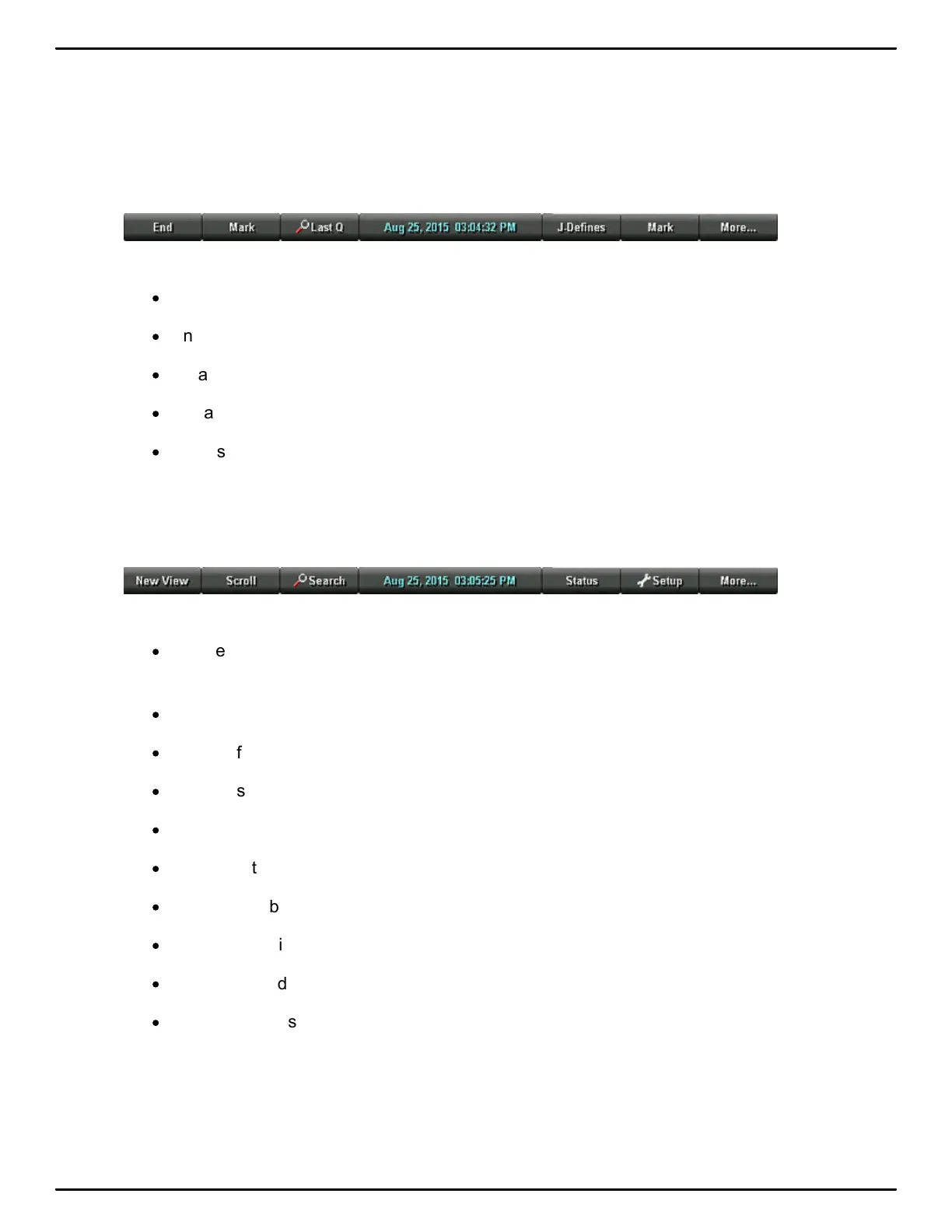
Once you begin writing on the steno keyboard, the first of two writing menus replace the Opening
menu:
The First Writing menu includes features that allow you to:
·
close the file.
·
insert electronic marks.
·
search for the last question.
·
create J-Defines.
·
access the second Writing menu.
Second Writing Menu
Touching More on the First Writing menu displays the Second Writing menu.
The second Writing menu includes features that allow you to:
·
toggle the tilting touch screen display between steno only, text only, text with vertical notes or
text and Brief It when Brief It is active.
·
scroll through the steno or text on the tilting screen.
·
search for the last Q, A, untranslate, StenoMark, and steno on the tilting touch screen.
·
display status information about the Luminex.
·
set audio options.
·
change tilting screen text color, font size and backlight level.
·
perform keyboard adjustments, save and load keyboard profiles.
·
playback audio.
·
access a third menu to display the Brief It pane and create briefs, when Brief It is active.
·
access the First Writing menu.
Third Writing Menu



 To Next Page