103
2019 Stenograph, L.L.C. All Rights Reserved.
103
Luminex Users Guide
Chapter 3 Writing on the Luminex
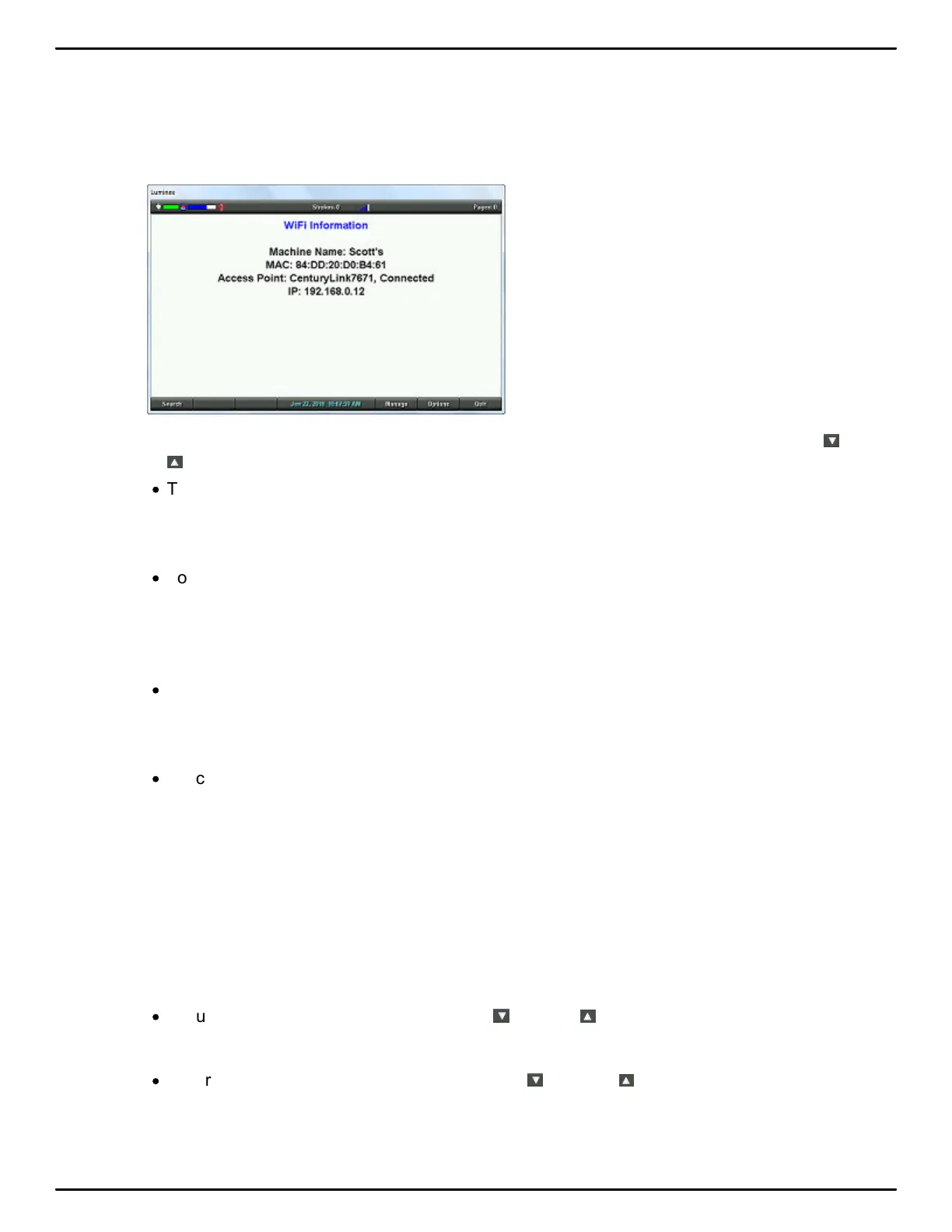
To manage your WiFi connections:
1. From the Opening menu, touch Setup, Wireless and then WiFi. The Preferred Networks (Profiles)
screen displays.
2. At the WiFi screen, touch Manage. If you have more than one WiFi connection, touch the Down
or Up sensors to highlight a connection and then do any of the following:
·
To connect to the highlighted network, touch Connect.
If for some reason you don't automatically reconnect after a break, you may need to go to
Setup, Wireless, WiFi, Manage and highlight the network and touch Connect.
·
To change the Pass Phrase or Machine Name, touch Edit. Use your steno keyboard to enter the
Pass Phrase for your network or to change the Machine name. You can use the steno
characters with -FPLT to be capital letters and steno characters with -RBGS to be lower case
letters.
·
To remove the highlighted network, touch Delete. The Are you sure you want to delete
NAMEOFNETWORK Profile? Touch Yes to delete the network profile or No to return to the
Preferred Networks (Profiles) screen.
·
Touch the Back sensor to return to the WiFi screen
WiFi Options
The WiFi Options are defaulted Off. Once you have setup a network profile, there are three WiFi
options available.
To access the WiFi options:
1. At the Opening menu, touch Setup, Wireless, WiFi and then Options.
2. Do any of the following:
·
To turn the WiFi option On or Off touch the Down or Up sensor, if necessary, to highlight
the WiFi On option and touch the Change sensor to toggle between Yes or No.
·
To turn the Roaming option On or Off, touch the Down or Up sensor to highlight the
Roaming On option and touch the Change sensor to toggle between Yes or No.



 To Next Page