45
2019 Stenograph, L.L.C. All Rights Reserved.
45
Luminex Users Guide
Chapter 3 Writing on the Luminex
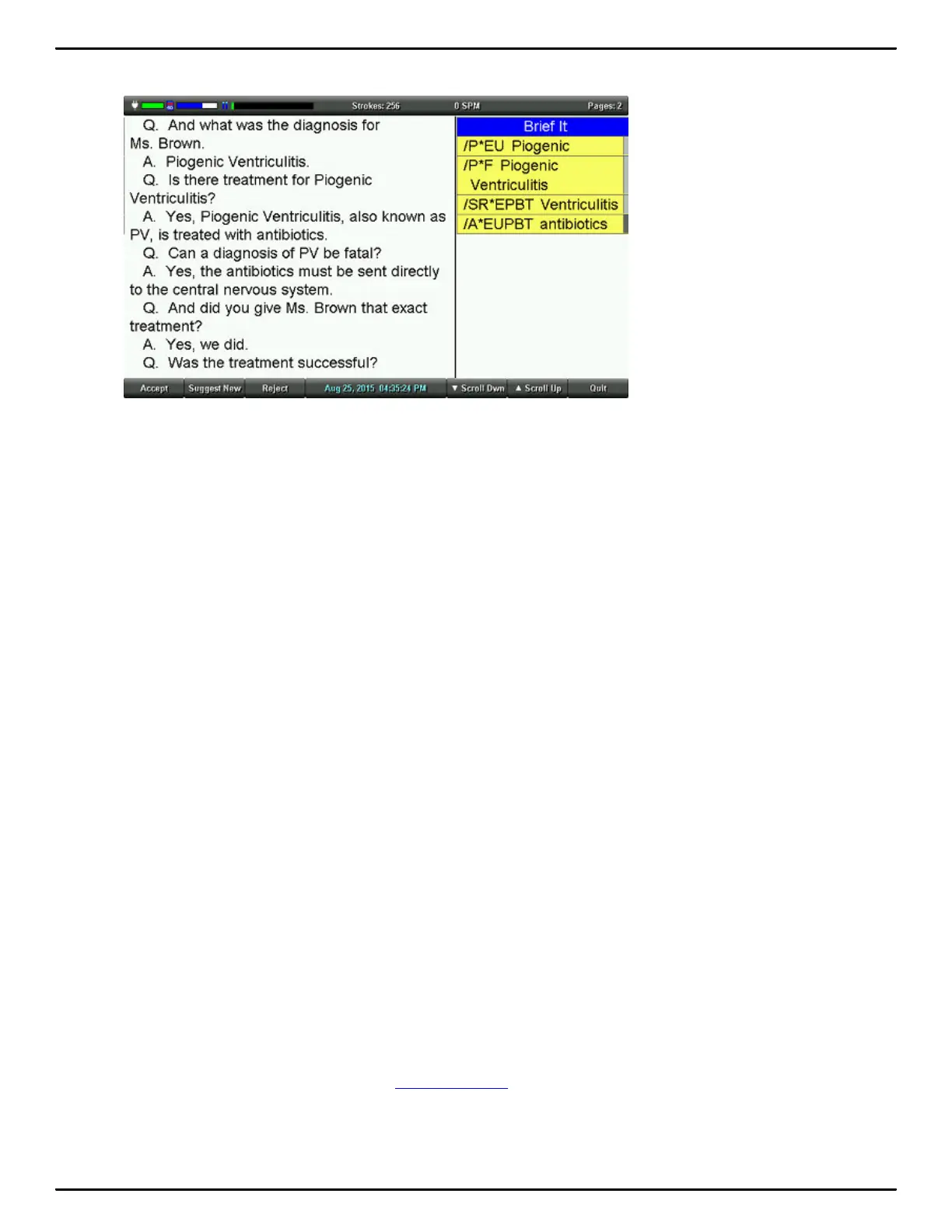
Use the following options as necessary:
Accept
Add the suggested brief to the job dictionary. The background turns gray once the suggested brief is
added to the job dictionary. During a job, a Suggested brief is automatically accepted and added to the
job dictionary when you write it. If writing realtime to CATalyst V13 or higher, the accepted brief is sent
to the global table of the Case CATalyst realtime file.
Suggest New
Reject the suggestion brief and suggest a new brief at the bottom of the list. The suggested brief is
lined out.
Reject
The current suggestion is rejected and lined out.
Quit
Save the changes and close the Brief It management screen.
Use Brief It
The Luminex Translate Option, Use Brief It, must be set to Yes before beginning a job in order for Brief
It to be available on the Luminex. By default, this option is set to No. When Brief It is active, the
Luminex defaults to the Brief It view when you begin writing. Text shows on the left side of the screen
and the Brief It pane on the right. Changing the font size for the screen also changes the size of the
Brief It pane and the text within it. You can change the View to not show the Brief It pane, but unless
you turn Brief It Off, Suggested briefs continue to be provided even though you won't see them on the
screen due to the change in view. If you turn Brief It off during a job, when you return to writing the job,
the View shows text on the left and vertical notes on the right.
When Use Brief It is set to Yes, two Brief It Options are available. The options, Write Twice to Define
and Only Suggest One Stroke Briefs, allow you to customize how you use Brief It.



 To Next Page