51
2019 Stenograph, L.L.C. All Rights Reserved.
51
Luminex Users Guide
Chapter 3 Writing on the Luminex
Each job file contains subfiles that include: steno notes with timestamps, an associated audio file,
audio pause and resume information when audio is recorded and an associated job dictionary when a
job dictionary is used.
Only the file name for your job displays on the Data SD card. The individual subfiles display on the
destination drive when you read the job into your CAT system or use the DateTimeToStentura
program.
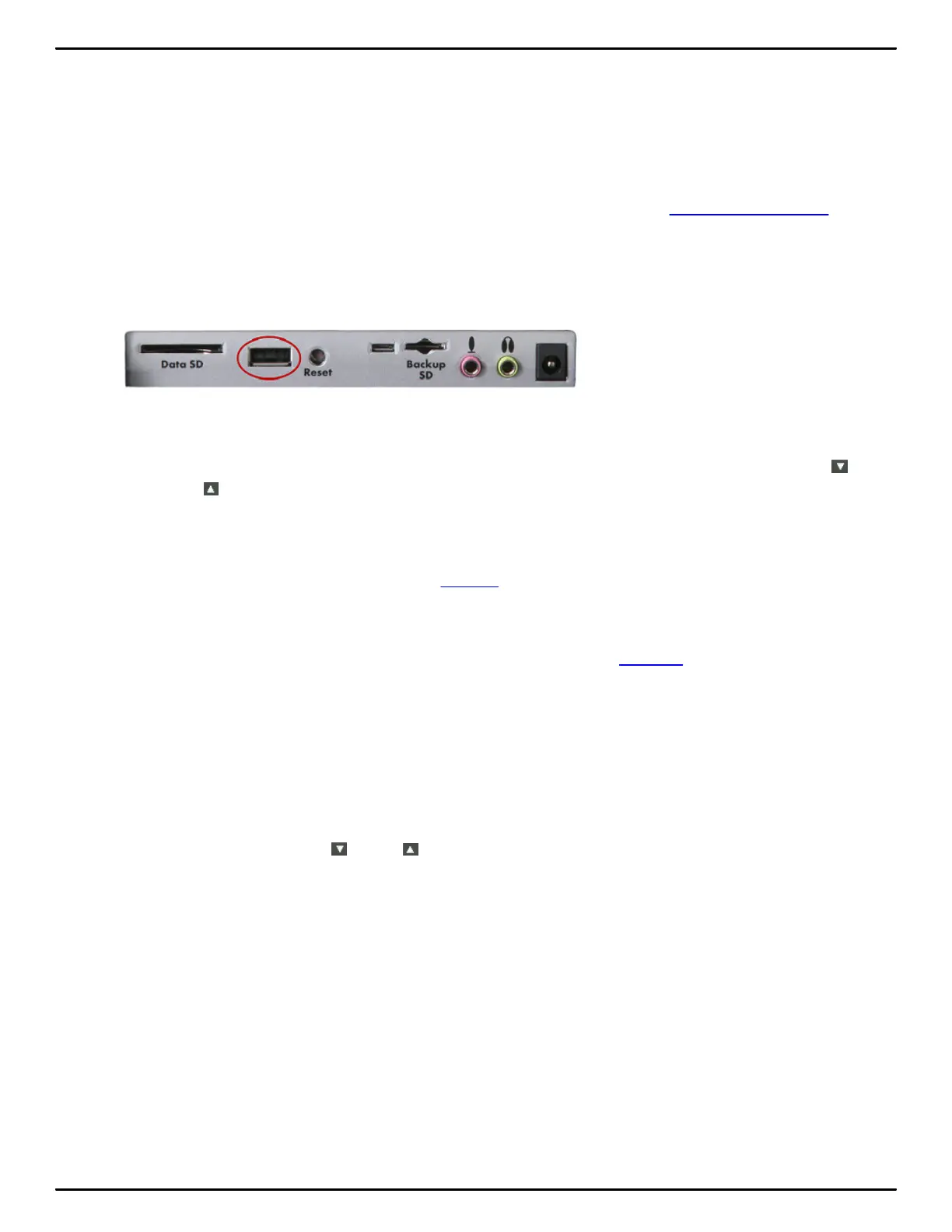
When copying, the Luminex automatically copies your selected files from the Data SD card to a USB
storage device inserted into the Luminex USB A (host) port. Be sure to insert your thumb drive before
copying files.
To view and copy files on the Data SD card:
1. From the Opening menu, touch Storage, SD Card, Files.
2. Job files are organized in folders by year and month, with the newest folder first. Touch the
Down/ Up sensors to highlight a folder. Use Date Sort to toggle folders between ascending and
descending order.
An additional folder, Support Info Files, may be visible along with the job folders. If an error occurs,
the Luminex writes error information in log files to this folder. Stenograph uses the information to
research and improve the software.
3. Steno notes copied from memory to the Data SD card display at the root of the card in date order
and are identified with the .sgstn file name extension. Although memory stores other file information
in addition to the steno note file, only the steno note file is available for copy.
4. Touch Folder to display the job files for the selected folder. Job files display in date order, newest
files first, with the following subfile information: the file size in megabytes, the estimated number of
transcript pages, an indicator when there is an associated Audio file and an indicator when there is
an associated job dictionary.
5. Use Date Sort to toggle the display of files in ascending and descending order.
6. To copy files, touch the Down/ Up sensors to highlight the desired files. When finished, touch
Select to highlight the files.
7. Ensure there is a thumb drive in the Luminex USB A (host) port and touch Copy. The Luminex
automatically copies the selected files to the thumb drive. The Opening menu displays when the
copy is complete.



 To Next Page