On some keyboards, L1 appears on the front face of the Stop key. On a system
that has a terminal as a console, rather than a Sun keyboard and bitmapped
monitor, you must press Break instead of Stop-a to obtain a boot prompt.
2. Enter n.
3. Enter sync.
The system displays panic and boot messages. The sync command helps prevent
the system from losing data that was not preserved when the system hung.
4. Wait until the system boots and displays a system login prompt.
5. Turn off the power in this order:
4
External drive unit(s) (if you have any)
4
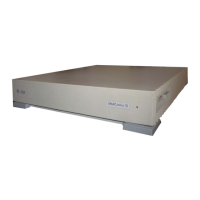
SPARCstation 10 system unit
4
Monitor
(Press Stop(L1)-a)
Type help for more information
ok sync
(System panic and boot messages.)
tutorial login:
For additional information on the halt procedure see Chapter 1 of the Sun System &
Network Manager’s Guide and also the System & Network Administration manual.
Caution - Make sure power to your system is shut off. The green LED at the front of
the system unit should not be lit. Do not disconnect the power cord from the system
unit power outlet or the wall socket. This connection provides the ground path
necessary to remove and install the printed circuit boards and components.
Tools Needed
To remove and install a replaceable part, you need the following tools and materials:
4
Phillips screwdriver (size #1)
4
Phillips screwdriver (size #2)
4
Wrist strap
4
Antistatic surface
Preparing the System 31




 To Next Page