
 Need help?
Do you have a question about the Sun Microsystems Ultra 20 M2 and is the answer not in the manual?
Outlines the manual's structure, detailing content by chapter and appendix for user guidance.
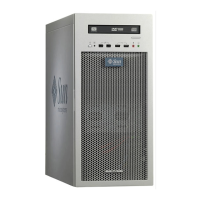
Illustrates and lists components of the Sun Ultra 20 M2 Workstation's front panel for identification.
Depicts and lists components of the Sun Ultra 20 M2 Workstation's back panel, including ports and connectors.
Shows locations of major internal system components and connectors, listing all identified parts.
Provides a flowchart for users to plan and guide the initial setup and installation of the workstation.
Lists all items included in the workstation package for users to verify upon unpacking.
Illustrates and explains the procedure for connecting external peripherals like keyboards, mice, and monitors.
Step-by-step instructions for safely powering on the Sun Ultra 20 M2 Workstation and verifying system status.
Details the recommended procedures for safely shutting down and powering off the workstation to prevent data loss.
Guides on collecting essential problem information and initial steps for diagnosing workstation issues.
Describes procedures for performing external and internal visual checks to identify hardware problems and loose connections.
Presents a table of common workstation problems with their potential causes and recommended solutions.
Provides contact information, including Sun web sites and telephone numbers, for technical support.
Explains the purpose and function of the diagnostic partition required for storing test log files.
Details prerequisites and steps to launch the Pc-Check Diagnostics from the Tools and Drivers CD.
Describes the various options within the System Information menu for viewing detailed hardware and software configurations.
Introduces the Advanced Diagnostics menu, listing specific hardware component tests for detailed analysis.
Explains how to run quick, no-input, and full burn-in test scripts for comprehensive system stress testing.
Guides on creating, saving, and managing custom burn-in test scripts for later execution.
Details procedures for creating and accessing a diagnostic partition on the workstation's primary bootable disk.
Explains how the summary displays test outcomes, indicating Pass, Fail, or Not Applicable status.
Provides instructions on how to print the collected diagnostic test results for review and record-keeping.
Offers general information about the Pc-Check diagnostic software, including its components.
Describes the process for exiting the Pc-Check diagnostic utility and returning to the DOS command prompt.
Details essential precautions to prevent component damage from electrostatic discharge during handling and installation.
Describes how to remove the left side access panel and the front bezel to access internal components.
Provides steps for reinstalling the front bezel and left side access panel after component replacement or inspection.
Contains procedures for safely removing and installing hard disk drives (HDDs) in the workstation's drive bays.
Guides on replacing SATA drives with SAS drives, including SAS PCIe card installation and cable connections.
Instructions for removing and installing the storage backplane, which connects hard drives to the system.
Step-by-step guide for safely removing and installing the workstation's DVD drive unit.
Procedures for removing and installing Dual Inline Memory Modules (DIMMs) for memory upgrades or replacement.
Instructions for removing and installing Peripheral Component Interconnect Express (PCI-E) expansion cards.
Procedures for removing and installing standard Peripheral Component Interconnect (PCI) expansion cards.
Details how to remove and replace the system battery, noting the risk of CMOS data loss.
Step-by-step guide for safely removing and installing the system fan for optimal cooling.
Procedures for safely removing and installing the workstation's internal power supply unit.
Instructions for removing and installing the Input/Output (I/O) board assembly containing front panel connectors.
Guidance on removing and installing various system cables, identifying connectors and routing.
Describes how to remove and replace the CPU and its heatsink, noting it is for trained technicians only.
Instructions for removing and installing the system motherboard, noting it is for trained technicians only.
Details the process for flashing the system BIOS and resetting BIOS settings after an update.
Lists the key components of the Sun Ultra 20 M2 Workstation and their primary features.
Details possible memory configurations and guidelines for installing DIMMs into the workstation's slots.
Lists the characteristics, types, and positions of available PCI-E and PCI expansion slots.
Details the physical dimensions, weight, and other physical attributes of the Sun Ultra 20 M2 Workstation.
Lists the system's power requirements, including input voltage, frequency, and current ratings.
Outlines the environmental conditions required for safe and optimal operation of the workstation.
Lists and explains the Power-On Self-Test (POST) codes displayed by the BIOS during system initialization.
 General
| Brand | Sun Microsystems |
|---|---|
| Model | Ultra 20 M2 |
| Category | Desktop |
| Language | English |



 To Next Page