RiverPro and RioPro ADCP Guide October 2017
EAR-Controlled Technology Subject to Restrictions Contained on the Cover Page.
Page 15
RiverPro/RioPro Recorder
The recorder contains approximately 16 megabytes of solid-state nonvolatile memory, which can be used
to record data. If more data is collected than fits in the memory, the newest data will not be recorded.
Once the recorder fills up, the recorder MUST be erased before re-deploying the RiverPro/RioPro (start
pinging again).
If the RiverPro/RioPro is set to record data (MR1) and the recorder is full, the RiverPro/RioPro
will not start pinging and will return a RECORDER NOT READY message.
Use BBTalk version 3.08 or greater. Older versions of BBTalk do not have the RiverRay device.
See the RDI Tools User’s Guide for details on using BBTalk.
Enabling the Loop Recorder
The loop recorder is off by default.
To enable the loop recorder:
1. Start BBTalk. Configure BBTalk to connect to a RiverPro/RioPro ADCP type device.
2. Send the MR1 command to enable the recorder.
Using the loop recorder will slow down the RiverPro/RioPro’s ping rate.
3. When done recording data, send the MR0 command to turn the loop recorder off.
Recovering Data from the Loop Recorder
To recover data:
1. Start BBTalk. Configure BBTalk to connect to a RiverRay ADCP type device (see Connecting to
the RiverPro/RioPro).
Make sure to select RiverRay as the Device. BBTalk will communicate with the
RiverPro/RioPro if Workhorse or another ADCP type is selected as the device, but will not be
able to recover the recorder.
2. On the File menu, click Recover Loop Recorder.
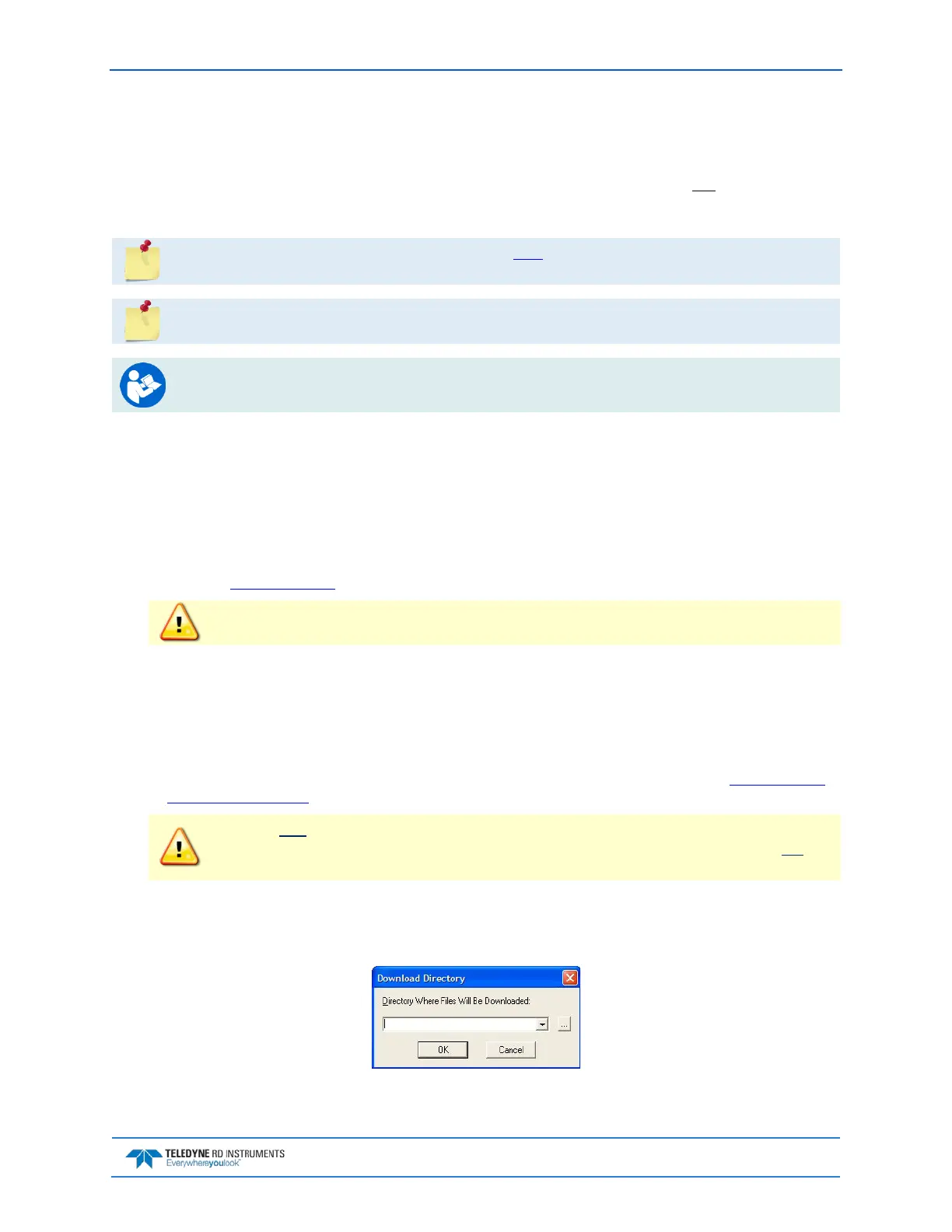
3. Enter the directory where the files will be downloaded. Click the “…” button to browse for the di-
rectory. Click OK.
Figure 4. Download Directory


 To Next Page