October 2017 RiverPro and RioPro ADCP Guide
Page 12
EAR-Controlled Technology Subject to Restrictions Contained on the Cover Page.
Connecting to the RiverPro/RioPro
To connect to the RiverPro/RioPro ADCP using the BBTalk software:
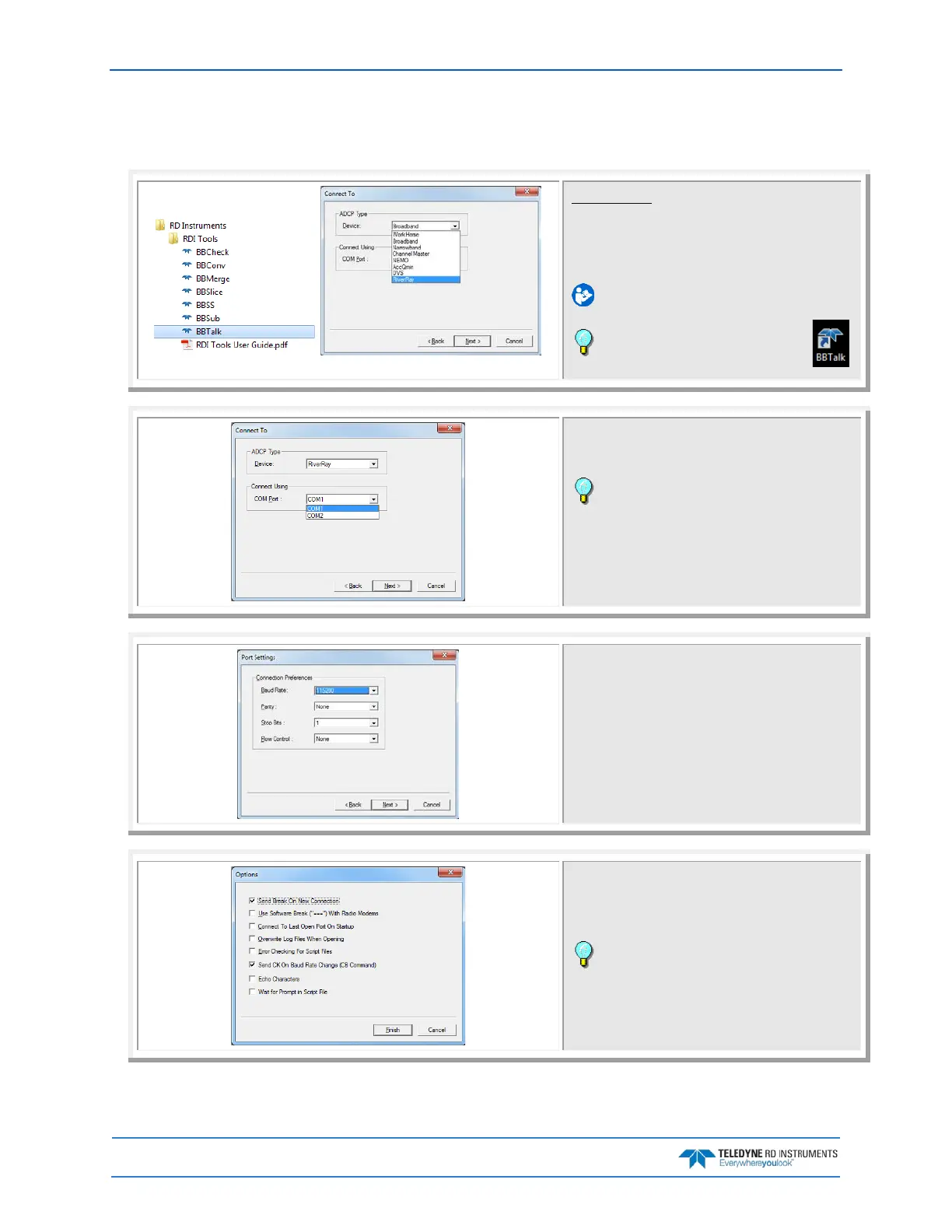
Start BBTalk
Start the BBTalk program by clicking Start, All Pro-
grams, RD Instruments, RDI Tools, BBTalk.
On the Connect To screen, select RiverRay.
For help on using BBTalk, see the RDI Tools User’s
Guide.
Use the BBTalk desktop icon to start
BBTalk.
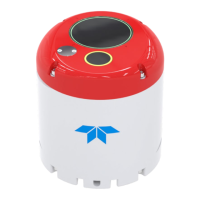
Select the COM port the RiverPro/RioPro ADCP cable is
connected to.
Click Next.
BBTalk can be used with Bluetooth communica-
tions. Right-click on the RDI RPro icon in the Bluetooth
management software and make sure that that it is
connected and verify what COM Port is used.
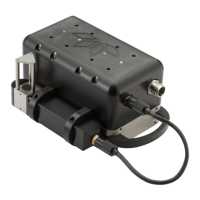
Enter the Baud Rate, Parity, Stop Bits, and Flow Con-
trol. If you are unsure of the settings, leave them at
the default settings as shown.
Click Next.
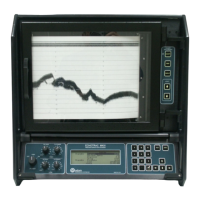
Check Send Break On New Connection and Send CK
on Baud Rate Change (CB Command).
Click Finish.
If a Bluetooth connection is used, check the Use
Software Break (“===”) With Radio Modems box.


 To Next Page