Chapter 18: Text Editor 321
18TXTED.DOC TI-89/TI-92 Plus: Text Editor (English) Susan Gullord Revised: 02/23/01 1:15 PM Printed: 02/23/01 2:18 PM Page 321 of 18
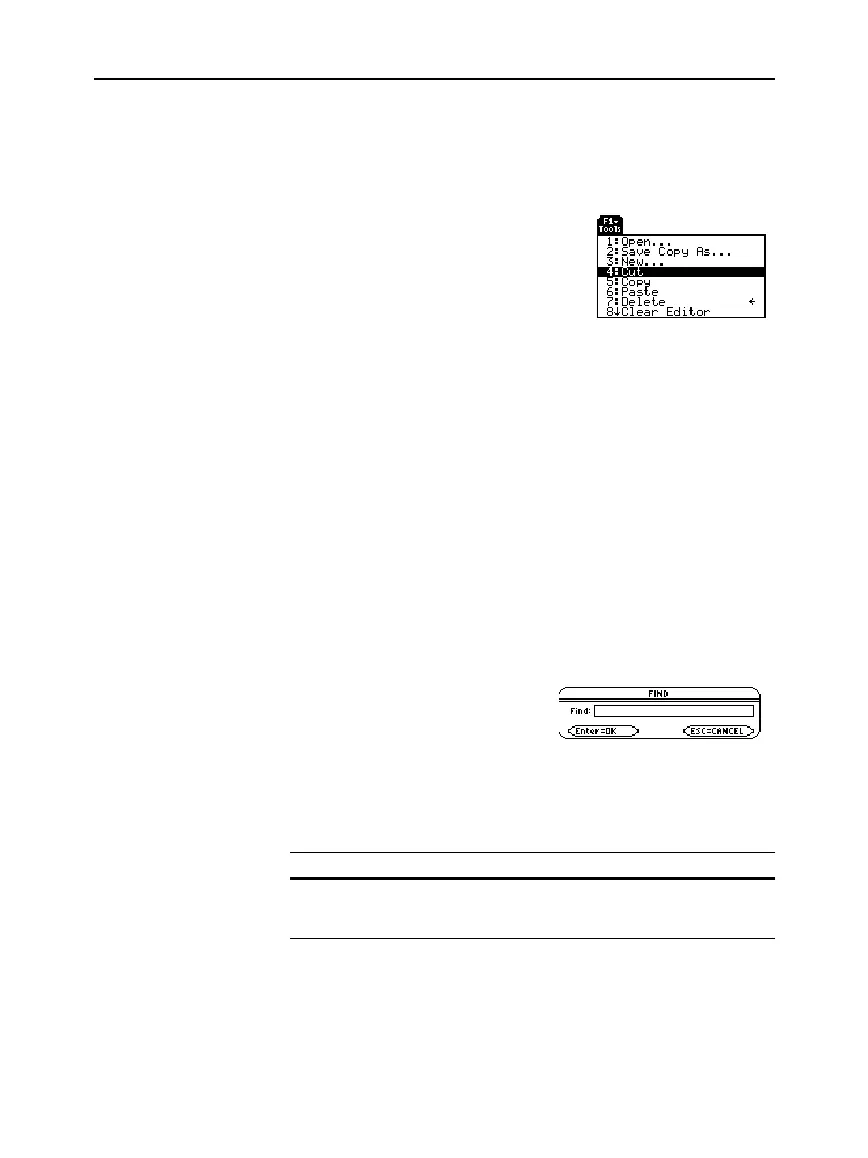
Cutting and copying both place highlighted text into the clipboard of
the
TI
-
89 / TI
-
92 Plus
. Cutting deletes the text from its current location
(used to move text) and copying leaves the text.
1. Highlight the text you want to move or copy.
2. Press
ƒ
.
3. Select the applicable menu item.
¦
To move the text, select
4:Cut
.
— or —
¦
To copy the text, select
5:Copy
.
4. Move the text cursor to the location where you want to insert the
text.
5. Press
ƒ
and then select
6:Paste
.
You can use this general procedure to cut, copy, and paste text:
¦
Within the same text session.
¦
From one text session to another. After cutting or copying text in
one session, open the other session and then paste the text.
¦
From a text session to a different application. For example, you
can paste the text into the Home screen’s entry line.
From the Text Editor:
1. Place the text cursor at any location preceding the text you want
to search for. All searches start at the current cursor location.
2. Press
‡
.
3. Type the search text.
The search is not case sensitive.
For example:
CASE
,
case
, and
Case
have the same effect.
4. Press
¸
twice.
If the search text is: The cursor:
Found Moves to beginning of the search text.
Not found Does not move.
Cutting, Copying,
and Pasting Text
Tip: You can press:
TI
.
89
:
¥5
,
¥6
,
¥7
TI
.
92 Plus
:
¥
X,
¥
C,
¥
V
to cut, copy, and paste
without having to use the
ƒ
toolbar menu.
Finding Text
Tip: The
FIND
dialog box
retains the last search text
ou entered. You can type
over it or edit it.



 To Next Page
 Loading...













