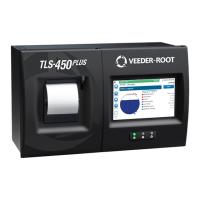
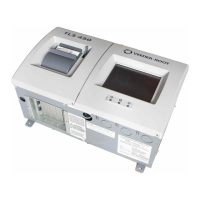
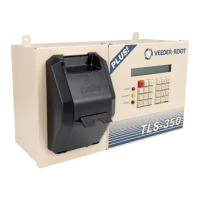
placed in brackets beneath every English label to let you quickly find a translation of the label and the page number(s)
of the Screen in which the label is used. Tank Setup Screens are covered in a separate section.
this section.
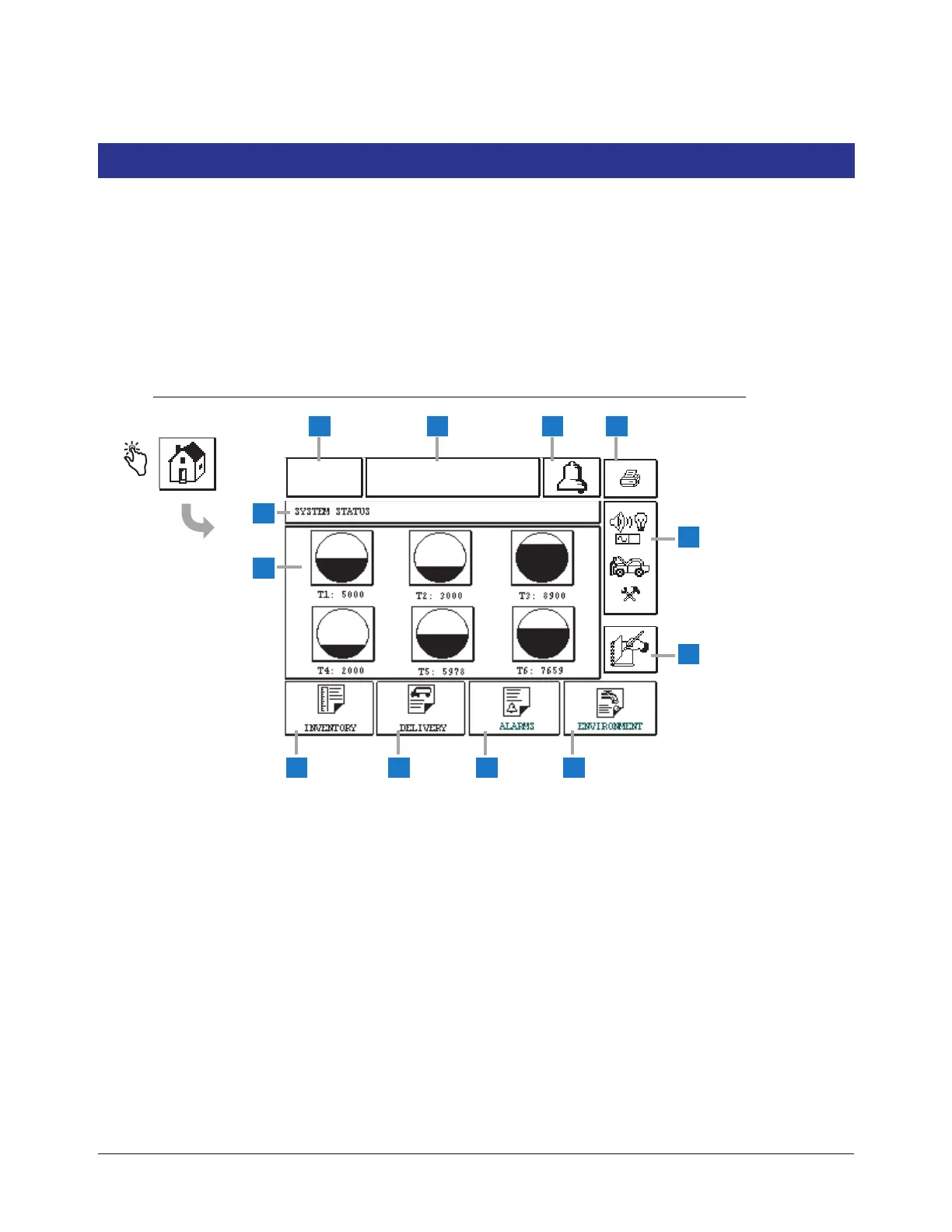
1 Date/time window - displays current date and time
2 Message window - displays All Functions Normal or
active alarms.
3 Alarm button - touch to acknowledge alarm and silence
alarm beeper. Note: touching this button does not clear
the alarm - the problem that caused the alarm must be
repaired.
4 Print button - For menu screens, touch this button and
all items available through the menu are printed to a
connected printer. For non-menu screens only, a print
dialog box appears when the print button is touched.
The user also has the option to cancel the print.
5 Main Menu button - touch to display the Main Menu
Screen (page 6) for access to system/tank setup and
manual tank testing.
6 Environmental Report button - touch to display tank
leak test results (page 63).
7 Alarm Report button - touch to display the Active Alarm
Status (and History) Screen (page 69).
8 Delivery Report button - touch to display the Delivery
Report Screen (page 63).
9 Inventory Report button - touch to display the Inventory
Report Screen (page 65).
10 Tank buttons - touch any tank button to display the
current inventory report for that tank.
11 Screen title window.
12 Manual Shift Close button - touch to manually close the
shift (page 61). (visible only if Snapshot is selected in
Shift Time (System Setup as the Shift Close Method) .


 To Next Page