Accessing The TLS2P Web Server Probe Diagnostic Screen
82
5. Click the Use the following IP Address radio button and enter an IP Address and Subnet mask for
your laptop. You can use an IP address that is one digit off from the customer supplied IP Address you
will assign to the console’s TCP/IP Interface Module. For example, if the IP Address for the TLS2P is
12.2.1.120, you would enter 10.2.1.119 for the laptop’s IP Address. You also need to enter a Subnet
mask. Use the same Subnet mask that is in the example in Figure 4 above (255.255.255.0). Click OK
to accept your entries.
Note: Prior to reconnecting your laptop to a network, you will need to select the Obtain an IP ad-
dress automatically radio button shown in Figure 4 above.
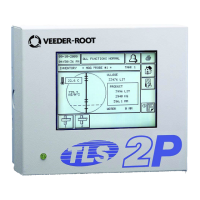
6. Open your browser and enter the IP Address of the TLS2P and click the Go-To button. You should see
the TLS2P Web Server Home Page.
TLS2P Web Server Main Pages
• Home Page - Displays after connecting to TLS2P web server. Also displays when you click on the top Home
button (see Figure 5).
• Inventory Report Page - displays whcn you click on the top Inventory button (see Figure 6).
• Delivery Report Page - displays when you click on the top Delivery button (see Figure 7).
• Alarms Report Page - displays when you click on the top Alarms button (see Figure 8).
Display a TLS2P RS-232 Command
1. Enter a valid TLS2P RS-232 command (reference manual 577013-767) and click enter. For example, entering
I10100 and clicking Enter would display the System Status Report for the TLS2P.
2. Click the Clear button at the bottom of the screen to clear the page.
3. Click the Reset Port button at the bottom of the page to reestablish a connection with the TLS2P
should that be necessary.


 To Next Page