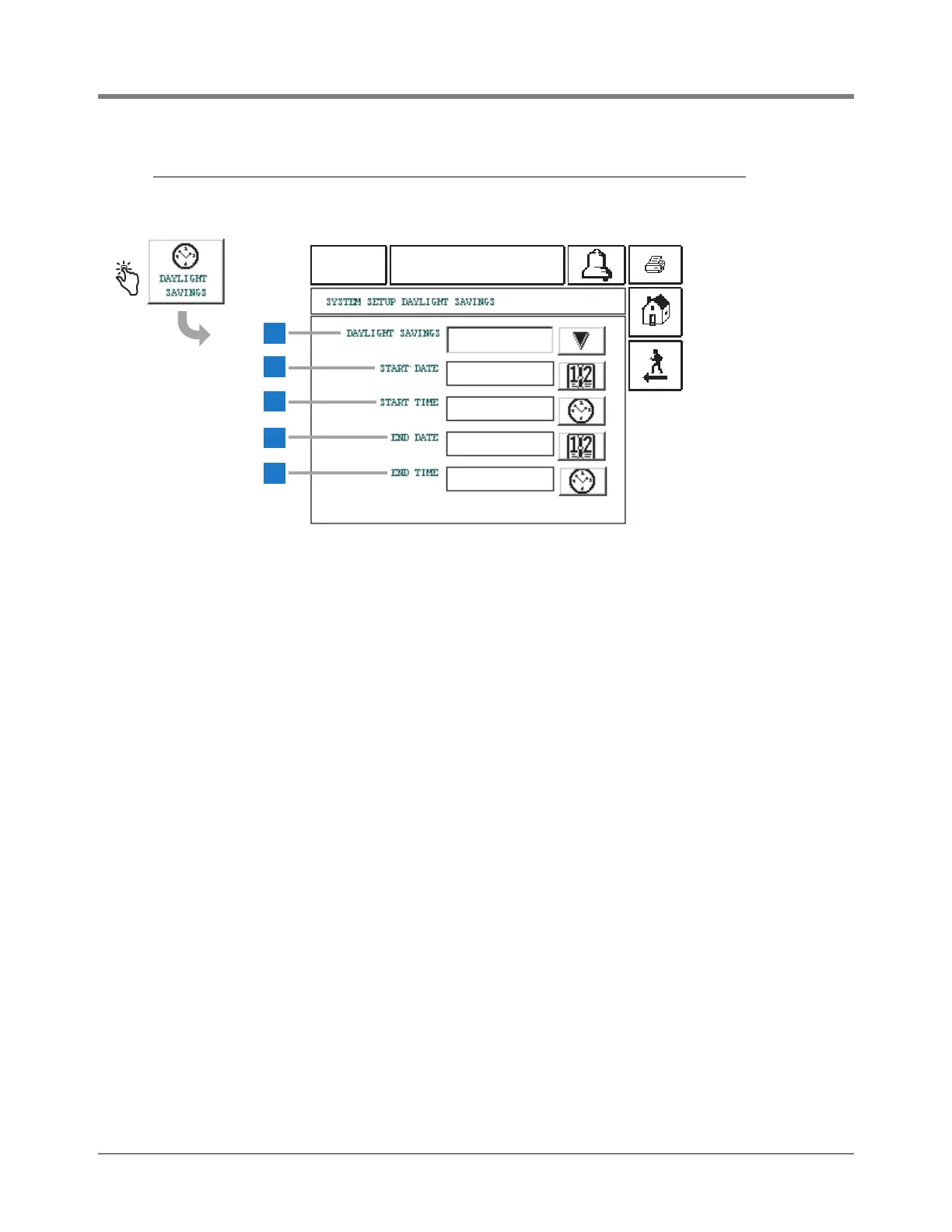
This feature allows you to enter Daylight Savings Start and
End Dates/Times. Once enabled, the system will
automatically adjust for daylight savings time at the dates
and times you enter.
1 Daylight Savings [219] - touch the Arrow button to the
right of the window and select Enable or Disable
(default is Disable).
2 Start Date [220] - touch the Date button to the right of
the window and enter the start date (default is MAR
WEEK 2 SUN).
3 Start Time [221] - touch the Time button to the right of
the window and enter the start time [and AM or PM]
(default is 02:00 AM).
4 End Date [222] - touch the Date button to the right of
the window and enter the enter the end date (default is
NOV WEEK 1 SUN).
5 End Time [223] - touch the Time button to the right of
the window and enter the end time [and AM or PM]
(default is 02:00 AM).



 To Next Page