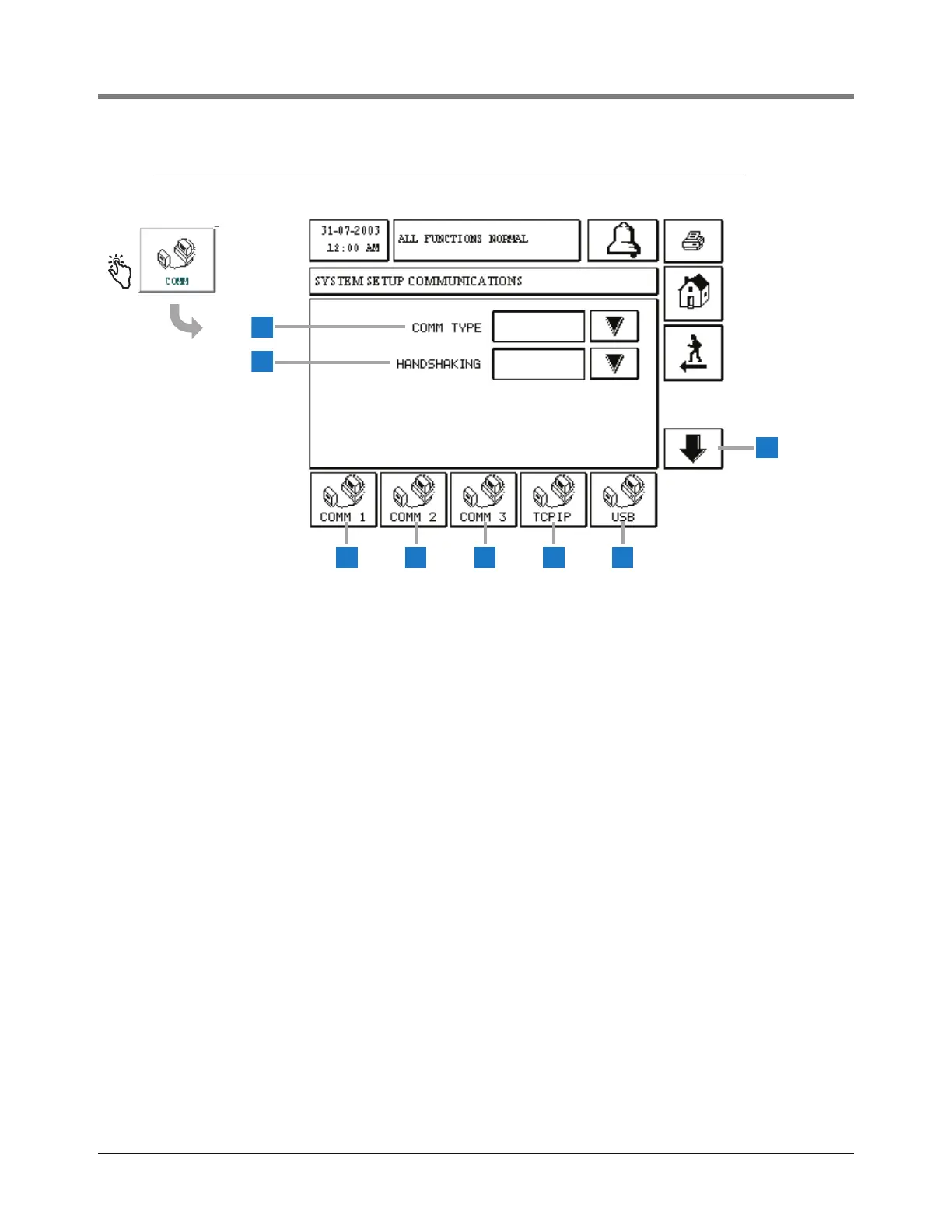
This screen displays page 1 of the COMM 1, 2 and 3
Serial setup.
1 Comm Type [238] - touch the Down Arrow button to
the right of the window and to select a different Comm
Type for the following Comm Ports (see page 22):
• COMM 1 selections - None, Serial, Modem, Printer
• COMM 2 selections - None, Serial
• COMM 3 selections - None, Serial
2 Handshaking [239] - touch the Down Arrow button to
the right of the window and select :
• COMM 1 -Hardware, XON/XOFF, None
• COMM 2 and 3 - XON/XOFF, None
3 COMM 1 button - touch to display page 1 of the
COMM 1 Setup screen (shown above).
4 COMM 2 button - touch to display page 1 of the
COMM 2 Setup screen.
5 COMM 3 button - touch to display page 1 of the
COMM 3 Setup screen.).
6 TCPIP button - touch to display the TCPIP Setup
screen (page 28).
7 USB button - touch to display the USB parameter data
(read only) screen (page 32).
8 Down button - touch to display selected Comm Port’s
Setup Screen 2 - if necessary .


 To Next Page