80
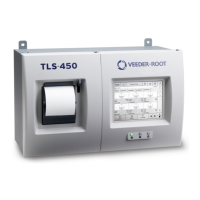
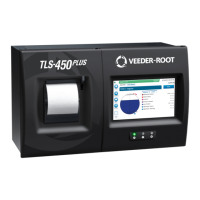
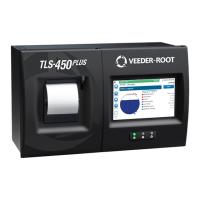
Accessing The TLS2P Web Server
Once the TLS2P has been installed and setup, you can access the TLS2P web server via a Wide Area Network
(WAN); or by connecting your laptop directly to the TLS2P.
Connecting to the TLS2P in a WAN
What you will need:
• The IP address and host port number of the TLS2P (see your network administrator)
Connection Procedure:
1. Enter the IP address and host port of the TLS2P in the address window of your in browser , e.g,
12.2.1.120:10001 and click the go-to button. You should see the TLS2P Home screen.
Connecting a Laptop Directly to the TLS2P
What You Will Need:
• Ethernet crossover cable
• IP address of TLS2P
• A Static IP address for laptop.
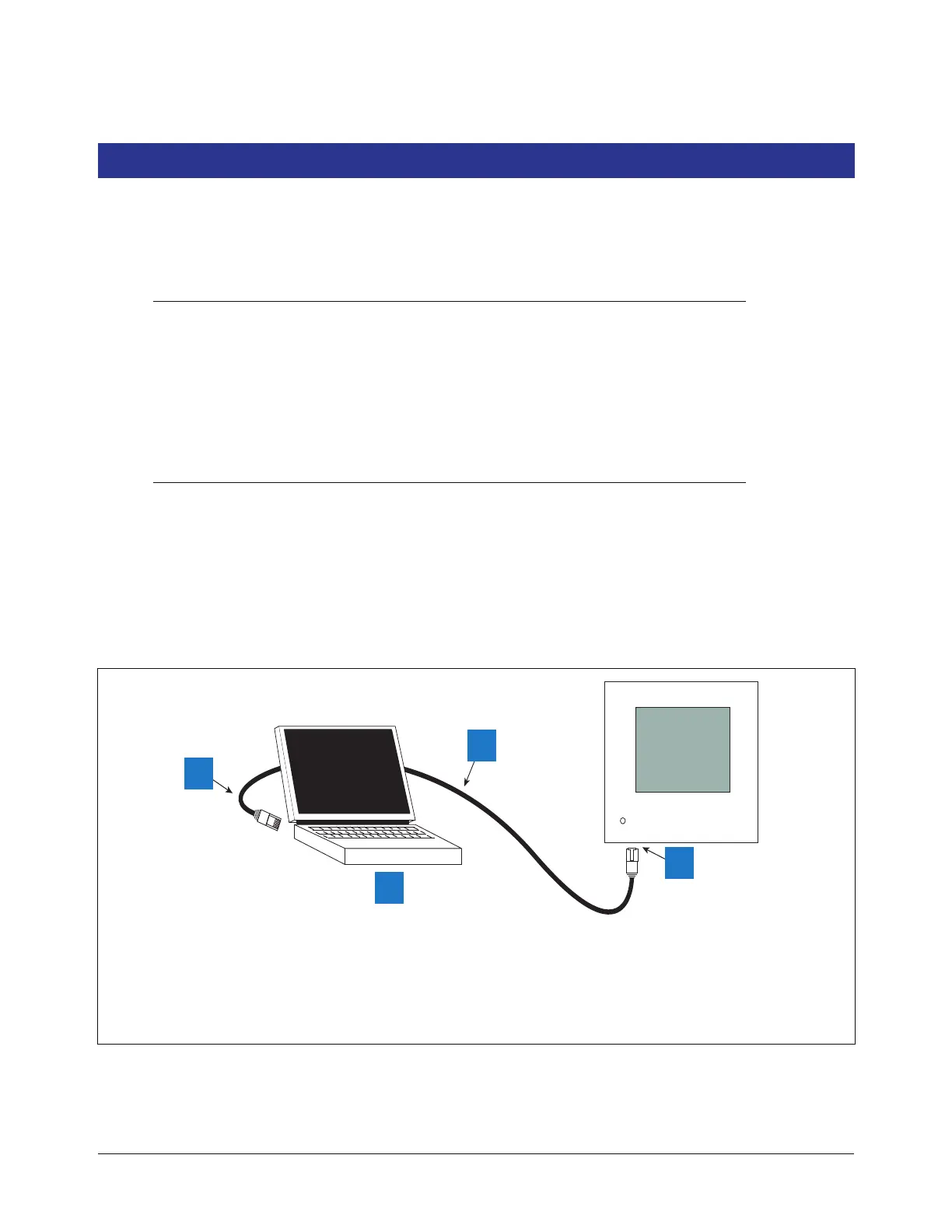
1. Connect your laptop to the TLS2P as shown in Figure 1. Go to your laptop’s Control Panel folder and doubleclick
the ‘Network and Dial-up Connections’ icon.
Figure 1. Direct Connection
2. Select Local Area Connection and the status screen displays (Figure 2).
consoles\tls2\960-22.eps
1
3
4
2
Legend for Numbered Boxes
1 Plugs into RJ45 Ethernet connector in
Laptop.
2 Laptop
3 You MUST use an Ethernet crossover cable!
4 Plugs into RJ45 connector in bottom of console


 To Next Page