General Operation
48 TVM Series Installation and Operation Handbook
Copyright © 2008, Harris Corporation
Once the cursors are no longer necessary, press and hold the CURS button to return to
the Cursor menu and disable the cursor selection submenus. The check mark indicates
the cursor is enabled, and no check marks indicate the cursor is disabled.
To exit the cursor function while leaving the cursors active, just select another mode in
the pane (e.g., Line Select, Variable Gain, etc.).
Eye Pattern Pane Menu Selections
Pressing and holding the EYE function button or the DISPLAY PANE button in the
active Eye Pattern pane selects the pane menu. Use the SETUP POSITION knobs or
the NAVIGATION buttons to navigate the Pane menu.
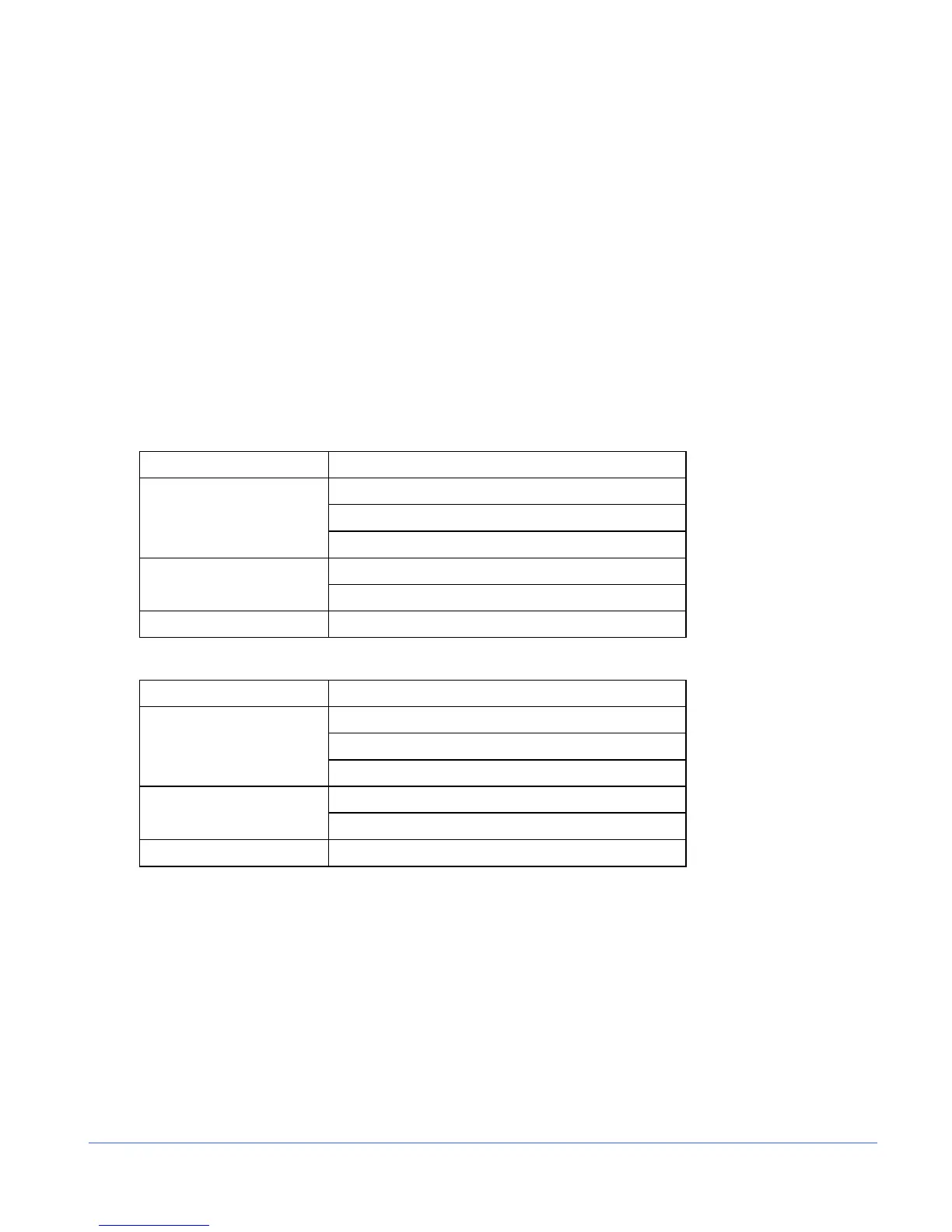
The Eye Pattern Pane menu is described in Table 3-13 for SD-SDI monitoring, and
Table 3-14 for HD-SDI monitoring. The difference between the two menus is the
Trigger Mode selections of 10 EYE and 20 EYE.
Table 3-13. Eye SD-SDI Pane Menu Structure
Selection Selection Option
10 Hz
100 Hz
JITTER HPF
1000 Hz
OVERLAY TRIGGER MODE
10 EYE
EYE PATTERN SETUP Press ENT
Table 3-14. Eye HD-SDI Pane Menu Structure
Selection Selection Option
10 Hz
100 Hz
JITTER HPF
1000 Hz
OVERLAY TRIGGER MODE
20 EYE
EYE PATTERN SETUP Press ENT
Jitter High Pass Filter (HPF) Selection
Because jitter on the data can develop from many sources and have a unique frequency
distribution, the bandwidth of the sampling clock recovery circuit will affect the
displayed jitter if the frequency of the jitter is within the bandwidth of the clock
recovery circuits. Above the loop bandwidth, the loop has no effect on the jitter. While
within the bandwidth, the apparent jitter displayed will be satisfied by the loop
response.
To access the jitter high pass filter selections, press the EYE button until Eye Pattern
pane menu appears. Select between 10 Hz, 100 Hz, or 1 kHz is high tally. When 10 Hz,
100 Hz, or 1 kHz is selected, the –3 dB response points only allow jitter above the


 To Next Page