No. Legend Description Illustration
Right-click for an attribute select shortcut menu.
In the shortcut menu the background color and line width can be selected. It also
offers shortcuts to select or redraw scans.
The Save Image function is used to store the image as a bitmap in the data
directory.
Select Scan A browse window is opened to select a stored scan.
In the file type drop-down menu default the active conveyor is
selected. Only the conveyors available in the VVS-system are
shown.
In the file name drop-down menu, just the files (scans) of the
selected directory (conveyor) are shown.
Redraw Scan Selects the most recent scan of the active conveyor (as selected
in the SELECT menu).
Scaling The scaling factor of the scan is selected from a drop-down menu
in the bottom left corner. Scaling is selected between 0,5 and 3,5.
Line Width The line width of the scan lines is selected from a drop-down
menu. Line widths from 1 till 5 dots are possible.
Next Scan Selects the next file (scan) in the above selected directory
(conveyor).
Previous Scan Selects the previous file (scan) in the above selected directory
(conveyor).
2 Data
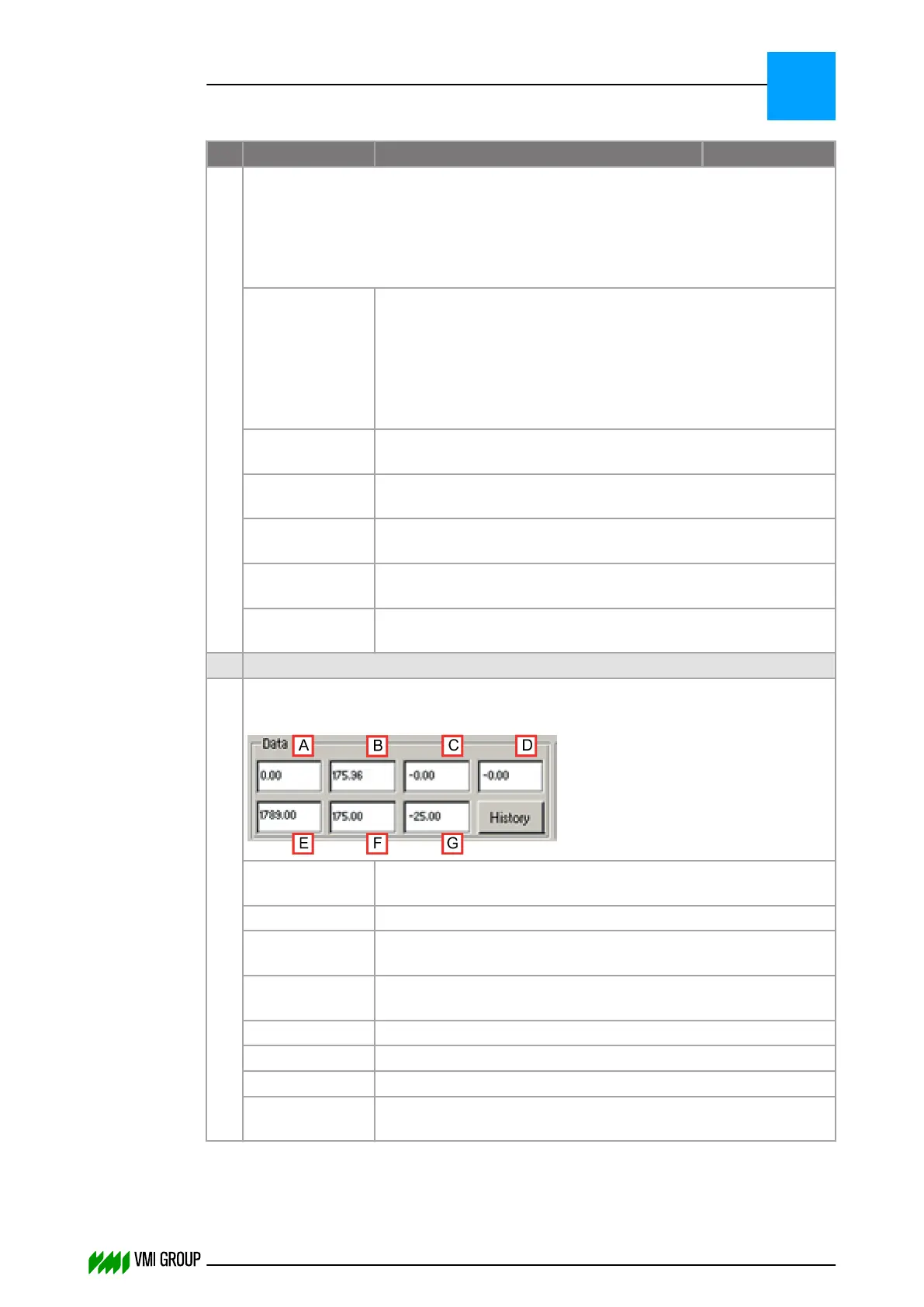
In the Data field a number of small text fields show measured values and set points.
Moving the mouse pointer over these fields, the name of the field is given.
A Measured length
(zero when there is no encoder present)
B Measured width
C Leading edge angle
(zero when there is no encoder present)
D Trailing edge angle
(zero when there is no encoder present)
E Length set point
F Width set point
G Angle set point
History Press this button to see the data of the last 100 scans in a pop-
up window.
VVSU OPERATION
Screen layout (generic)
7
THINKING FORWARD
VMI Vision System VVS (OL82) VVSX 13.0.12.0, VVSU 3.0.6 / 4 / 2016-07-11 / pd#175592
7-20



 To Next Page