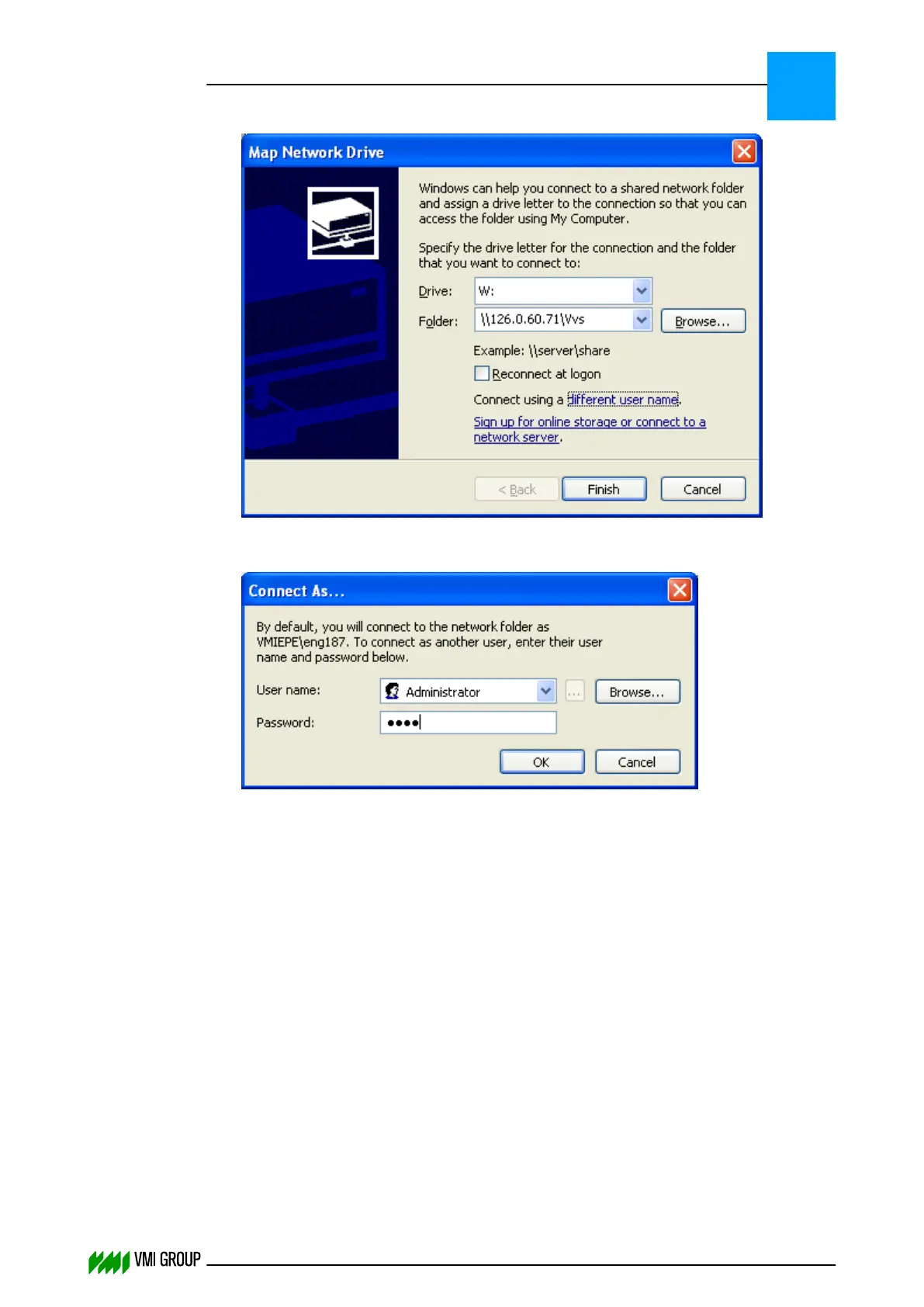
9.
Now specify the server and folder settings, for example: \\IP address\Vvs
10. Press CONNECT USING A DIFFERENT USER NAME.
11.
Enter the user name and the corresponding password which are used by the VVSU in
the VVS CONNECTION SETTINGS popup window
12. Click OK.
13. Click FINISH to create the drive mapping.
If the network drive mapping is successful then the account used by VVSU has the right
permissions.
● If not re-check the account permissions.
If the network drive mapping fails, check if the workstation service is running on the VVS
server.
● This workstation service provides the ability of the VVS server to share a directory over
the network.
TROUBLESHOOTING
Communication
8
THINKING FORWARD
VMI Vision System VVS (OL82) VVSX 13.0.12.0, VVSU 3.0.6 / 4 / 2016-07-11 / pd#175592
8-9



 To Next Page