33
6.3 Example for operation:
Set time and date
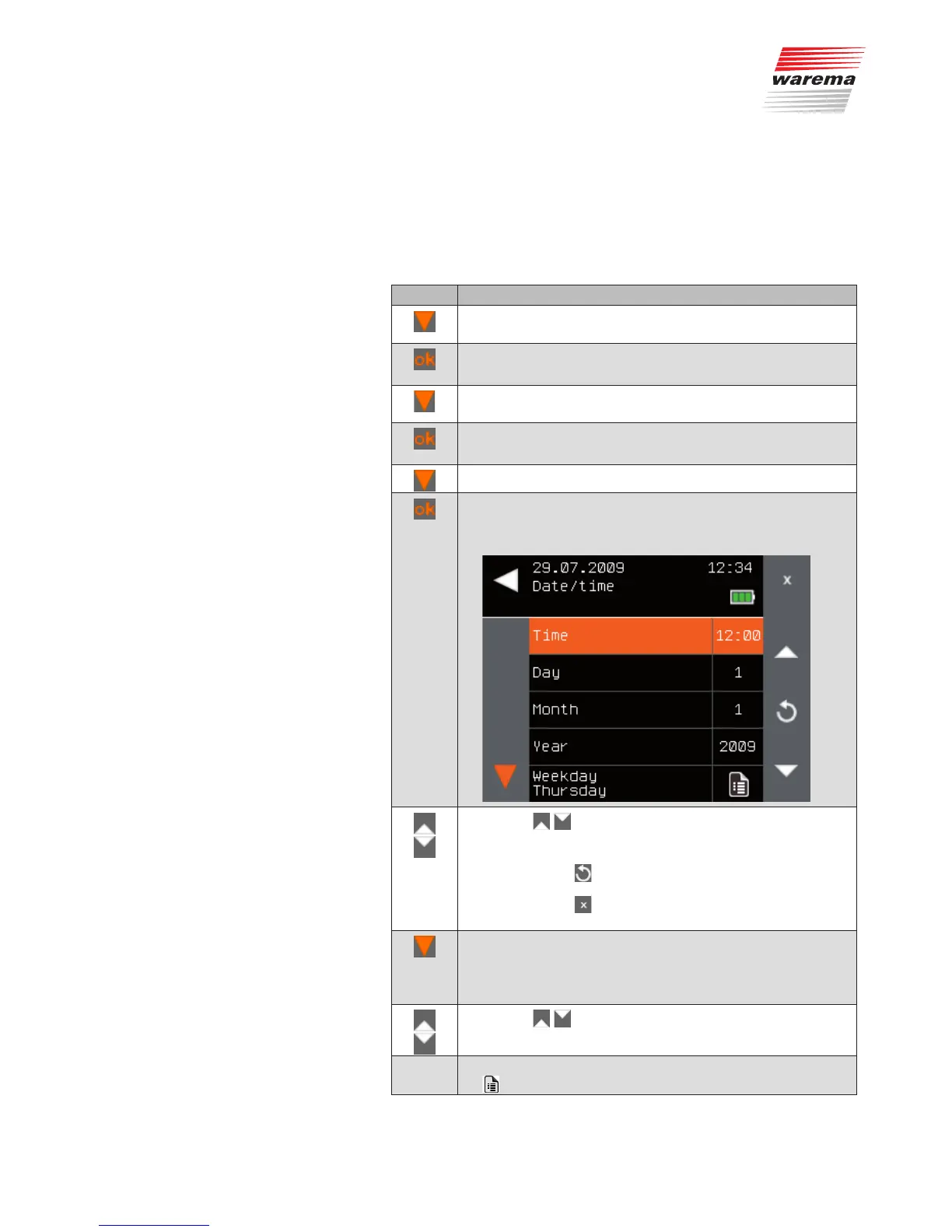
Setting of the date and time is used here to demonstrate how the values of
the WMS Central transmitter can be set and changed with the function but-
tons (the following date and time displays are examples and may differ from
the display on your WMS Central transmitter):
Button Action/result
In the main menu, press the function button repeatedly until
the selection cursor is on the [System] line.
Press the ok button.
The [System] menu opens.
Press the function button again until the selection cursor is
on the [Settings] line.
Press the ok button.
The [Date/time] menu opens:
Select the [Date/time] line using the function button.
Press the ok button.
The [Date/time] menu is displayed. The top menu line,
[Time], is selected.
Use the function buttons to set the desired time.
Press the button briefly: The value changes slowly.
Press and hold the button: The value changes rapidly.
NOTE Use the button to load the standard value of a
parameter.
Use the button to cancel your entry; the value
stored last is displayed again.
After entering the time, change to the [Day] line with the func-
tion button.
NOTE When you leave a menu line, the value displayed there
is automatically adopted..
Use the function buttons to set the current day.
Repeat these steps for [Month] and [Year].
-
The [Weekday] is automatically calculated from the date. The
symbol indicates that the value cannot be set manually.
Main menu
System
Settings
Date/time
Getting started


 To Next Page