46
Genos2 Owner’s Manual
Adjusting the tempo
The TEMPO [−] and [+] buttons let you change the playback tempo of the Metronome, Style
and MIDI Song. The tempo of the Style and MIDI Song can also be adjusted via the [TAP TEMPO]
button.
TEMPO [−]/[+] buttons
Press the TEMPO [−] or [+] button to call up the Tempo pop-up display. Use the TEMPO [−]/[+]
buttons to decrease or increase the tempo over a range of 5–500 beats per minute. Holding
down either button changes the value continuously. Pressing both TEMPO [−] and [+] buttons
calls up the default tempo of the last selected Style or Song.
[TAP TEMPO] button
When Style and Song are stopped, tapping the [TAP TEMPO] button (four times for a 4/4 time
signature) starts playback of the rhythm part of the Style at the tempo you tapped.
During playback of a MIDI Song, you can change the tempo by tapping the [TAP TEMPO] button
twice at the desired tempo.
During playback of a Style, you can rewind to the top of the section (“reset” the playback
position, for stutter repeat eects) by tapping the [TAP TEMPO] button. This is called “Style
Section Reset.”
Changing the Chord Fingering type
By changing the Chord Fingering type, you can automatically produce appropriate accompaniment even if you don’t press all of
the notes which comprise a chord. Chord ngering type can be changed via the Split Point/Fingering window: [MENU] à [Split &
Fingering].
The following types can be selected, for example.
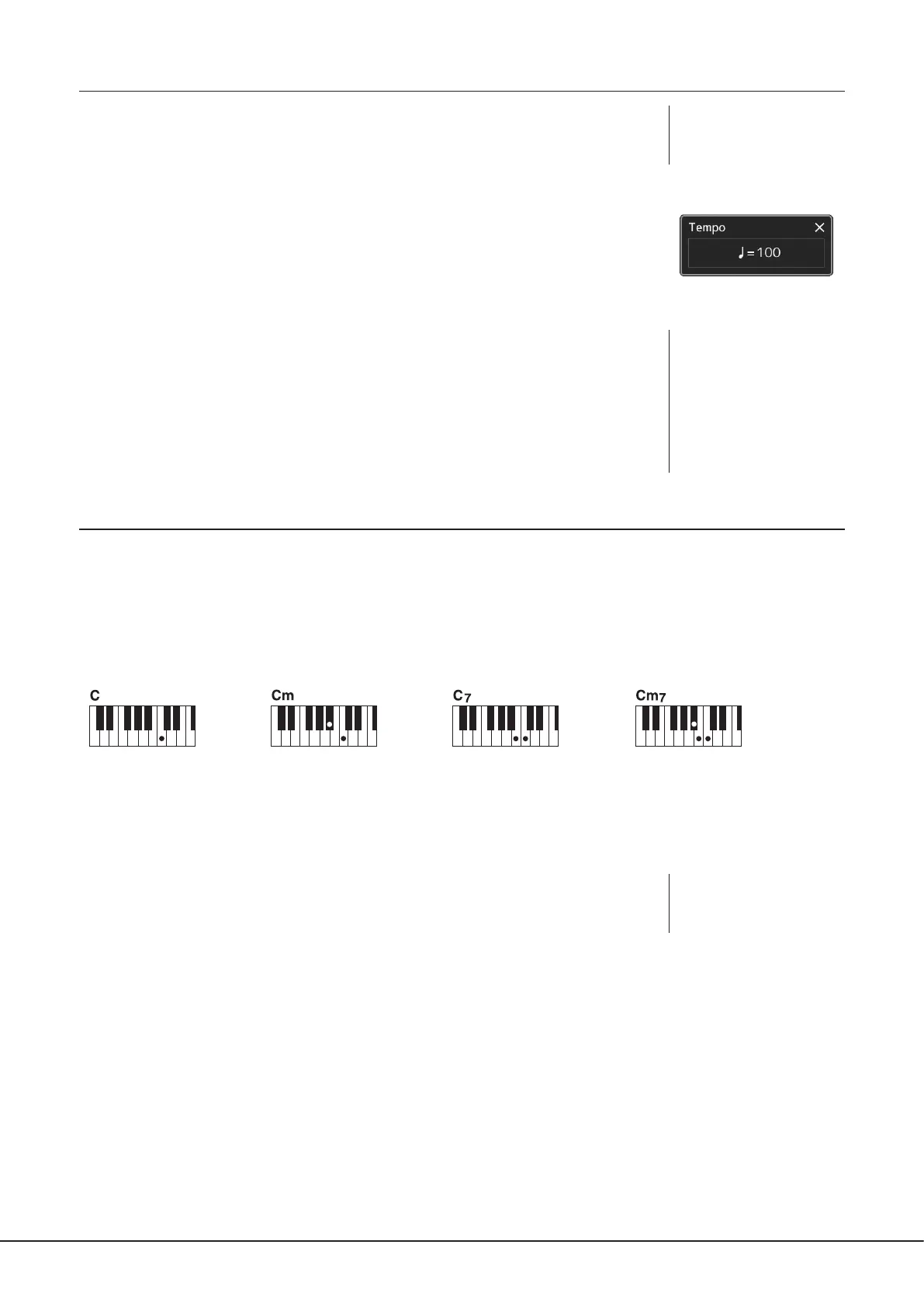
Single Finger
This method lets you easily play chords in the accompaniment range of the keyboard using only one, two or three ngers.
Fingered
This lets you nger your own chords on the chord section of the keyboard, while the instrument
supplies appropriately orchestrated rhythm, bass, and chord accompaniment in the selected
Style. The Fingered type recognizes the various chord types which are listed on the Data List
on the website (page10), and can be looked up using the Chord Tutor function called up via
[MENU] à [Chord Tutor].
AI Full Keyboard
This lets you play just about anything, anywhere on the keyboard using both hands—like conventional playing of a piano—and
still have appropriate accompaniment. You don’t have to worry about specic ways to play/indicate the chords. (Depending on
the song arrangement, AI Full Keyboard may not always produce appropriate accompaniment.)
For other types, refer to the Reference Manual on the website (page10).
NOTE
In the case of a specic ngering type (Fingered, Fingered On Bass, AI Fingered), you can create a state in which no chord is input by entering a special
chord named “Cancel.” This is called as “Chord Cancel.” For more information on entering chords including “Cancel,” refer to the “Chord Types Recognized
in the Fingered Mode” in the Data List on the website.
NOTE
This button can also be set to
change the tempo during Style
playback, instead of Section
Reset. The setting is made
on the display called up via
[MENU] à [Metronome] à
[Tap Tempo]. For details, refer
to the Reference Manual on the
website.
Minor seventh chord
Simultaneously press the root
key and both a white and black
key to its left.
Seventh chord
Simultaneously press the root
key and a white key to its left.
Minor chord
Simultaneously press the root
key and a black key to its left.
Major chord
Press the root key only.
NOTE
When the chord detection area
is set to “Upper” (page51),
only “Fingered*”is available.
NOTE
If you want to adjust the tempo
of an Audio Song, use the Time
Stretch function on page84.


 To Next Page