Unable to modify existing User Preset (grayed out)
Make sure the desired user preset was previously (i.e., before attempting to modify it) selected
as the active preset.
System will not communicate with target DICOM” Store” or “Print” device
Check Networking ICON on upper/left corner of main imaging screen, to verify hardware
connection is active (no “X” over ICON). Check hardware cabling, network equipment, and/or
configuration, as necessary.
Press the DICOM Queue key, and inspect for any pending jobs in the Queue. If any jobs
pending, delete them and then power cycle System, and then re-test network state.
In “General” and “Network” configuration pages, verify DICOM Application Title, and IP
address/gateway/netmask parameters are entered correctly, and correspond with those assigned
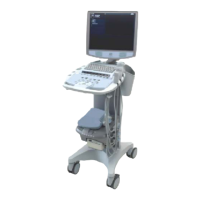
to z.one
pro
ultrasound system by the IT Admin at the install site.
In the DICOM” “Network Store” and “Printer” configuration pages, verify AE Title, IP
Address, and Port Number parameters are entered correctly, and match those assigned to the
corresponding device by the IT Admin for facility, at install site.
Using the “PING” and “VERIFY” selection in the DICOM configuration menus, for the
Network Storage or Printer Administration screens (as applicable to device attempting to be
connected), test for successful handshaking of connection.
Using another device (PC, etc.) on same domain on hospital network, perform a “PING”
operation to the IP address assigned for the system, in the “Network” configuration page, to
test for TCP/IP connectivity.


 To Next Page