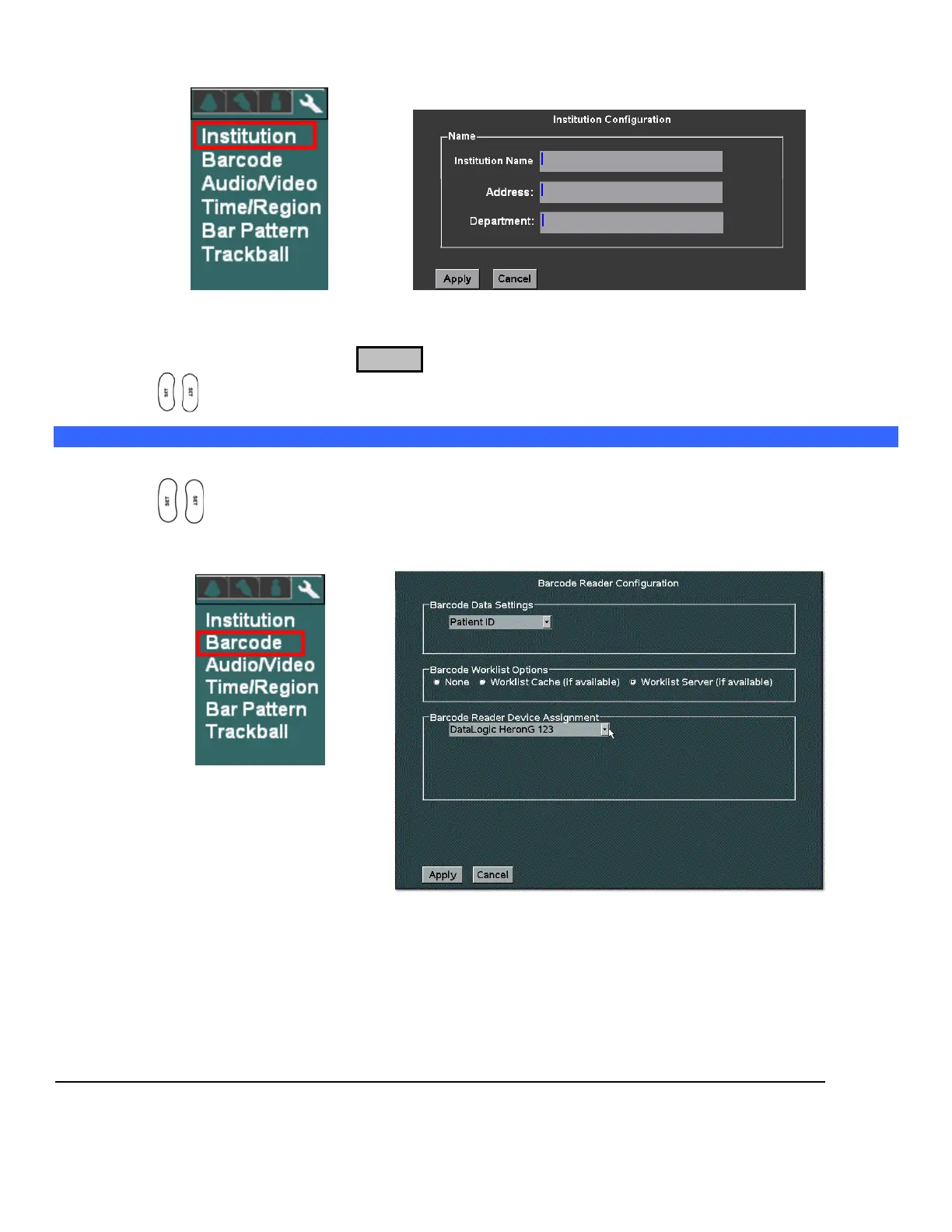
DISPLAY Sub-Menu INSTITUTION Sub-Menu
4. Using the alpha-numeric keyboard, enter Institution name (Note: Field is limited to 20 character
positions)
5. Place the arrow cursor over the APPLY soft-button displayed in this menu, and press one of the SET
keys to save new settings.
Configuring “Barcode” Scanner
1. Within the Display selection, use the Menu Control to backlight Barcode selection, press one of Set
keys to bring up this menu.
DISPLAY Sub-Menu BARCODE Sub-Menu
1. Under the Barcode Reader Device Assignment pull-down menu, select the listed device
corresponding to the active barcode reader currently attached to the USB ports on the system.
2. Under the Barcode Data Settings pull-down menu, select the desired parameter to be linked to for
tracking patient exams:
Patient ID
Accession Number


 To Next Page