Exam in Progress: Results in each new DICOM image immediately being placed into the DICOM
Queue for transfer to the target network/print device, each time the
corresponding STORE/PRINT key is depressed.
Exam Completed: Images are buffered during each STORE key depression, and later placed as a
group into the DICOM Queue for network/print transfer. The process for
beginning the transfer of the images is automatically started when the Operator
ends the current exam.
8. Reports: If SR (Structured Report) sending was enabled on the Network Store page for any PACS
devices, select the desired target device in the pull-down menu.
9. To save the new settings, select APPLY from the main menu, and press one of the SET keys to
save new settings.
“Exam Export” Options
The EXAM EXPORT menu allows for configuring the formatting (Compression, Color Model, etc) for
images “Exported” to the target media device.
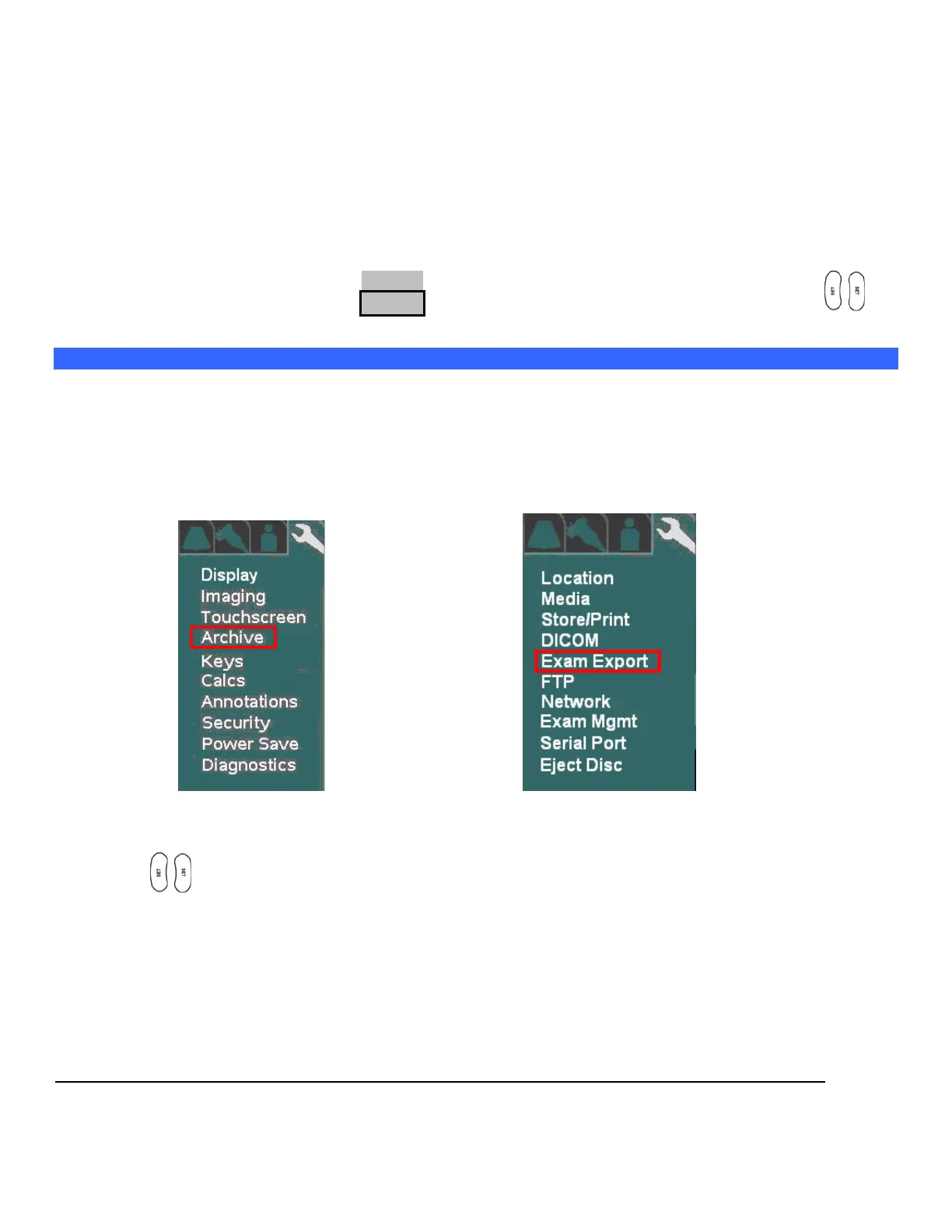
Press Setup and use the trackball to advance menu screen to select TOOLS menu; then select SYSTEM
SETUP, then select ARCHIVE.
SYSTEM SETUP Menu ARCHIVE Menu
7. Use the trackball and scroll down to backlight EXAM EXPORT selection, and press one of the SET
keys to bring up this menu.


 To Next Page